34
9.3.1 Settings procedure for selecting and configuring the USB to CAN
adapter
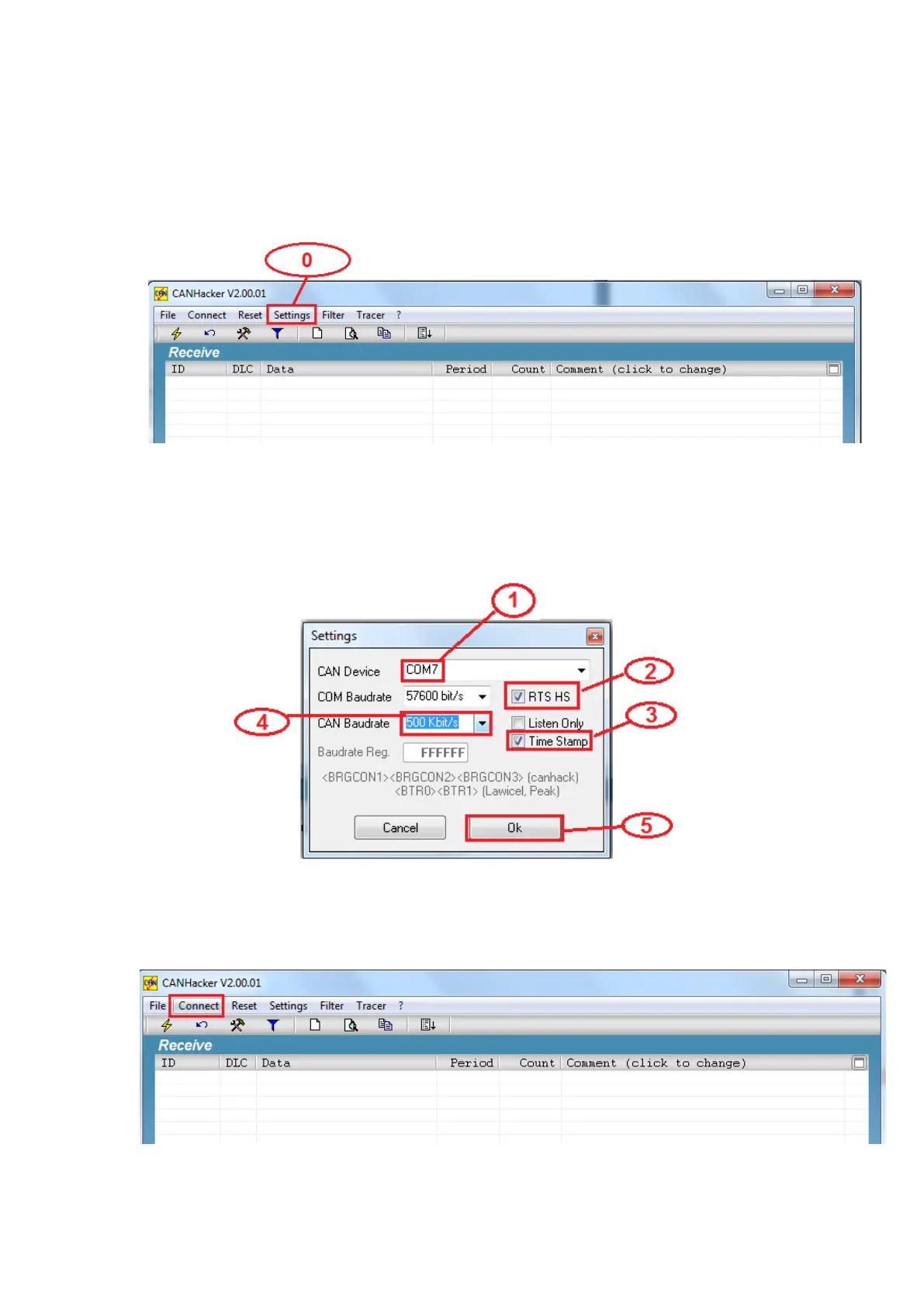
1. Open CANHacker and click “Settings” under the menu.
2. Select COM port of the USB to CAN adapter.
3. Check “RTS HS” to enable RTS handshake function.
4. Check “Time Stamp” to enable timestamp function.
5. Select CAN Baudrate for the CAN bus operating speed.
6. Finally, click “OK” to finish the settings and return to the main panel.
You may connect the USB to CAN adapter after configuration. Click “Connect”, as
shown in the figure, to start the CANHacker software operation.
When USB to CAN adapter successfully connects, you will find the message



 To Next Page