Chapter 11: OTHER PC SOFTWARE FUNCTIONS
3. READING LOGS
11- 9
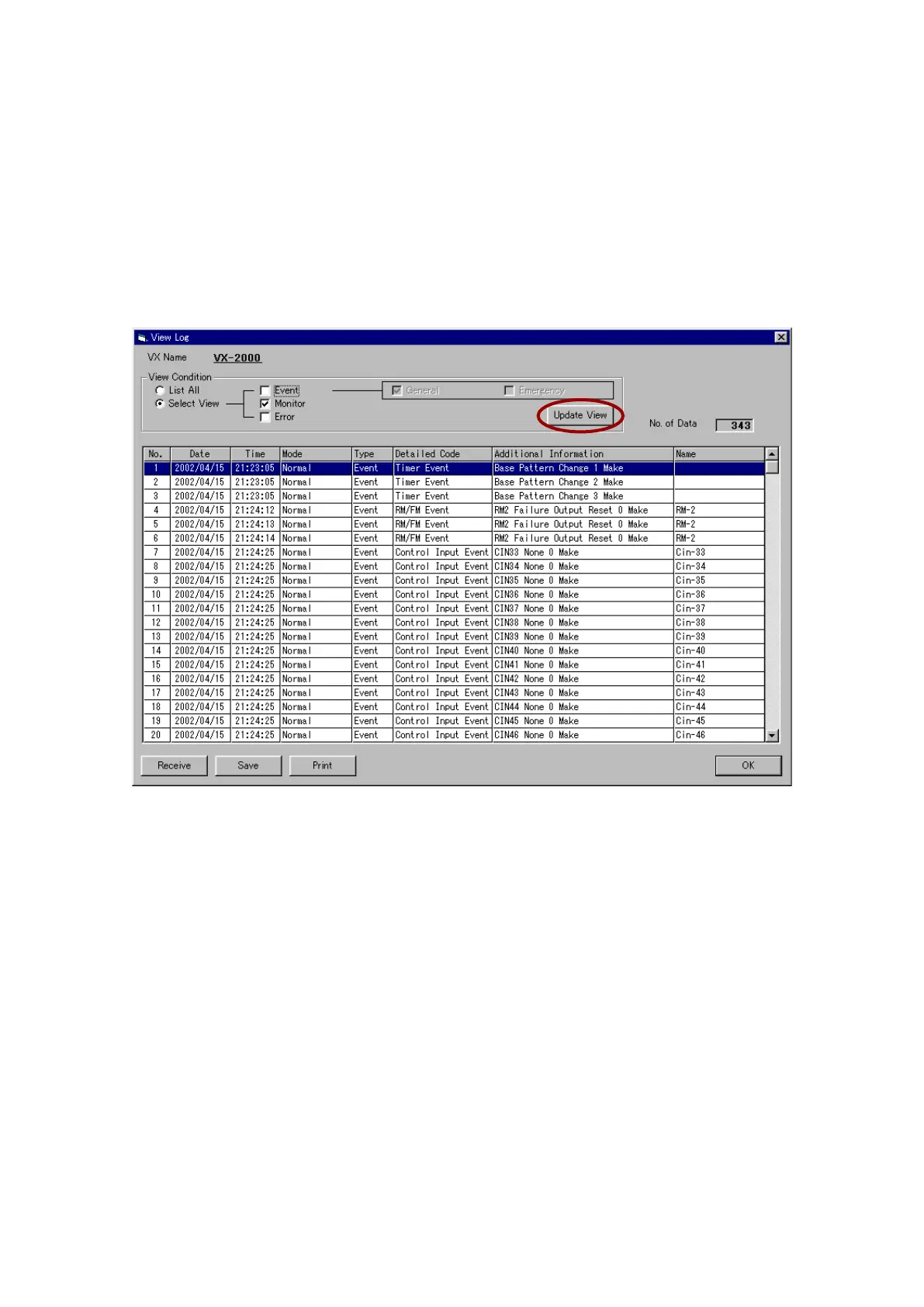
Step 3. Set the log to be viewed in the [View Condition] area.
The type of log to be displayed can be selected.
•ListAll: Allstoredlogscanbeviewed.
•SelectView: Onlythedesiredlogsareselectedanddisplayed.
Tick the "Event," "Monitor," or "Error" checkbox for the data to be viewed.
More than one checkbox can be ticked. If "Event" is selected, further select either
"General" or "Emergency."
Step 4. Click the [Update View] button.
Logs set under the view condition in Step 3 will be selected and displayed.
Step 5. Logs displayed in the [View Log] window can be stored as csv formatted text files.
Click on the [Save] button, and the [Log Filename Settings] window will open.
Select the location to save the file and its filename, then click on the [Save] button again.
Step 6. Logs displayed on the [View Log] window can be printed out.
Click on the [Print] button to print.
Step 7. Click on the [OK] button to close the [View Log] window.
Tip
Logs are maintained for 7 days in case of power outage to the VX-2000.


 To Next Page