12
3. Install and Uninstall the Printer Driver
This section will take Win10 as an example to introduce how to install
and uninstall the printer driver, and how to change the IP address.
Installing the printer driver needs the administrator account. Please log
on as a user who has the administrator account. Terminate all running
applications, and we suggest you to close the antivirus software.
Before installing, use the matched USB cable to connect the printer with
your computer, and then turn on the printer. When installing the printer
driver, if the system automatically pops up the dialog box “Found the
new hardware wizard”, please click “Cancel”. If your computer shows
“A problem occurs during the hardware installation. Your new hardware
may not be able to run normally”, just close the prompt message.
Note: please try not to change the name of computer after installing the
printer driver. Otherwise, it will cause problems when installing and
reinstalling the driver.
3.1. Install Local Printer Driver
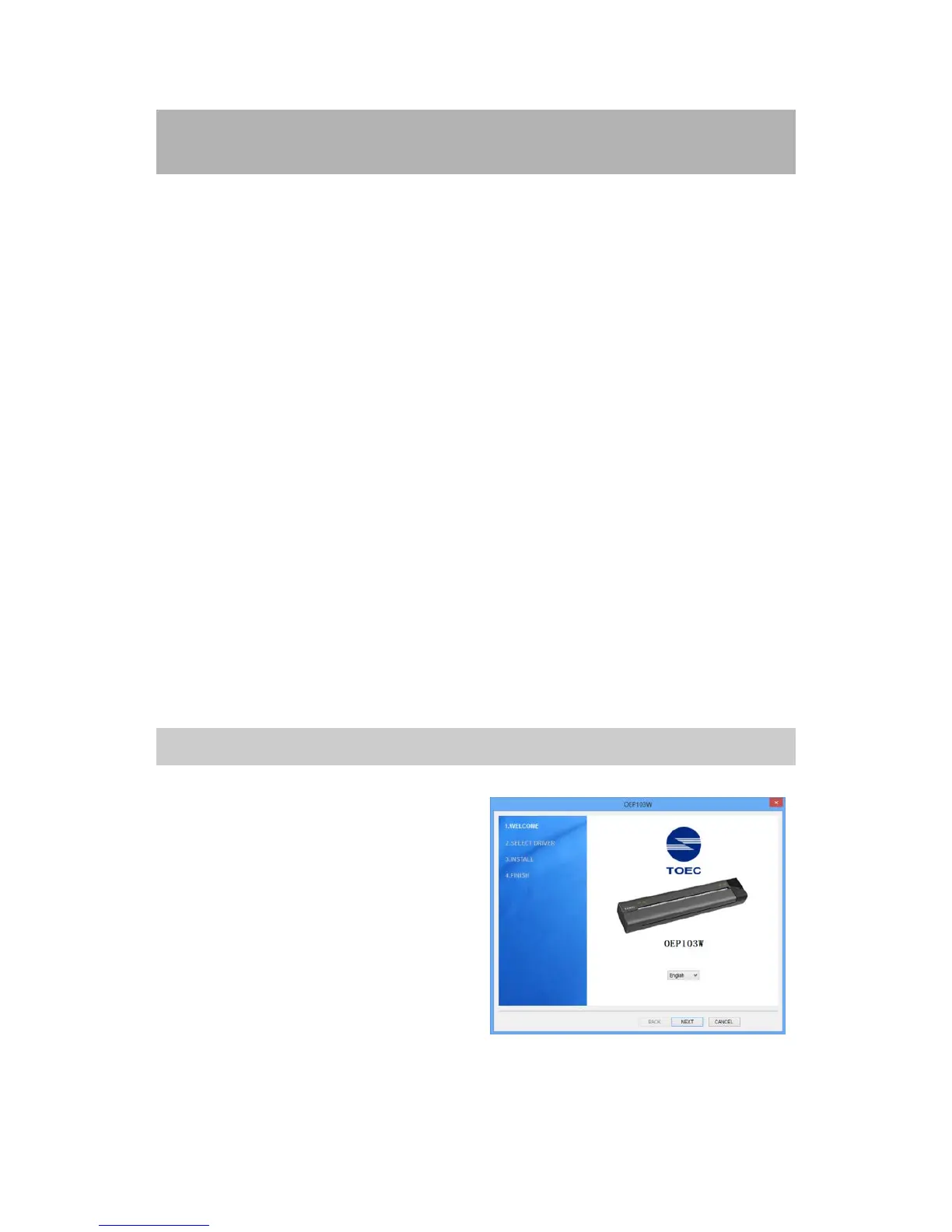
1. Insert the installation CD into
the CD-ROM drive.
2. Read the files in the Installation
CD. Double click “Setup.exe”.
When the “Install/uninstall
wizard” window pops up, click
“Next”.


 To Next Page