Receiver and File Maintenance
NET-G3A Operator’s Manual
4-4
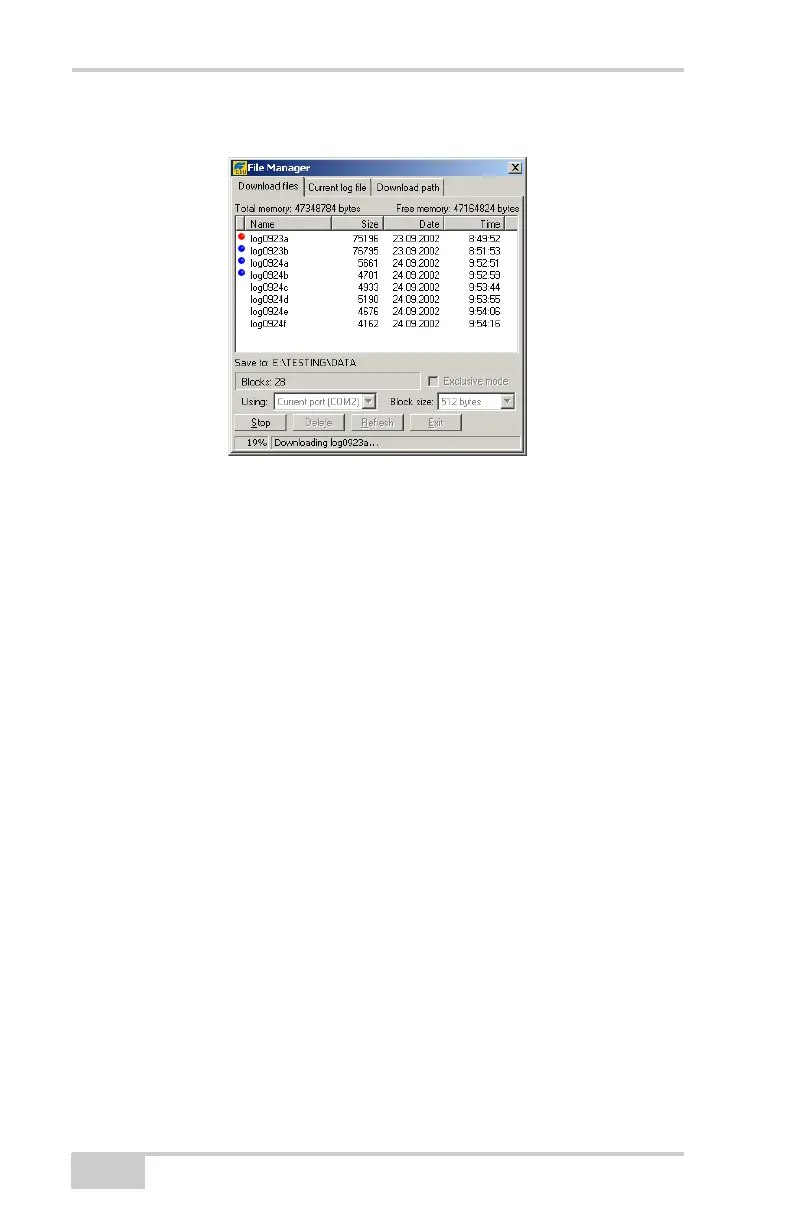
• Green indicator – file has successfully downloaded.
Figure 4-4. Download Files – Status Indicators
7. Click Exit on the File Manager dialog box.
8. Continue with other operations, or click FileDisconnect and
then FileExit to quit PC-CDU.
Downloading Data Files to a UMS
Device
1. Connect your receiver and computer. See “Connecting the
Receiver and a Computer” on page 2-15 for information about
this procedure.
2. Connect the UMS device as described in “Connecting and
Activating the UMS Device” on page 2-10.
3. Run PC-CDU. The Connection Parameters dialog box appears.
If this dialog box is not open, then click FileFile Manager on
the PC-CDU main page.
4. On the Connection Parameters dialog box, enable RTS/CTS
handshaking and then click Connect (Figure 4-1 on page 4-2).
Net-G3A_OM_Book.book Page 4 Thursday, May 14, 2009 8:49 AM


 To Next Page