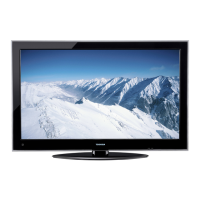
(continued)
blueish
neutral
reddish
Medium
Warm
Cool
You
can change the quality
of
the picture
by
selecting
from three preset color temperatures (Cool, Medium,
and Warm), as described below.
Selecting
the
color
temperature
To
select the color
temperature:
1
MENU •
Press 0 and open the
Picture
menu.
2 Highlight
Picture
Settings
and press
@.
3 Highlight
Advanced
Picture
SeUings
and press
@.
4 Highlight
Color
Temperature
and press
@.
5
In
the
Color
Temperature
field, press
....
or
~
to
select
the mode you prefer
(COOl,
Medium,
or
Warm).
6
Press'"
or
...
to select either B
Drive
or G
Drive,
and then press
....
or
~
to adjust the settings.
• B Drive:
~
makes the picture blueish.
• G Drive:
~
makes the picture greenish.
Note:
The
B
Drive
and
G
Drive
settings
are connected
to
the
Color
Temperature
settings
and
will change
based
on which
setting
is
selected
in
step
[5
above.
7
To
save
the
new
settings, highlight
Done
and
press
@.
To
revert
to
the
factory defaults, highlight
Reset
and
press@.
Note: If you select one
of
the factory-set
picture modes (Sports, Standard, Movie,
or
PC)
and
then change the color temperature
mode, the picture mode automatically
changes to Preference.
To
adjust
the
static
gamma
settings:
The static gamma feature allows you
to
adjust the
levels
of
black in the picture.
2 Highlight
Advanced
Picture
SeUings
and press
@.
3
Press'"
or
...
to select
Dynamic
Contrast.
4 Press
....
or
~
to select
High,
Middle,
low and
Off.
Using
the
static
gamma
feature
Using
the
advanced
picture
settings
features
Using
Dynamic
Contrast
1
MENU •
Press 0 and open the
Picture
menu.
2 Highlight
Picture
Settings
and press
@.
3 Highlight
Advanced
Picture
SeUings
and press
@.
• In the
Static
Gamma
field, press
....
or
~
to
adjust the static gamma.
The adjustment range
is
within ±5 from center.
•
If
the setting is moved
in
the minus direction,
the detail
of
black colors will be decreased.
•
If
the setting is moved
in
the plus direction, the
detail
of
black colors will be increased.
4 To save the new settings, highlight
Done
and
press@.
To revert the factory defaults, highlight
Reset
and
press@.
Note:
If
you select one
of
the factory-set
picture modes (Sports, Standard,
Movie
or
PC)
and
then change the static gamma
setting, the picture mode automatically
changes
to
Preference.
Dynamic Contrast detects changes in picture quality
that affect the appearance
of
your contrast settings
and then automatically adjusts the video.
To
select Dynamic
Contrast
preference:
1 From the the
Picture
menu, highlight
Picture
Settings
and press
@.
51
I


 To Next Page
 Loading...