21
Setting Up the dynadock™ and Connecting Peripherals
The dynadock™ may not support VGA displays using Extended Display
Identification Data (EDID).
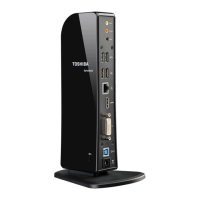
Connecting to the HDMI
®
out port
To connect a display to the HDMI
®
out port on the dynadock™:
1 Plug one end of the HDMI
®
cable (not included) into the HDMI
®
in
port on the HDMI
®
display.
2 Plug the other end of the HDMI
®
cable (not included) into the HDMI
®
out port on the dynadock™.
The DVI or HDMI
®
cable provides digital communication between the
display and computer, while the VGA cable provides analog communication.
If your display has a DVI or HDMI
®
port, use the DVI cable or HDMI
®
cable
to obtain finer resolution options.
The display cable can be connected/disconnected at any time without
disconnecting the dynadock™ from your computer.
If no output is seen on the display connected to the dynadock™, the current
video resolution setting may not be supported by the display. This can
happen if the display does not report its supported modes to the dynadock’s
DVI component. Adjust the resolution of the external display until an image
appears. For more information, see “Using the TOSHIBA dynadock™ U3.0
Utility” (page 24).
You can customize the video settings of the dynadock™. See “Adjusting
video settings” on page 25 for more information.
Connecting to a network
Connect one end of a network cable (not provided) to the Network port
(RJ-45) on the dynadock™ and the other end to your network.
If the network is not automatically connected, configure the network
properties of the Ethernet adaptor as follows:
❖ In Windows 8, press the ( ) + Q keys, and then click Control
Panel, Network and Sharing Center, and then Change adapter
setting.
❖ In Windows
®
7, click Start, Control Panel, Network and
Sharing Center, and then Change adapter setting.
❖ In Windows Vista
®
, click Start, Control Panel, View network
status and tasks, and then Manage network connections.
❖ In Windows
®
XP, click Start, Connect to, and then Show all
Connections.
In the Network Connections folder, double-click the Connection icon for
the dynadock’s Ethernet adaptor, which is indicated by dynadock. This


 To Next Page
 Loading...