2.GA-1211/GA-1310 SPECIFIC FUNCTIONS
Operations from the Control Panel 27
2 GA-1211/GA-1310 SPECIFIC FUNCTIONS
6
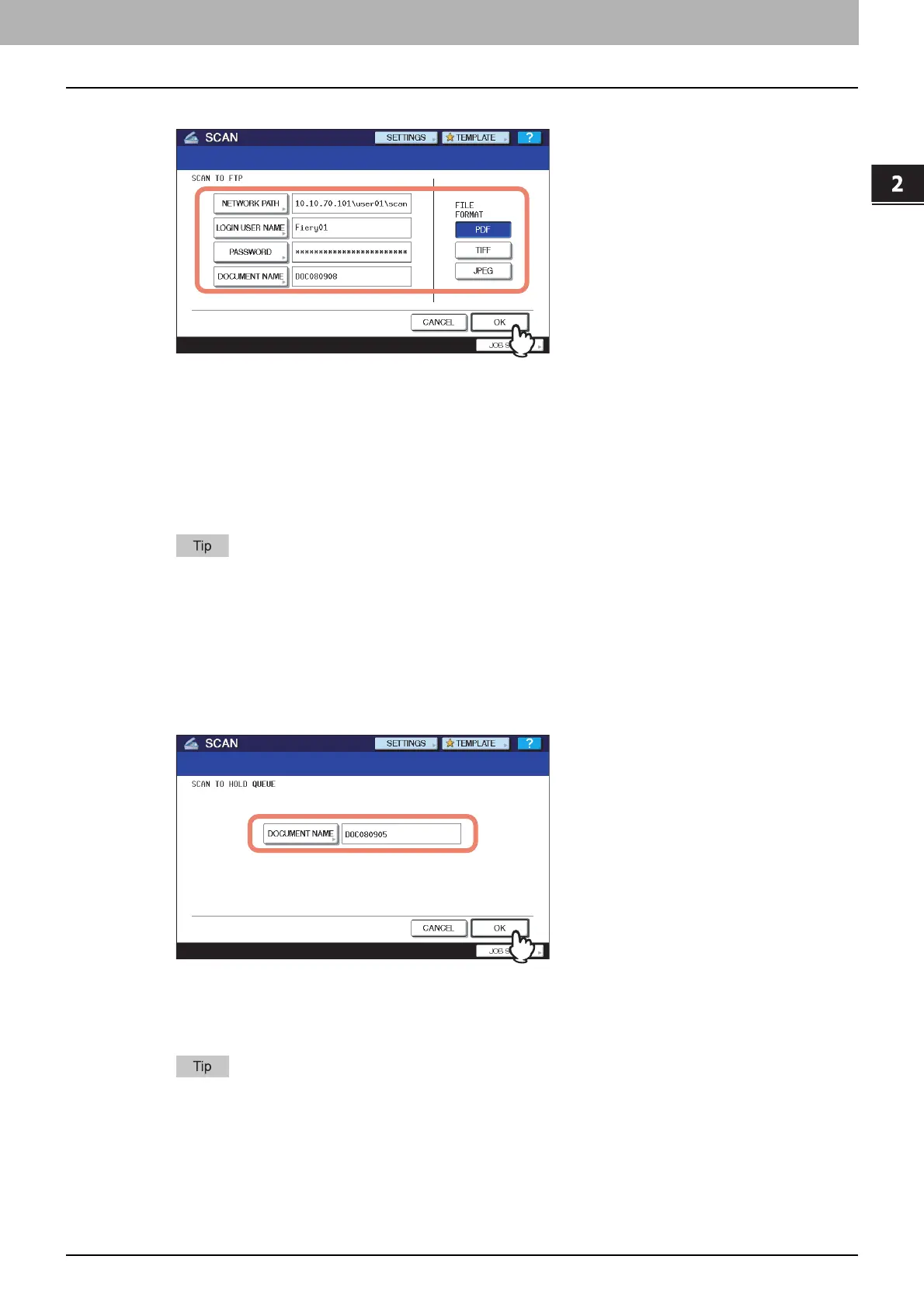
Specify the following items as required and press [OK].
When you specify the setting items, proceed to Step 9.
[NETWORK PATH] — Press this button to enter the path to a folder in the FTP server where you want to store the
scanned data. For example, to transfer the scanned data to “ftp://10.10.70.101/user01/scan/”, enter
“10.10.70.101\user01\scan” in this box.
[LOGIN USER NAME] — Press this button to enter the login user name for the FTP server if required.
[PASSWORD] — Press this button to enter the login password for the FTP server if required.
[DOCUMENT NAME] — Press this button to change the document name. The document name can consist of a
maximum of 31 characters.
When you press each button, the on-screen keyboard is displayed. Enter a value using the keyboard and digital
keys, and press [OK] to set the entry.
FILE FORMAT
y [PDF] — Press this button to store your scan as a PDF file.
y [TIFF] — Press this button to store your scan as a TIFF file.
y [JPEG] — Press this button to store your scan as a JPEG file. This option is available only when [FULL
COLOR] or [GRAY SCALE] is selected for the color mode setting.
7
Specify the following item as required and press [OK].
When you specify the setting item, proceed to Step 9.
[DOCUMENT NAME] — Press this button to change the document name. The document name can consist of a
maximum of 31 characters.
When you press the [DOCUMENT NAME] button, the on-screen keyboard is displayed. Enter a value using the
keyboard and digital keys, and press [OK] to set the entry.


 To Next Page
 Loading...