Archer C50 AC1200 Wireless Dual Band Router
- 117 -
Figure 4-111 Diagnostic Tools
Diagnostic Tool - Check the radio button to select one diagnostic too.
Ping - This diagnostic tool troubleshoots connectivity, reachability, and name resolution to a
given host or gateway.
Traceroute - This diagnostic tool tests the performance of a connection.
Note:
You can use ping/traceroute to test both numeric IP address or domain name. If
pinging/tracerouting the IP address is successful, but pinging/tracerouting the domain name
is not, you might have a name resolution problem. In this case, ensure that the domain name
you are specifying can be resolved by using Domain Name System (DNS) queries.
IP Address/Domain Name - Enter the IP Address or Domain Name of the PC whose
connection you wish to diagnose.
Ping Count - Specifies the number of Echo Request messages sent. The default is 4.
Ping Packet Size - Specifies the number of data bytes to be sent. The default is 64.
Ping Timeout - Time to wait for a response, in milliseconds. The default is 800.
Traceroute Max TTL - Set the maximum number of hops (max TTL to be reached) in the
path to search for the target (destination). The default is 20.
Click Start to check the connectivity of the Internet.
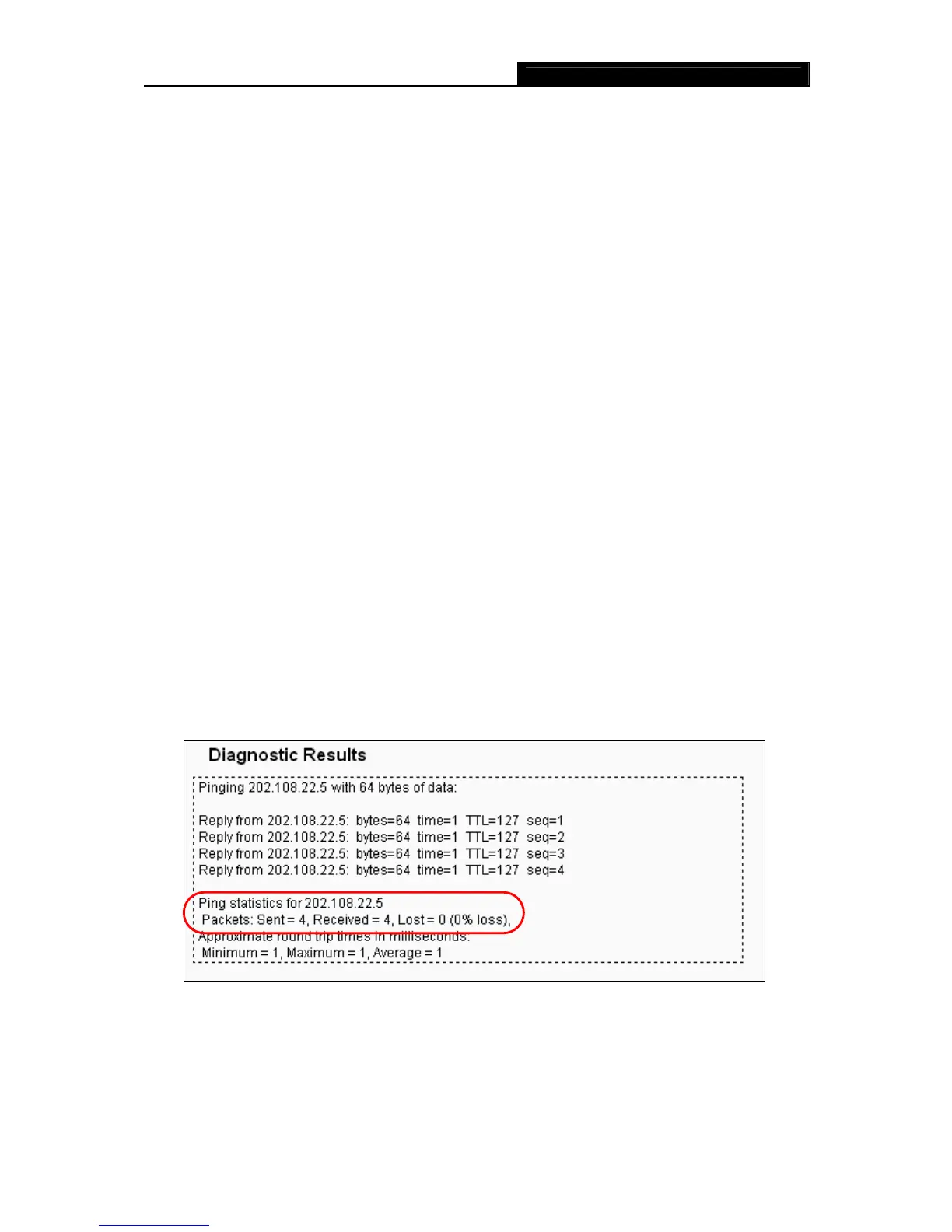
The Diagnostic Results page displays the result of diagnosis.
If the result is similar to the following screen, the connectivity of the Internet is fine.
Figure 4-112 Diagnostic Results
Note:
1. Only one user can use the diagnostic tools at one time.







 To Next Page