Archer C50 AC1200 Wireless Dual Band Router
- 67 -
Status - The status of this entry, either Enabled or Disabled.
To Reserve an IP address:
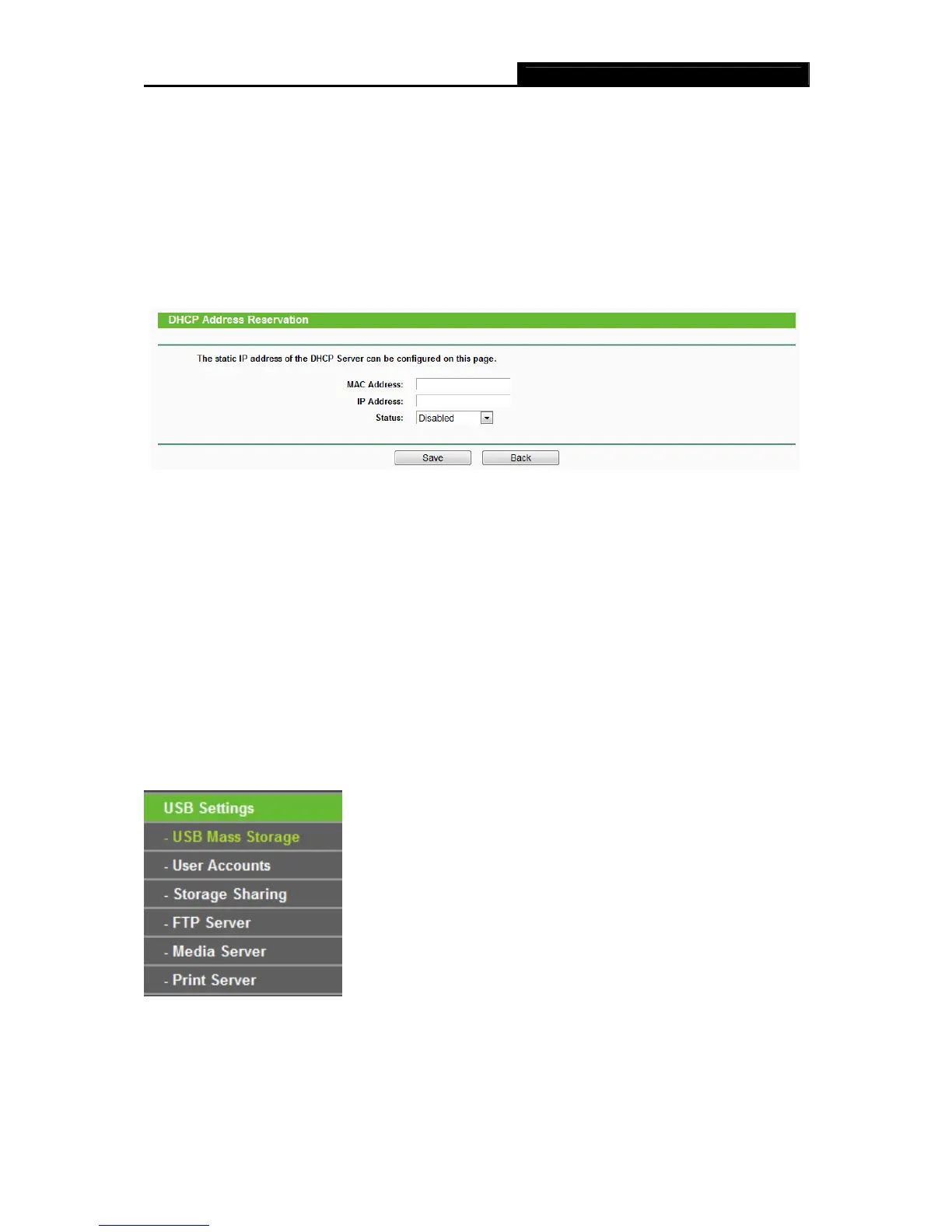
1. Click the Add New button. Then Figure 4-48 will pop up.
2.
Enter the MAC address (in XX:XX:XX:XX:XX:XX format.) and IP address (in dotted-decimal
notation) of the computer for which you want to reserve an IP address.
3. Click the Save button.
Figure 4-48 Add or Modify an Address Reservation Entry
To modify or delete an existing entry:
1. Click the Edit in the entry you want to modify. If you want to delete the entry, click the Delete.
2. Modify the information.
3. Click the Save button.
Click the Enable/Disable Selected button to make selected entries enabled/disabled
Click the Delete Selected button to delete selected entries.
4.10 USB Settings
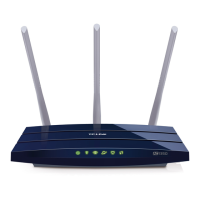
Figure 4-49 The USB Settings menu
There are six submenus under the USB Settings menu (shown in Figure 4-49): USB Mass
Storage, User Accounts, Storage Sharing, FTP Server, Media Server and Print Server. Click
any of them, and you will be able to configure the corresponding functions.







 To Next Page