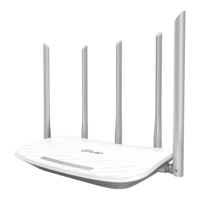
Archer C50 AC1200 Wireless Dual Band Router
- 41 -
Add device - You can add a new device to the existing network manually by clicking this
button.
If the wireless adapter supports Wi-Fi Protected Setup (WPS), you can establish a wireless
connection between wireless adapter and router using either Push Button Configuration (PBC)
method or PIN method.
Note:
To build a successful connection by WPS, you should also do the corresponding configuration of
the new device for WPS function meanwhile.
I. Use the Wi-Fi Protected Setup Button
Use this method if your client device has a WPS button.
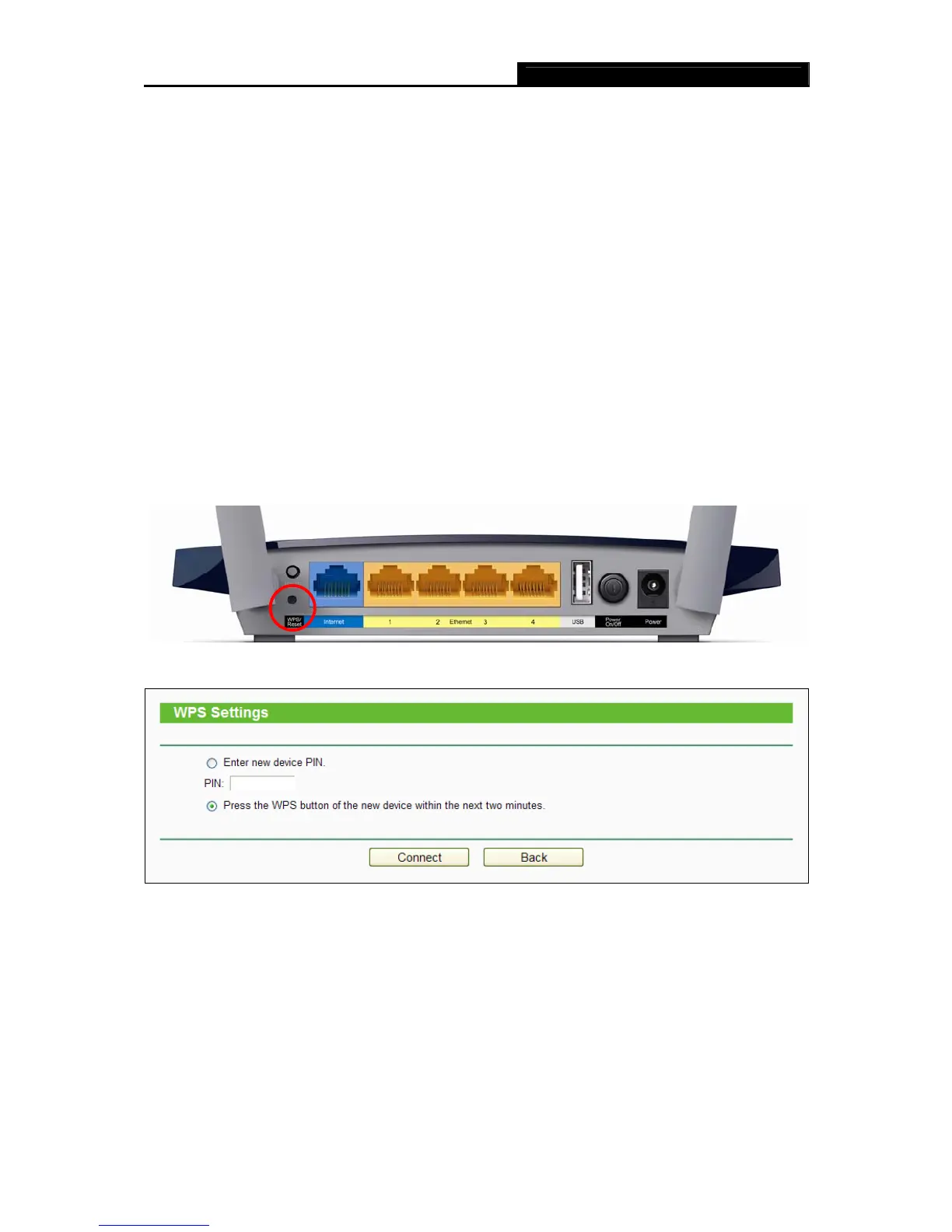
Step 1: Press the WPS/Reset button on the back panel of the router, as shown in Figure 4-17.
Y
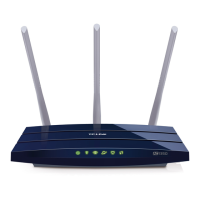
ou can also keep the default WPS status as Enabled and click the Add device button
in Figure 4-16. Then choose “Press th
e button of the new device in two minutes” and
click Connect, shown in Figure 4-18.
Figure 4-17
Figure 4-18 Add A New Device
Step 2: Press and hold the WPS button of the client device.
Step 3: The Wi-Fi Protected Setup LED flashes for two minutes during the Wi-Fi Protected Setup
process.
Step 4: When the WPS LED is on, the client device has successfully connected to the router.
II. Enter the client device’s PIN on the router







 To Next Page