34
Chapter
5
Customize Your Network Settings
gateway through the LAN port of Router A, so LAN should be
selected.
5. Select the Enable This Entry check box to enable this entry.
6. Click OK to make the settings effective.
Open a web browser on your PC. Enter the company server’s IP
address to visit the company network.
5. 5. RIP Settings
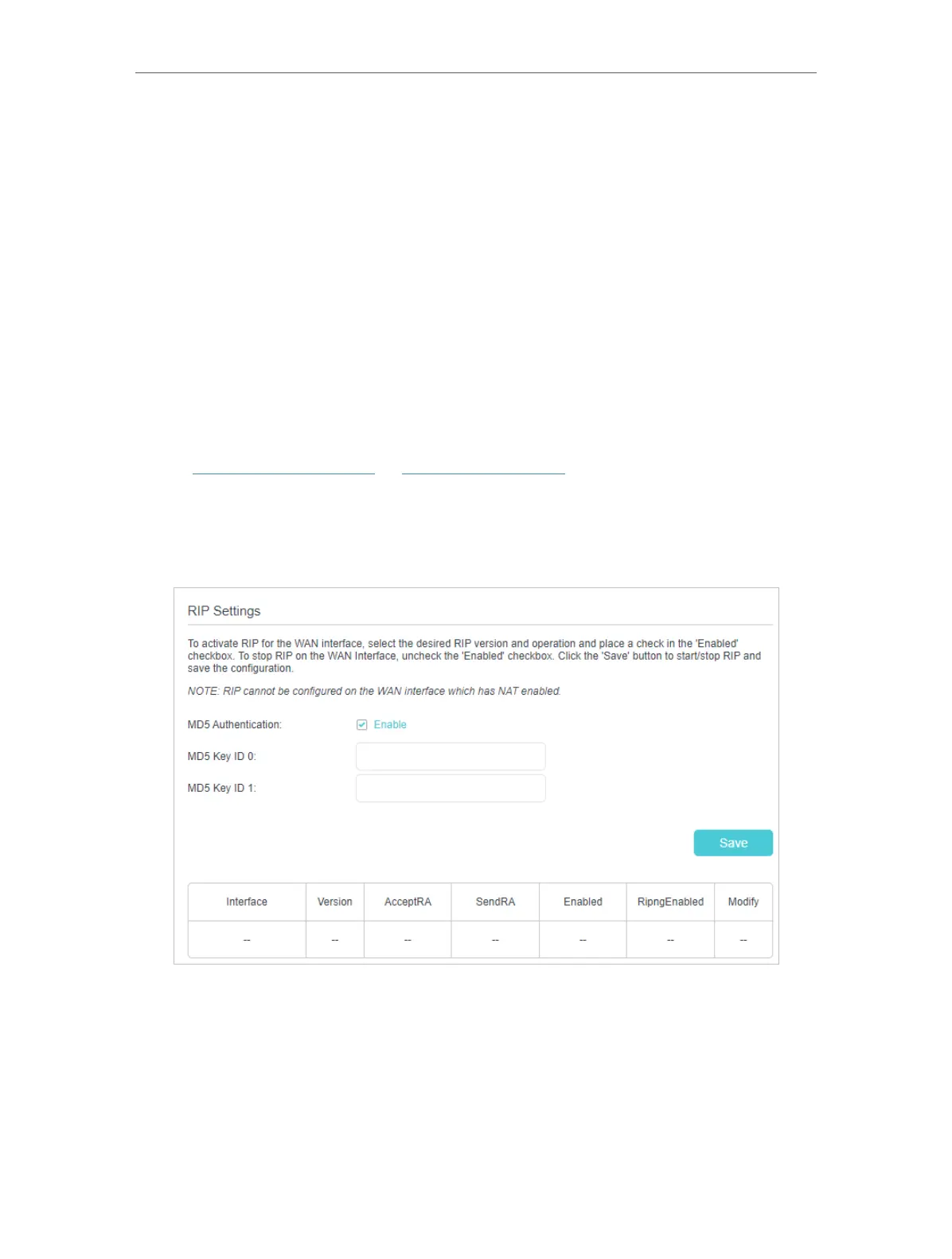
To activate RIP for the WAN interface, select the desired RIP version and operation and
place a check in the ‘Enabled’ checkbox. To stop RIP on the WAN Interface, uncheck the
‘Enabled’ checkbox. Click the ‘Save’ button to start/stop RIP and save the configuration.
1. Visit http://tplinkmodem.net or http://192.168.254.1, and log in with your TP-Link ID
or the password you set for the router.
2. Go to Advanced > Network > RIP Settings.
3. Configure RIP settings.
• MD5 Authentication - Enable MD5 Authentication to enhance the rip RA packets
security.
• MD5 Key ID 0 - Setting the MD5 Key ID 0 value.
• MD5 Key ID 1 - Setting the MD5 Key ID 1 value.
• Interface - The WAN interface name of the RIP rule table’s entry used in.
• Version - The RIP version (RIPv1/RIPv2) of the RIP rule table’s entry used.
Done!





 To Next Page