3. Set the user name and password, and click "OK" to log in to the switch local management interface.
noodle.
1. Use an ordinary PC to correctly connect any RJ45 port of the switch using a network
cable; 2. Open the browser, enter the default management address of the switch http://10.18.18.251 in the
address bar, and press the Enter key;
Note: In
order to log in to the management interface of the switch, please set the IP address of the computer and
the IP address of the switch to be in the same network segment. Set the computer IP address to:
10.18.18.x ("x" is any value between 1-250), and set the subnet mask to 255.255.255.0.
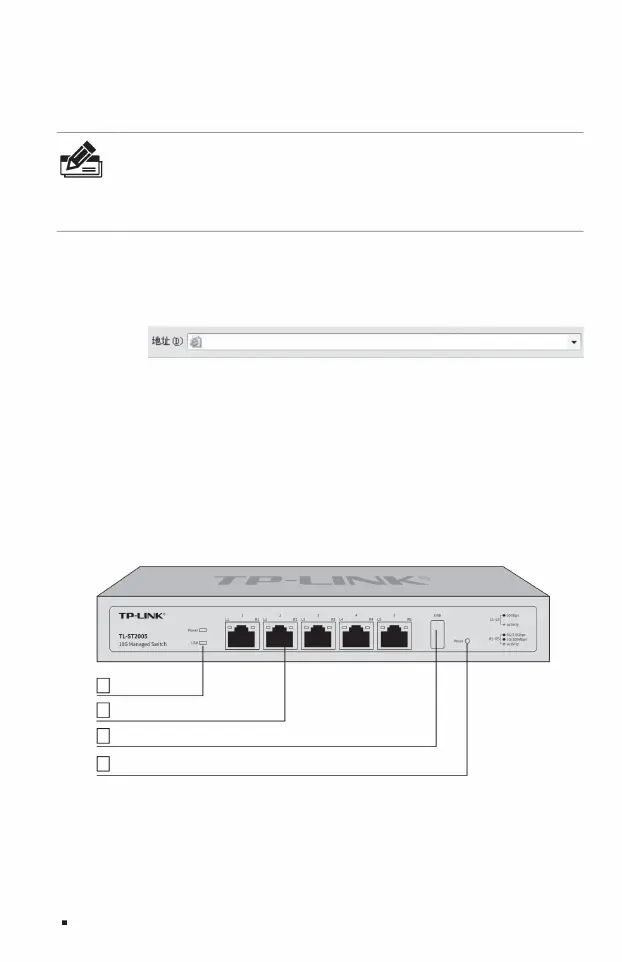
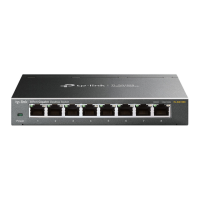
Figure 1-2TL-ST2005 front panel diagram
http://10.18.18.251
1.3 Local management
1.4 Product appearance
USB port
4Reset button
Indicator
light 5 10Gbps RJ45 ports
Full 10 Gigabit Cloud Management Switch Installation Manual
02Product introduction
ÿ Front panel
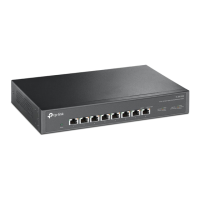
The front panel of TL-ST2005 is shown in Figure 1-2.
2
1
3
Machine Translated by Google



 To Next Page