64
Chapter 4
&RQƮJXUHWKH5RXWHULQ6WDQGDUG:LUHOHVV5RXWHU
• Delegated - Get the IPv6 address prefix from the ISP automatically, and the
device will delegate it to the LAN.
•
Static - Configure the Site Prefix and Site Prefix Length manually. Please
contact your ISP to get more information before you configure them.
•
LAN IPv6 Address - Display the LAN IPv6 address created by the device.
5. Click
Save.
4. 17. System Tools
4. 17. 1. Time Settings
1. Visit http://tplinkwifi.net, and log in with the username and password you set for the router.
2. Go to
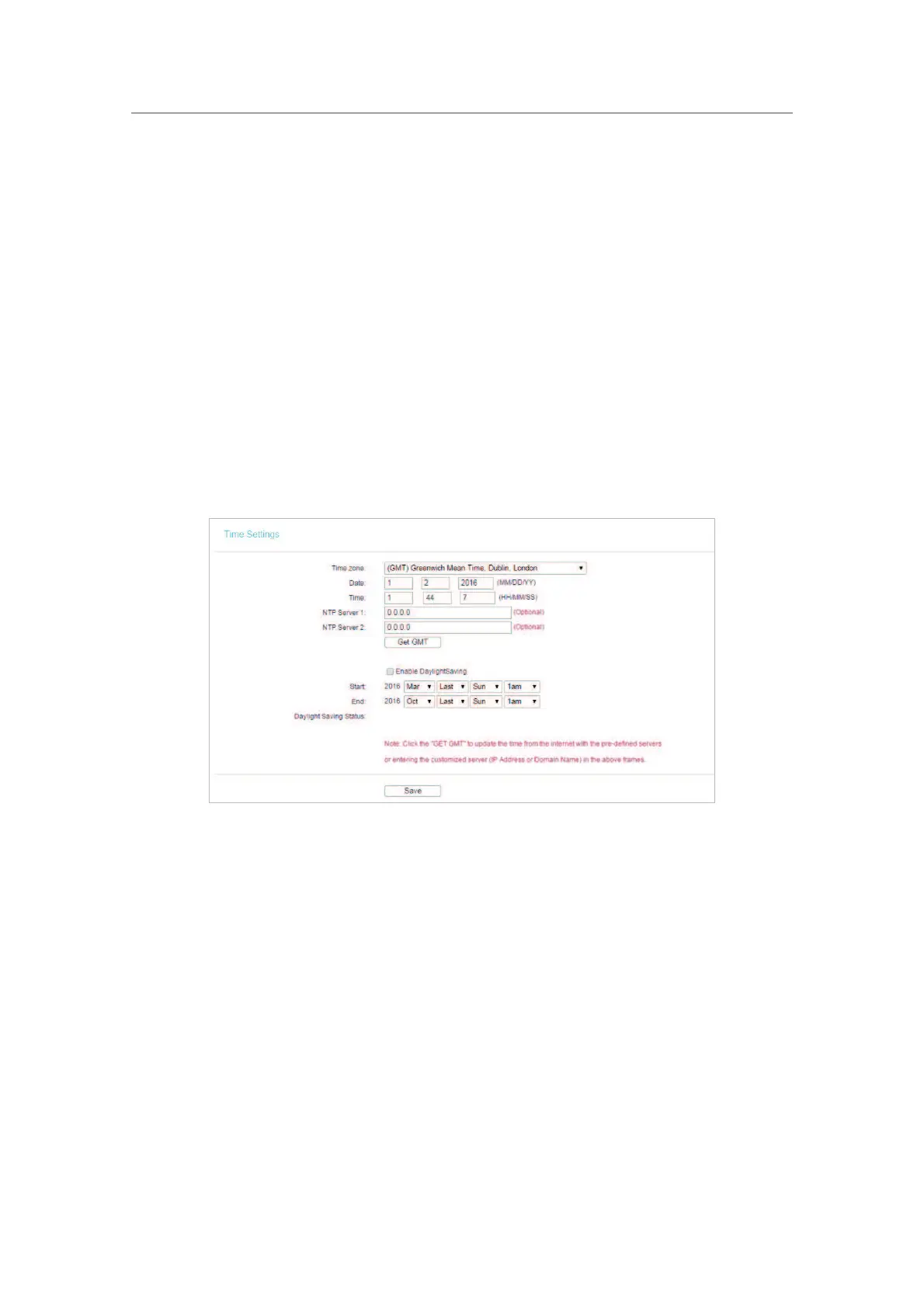
System Tools > Time Settings and configure the system time as needed.
¾ To set time manually:
1. Select your local
time zone.
2. Enter the
Date in Month/Day/Year format.
3. Enter the
Time in Hour/Minute/Second format.
4. Click
Save.
¾ To set time automatically:
1. Select your local time zone.
2. Enter the address or domain of the
NTP Server I or NTP Server II.
3. Click
Get GMT to get time from the internet if you have connected to the internet.
¾ To set Daylight Saving Time:
1. Select
Enable DaylightSaving.





 To Next Page