8Chapter 2 . Congure Touch P5 as a Router
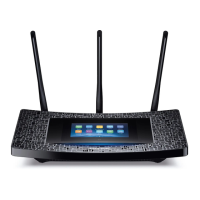
2. 2 Log into Your Touch P5
You can log in and manage your Touch P5 through the touchscreen or web-based utility.
Option 1: Through Touchscreen Utility (Recommended)
1. Tap the home button or the screen and slide to start the screen.
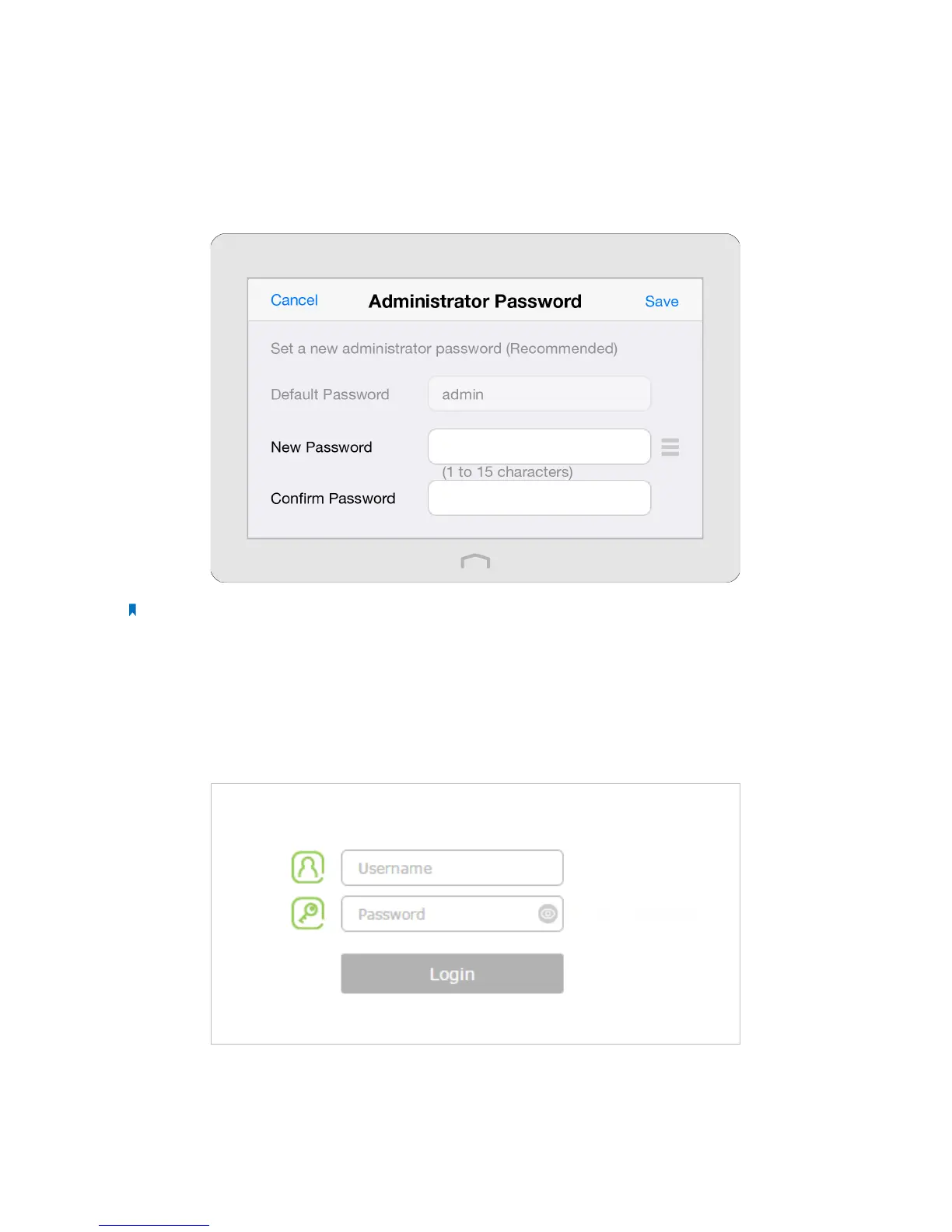
2. The first time you log in, you will need to set a new administrator password for your Touch P5. Enter the new password
and enter again to confirm. Tap Save, then follow the Quick Setup to complete the initial configuration.
Note: Apps on the touchscreen and web-based utility will need to use the new password that you have set to log in.
Option 2: Through Web-based Utility
The web-based utility can be used on any Windows, Macintosh or UNIX OS with a web browser, such as Microsoft Internet
Explorer, Mozilla Firefox or Apple Safari. Follow the steps below to log into your Touch P5.
1. If the TCP/IP Protocol on your computer is set to the static (fixed) IP address, you need to change it to obtain an IP address
automatically.
2. Open a web-browser on your computer, visit http://tplinkwifi.net and log in with the default username and password
(admin/admin).
3. The first time you log in, you will need to set up a new username and password for your Touch P5. Enter your new
username and password and the new password again to confirm. Click Confirm.





 To Next Page