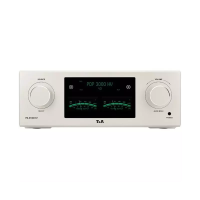
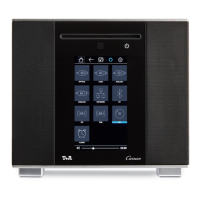
Select letter / number / symbol
Select letter / number / symbol
Next digit
Delete previous
digit
Apply entry
Colour prole
Under this menu item you can adjust the brightness of the status LEDs and the bright-
ness and illumination color of the meters to your personal preferences.
Select the menu item Default colours to reset the displays to the default settings.
Language
In this menu item you dene the language to be used for the displays on the screen of
the front panel of the MP 200.
The language used for data transferred to the machine, e.g. from an iPod or other Inter-
net radio station, is determined by the supplying device or the radio station; you cannot
dene the language on the MP 200.
Device name
This menu point can be used to assign an individual name to the MP 200. In a home net-
work the device then appears under this name.
Energy saver
The energy saving mode can be switched on and off here.
The machine has an Auto Power Down function.
If the ECO option is selected, the MP 200 automatically switches to standby mode if no
music signal and no operation is detected for more than 90 minutes.
If the Comfort setting is selected, the unit remains switched on until it is manually swit-
ched to standby mode.
j
In countries outside the EU where the EuP directive does not apply, the automatic power-off
function of the device (ECO setting) can be deactivated if required.
Network
All network settings can be carried out at this menu point. For a detailed description on
setting up a LAN or WLAN connection please also refer to the section entitled Network
conguration on page 31.
Music services
At this point you can enter the access data for the music streaming services Qobuz
and Deezer.
TIDAL uses a special procedure for entering the access data. For this reason, the data
must be entered via the T+A Music Navigator app (please see next page for details). If
necessary, you can delete them later under this menu item.
Entering the user name and password
To switch between numeric and alphanumeric input as well as upper/lower case, press
the
button.
To store the credentials, select the menu item Store and exit? and press the
button.
Deleting the credentials
You can delete the user data completely by selecting the menu item
Remove login and exit? and conrm by pressing the
button.
29


 To Next Page