33
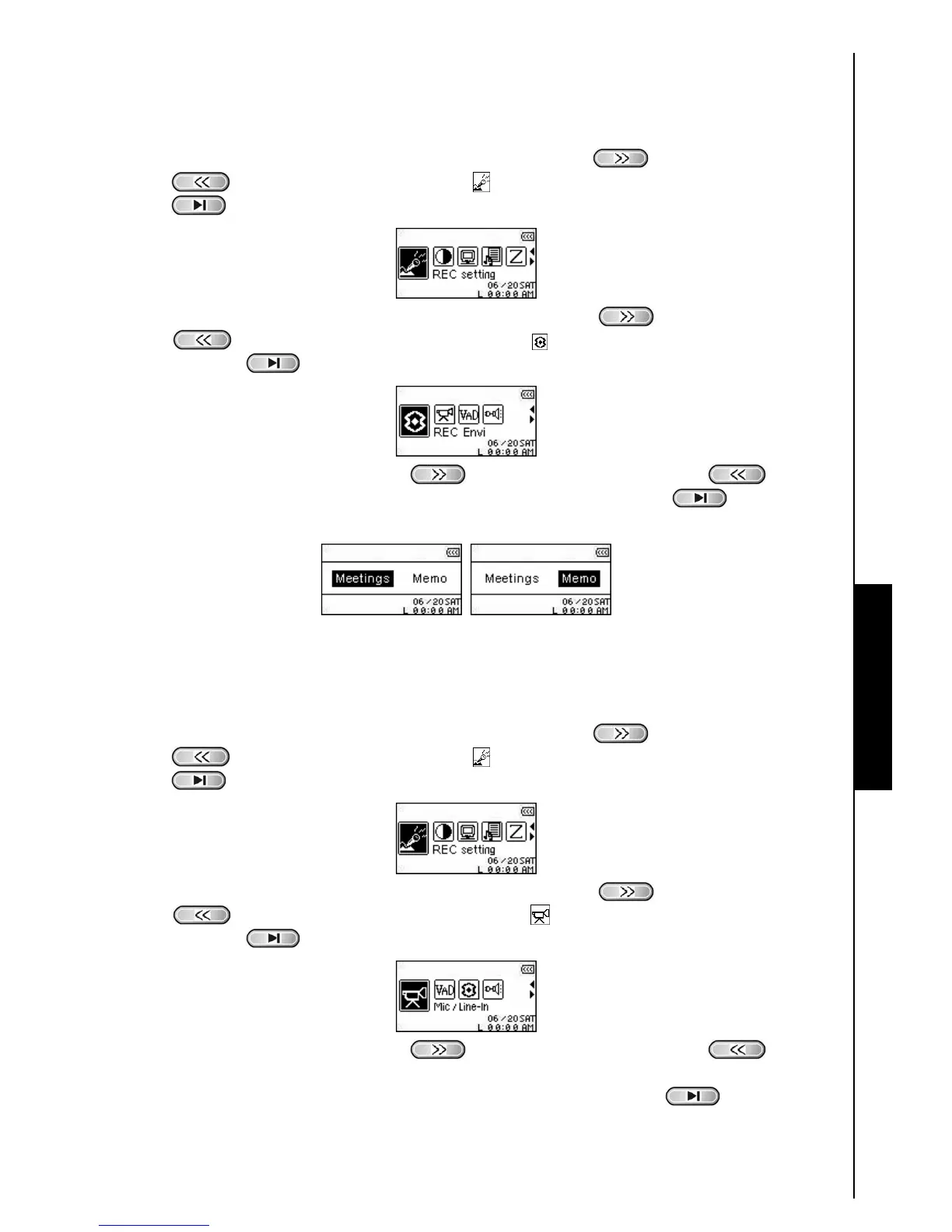
REC Environment
Sets the sensitivity of the T.sonic
™
630’s Built-in Microphone, so you can record a Memo (record a person
speaking), or Meeting (record a group speaking).
1. In the SETTINGS Menu, press the “Next-Fast Forward” button
, or “Back-Fast Rewind”
button
to select the REC Settings icon , then press the “PLAY/PAUSE/PWR ON-OFF”
button
to enter the REC Settings Menu.
2. In the REC Settings Menu, press the “Next-Fast Forward” button , or “Back-Fast Rewind”
button
to select the REC Environment icon , then press the “PLAY/PAUSE/PWR
ON-OFF” button
to enter the REC ENVIRONMENT Mode.
3. Press the “Next-Fast Forward” button , or “Back-Fast Rewind” button to select
MEMO, or MEETING and press the “PLAY/PAUSE/PWR ON-OFF” button
to confirm the
selection and return to the REC Settings Menu.
REC Input Device
Select between the MIC (Built-In Microphone), Ext MIC (External Microphone) or LINE-IN (e.g. CD
Player) as the Audio Recording method used by the T.sonic
™
630.
1. In the SETTINGS Menu, press the “Next-Fast Forward” button
, or “Back-Fast Rewind”
button
to select the REC Settings icon , then press the “PLAY/PAUSE/PWR ON-OFF”
button
to enter the REC Settings Menu.
2. In the REC Settings Menu, press the “Next-Fast Forward” button , or “Back-Fast Rewind”
button
to select the REC Input Device icon , then press the “PLAY/PAUSE/PWR
ON-OFF” button
to enter the REC INPUT DEVICE Mode.
3. Press the “Next-Fast Forward” button , or “Back-Fast Rewind” button to select
the MIC (Microphone), Ext MIC (External Microphone) or LINE-IN (e.g. CD Player) as the audio
recording method and press the “PLAY/PAUSE/PWR ON-OFF” button
to confirm the
selection and return to the REC Settings Menu.
RECORD SETTINGS




 To Next Page