35
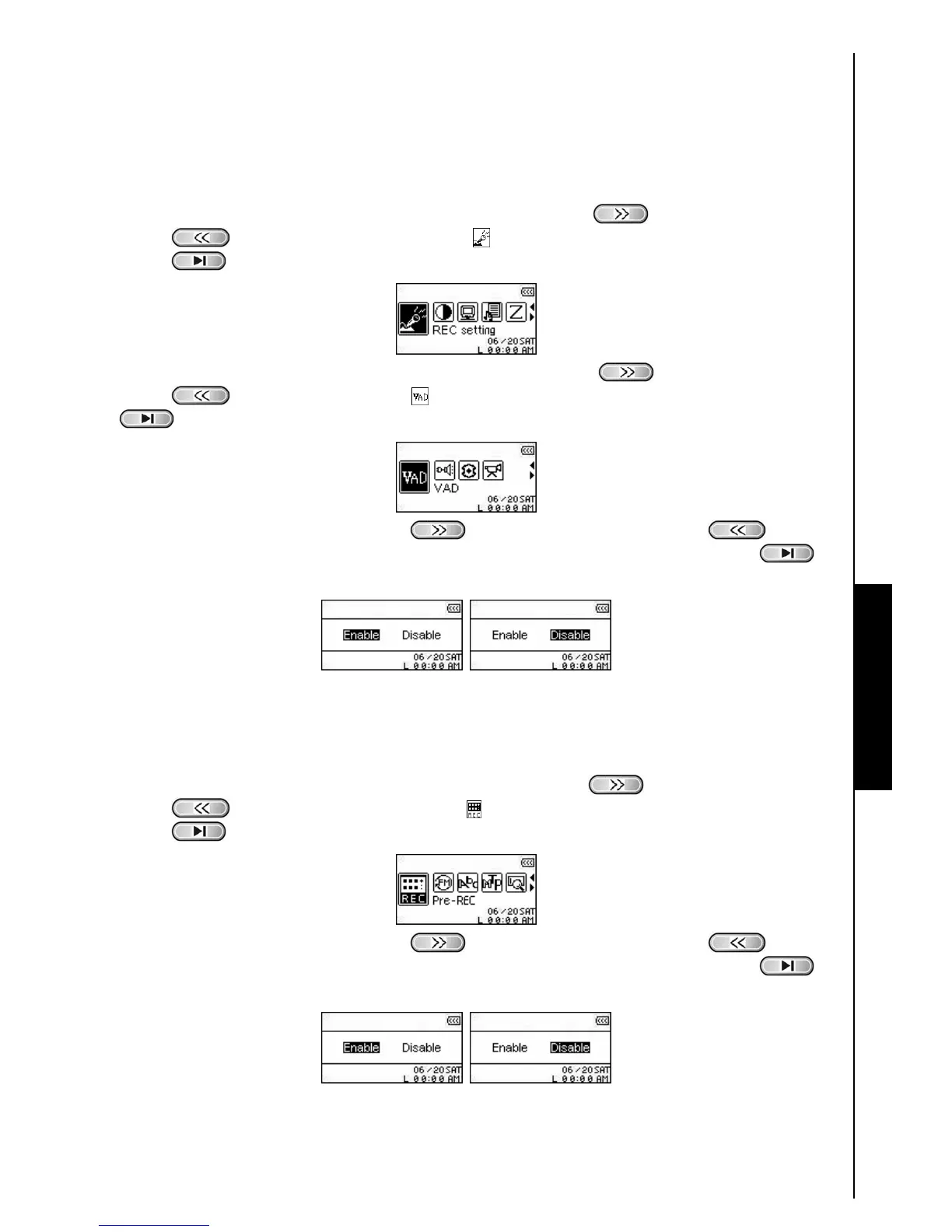
VAD (Voice Activation Detection)
VAD allows the T.sonic
™
630 to make gapless audio recordings. This means the player will only begin
recording when it detects the subject is speaking, if the person(s) pauses, or stops speaking the T.sonic
™
630 will stop recording until the person(s) starts speaking again. This allows you to make complete and
very easy to listen to recordings.
1. In the SETTINGS Menu, press the “Next-Fast Forward” button
, or “Back-Fast Rewind”
button
to select the REC Settings icon , then press the “PLAY/PAUSE/PWR ON-OFF”
button
to enter the REC Settings Menu.
2. In the REC Settings Menu, press the “Next-Fast Forward” button , or “Back-Fast Rewind”
button
to select the VAD icon , then press the “PLAY/PAUSE/PWR ON-OFF” button
to enter the VAD Mode.
3. Press the “Next-Fast Forward” button , or “Back-Fast Rewind” button to select
the ENABLE, or DISABLE option and press the “PLAY/PAUSE/PWR ON-OFF” button
to
confirm the selection and return to the REC Settings Menu.
Preset REC
Set a date and time for the T.sonic
™
630 to automatically make an Audio Recording from the Radio, or
using its Built-in Microphone, or an External Microphone.
1. In the Settings Menu, press the “Next-Fast Forward” button
, or “Back-Fast Rewind”
button
to select the Preset REC icon , then press the “PLAY/PAUSE/PWR ON-OFF”
button
to enter the PRESET REC Mode.
2. Press the “Next-Fast Forward” button , or “Back-Fast Rewind” button to select
the ENABLE, or DISABLE option and press the “PLAY/PAUSE/PWR ON-OFF” button
to
confirm the selection.
RECORD SETTINGS




 To Next Page