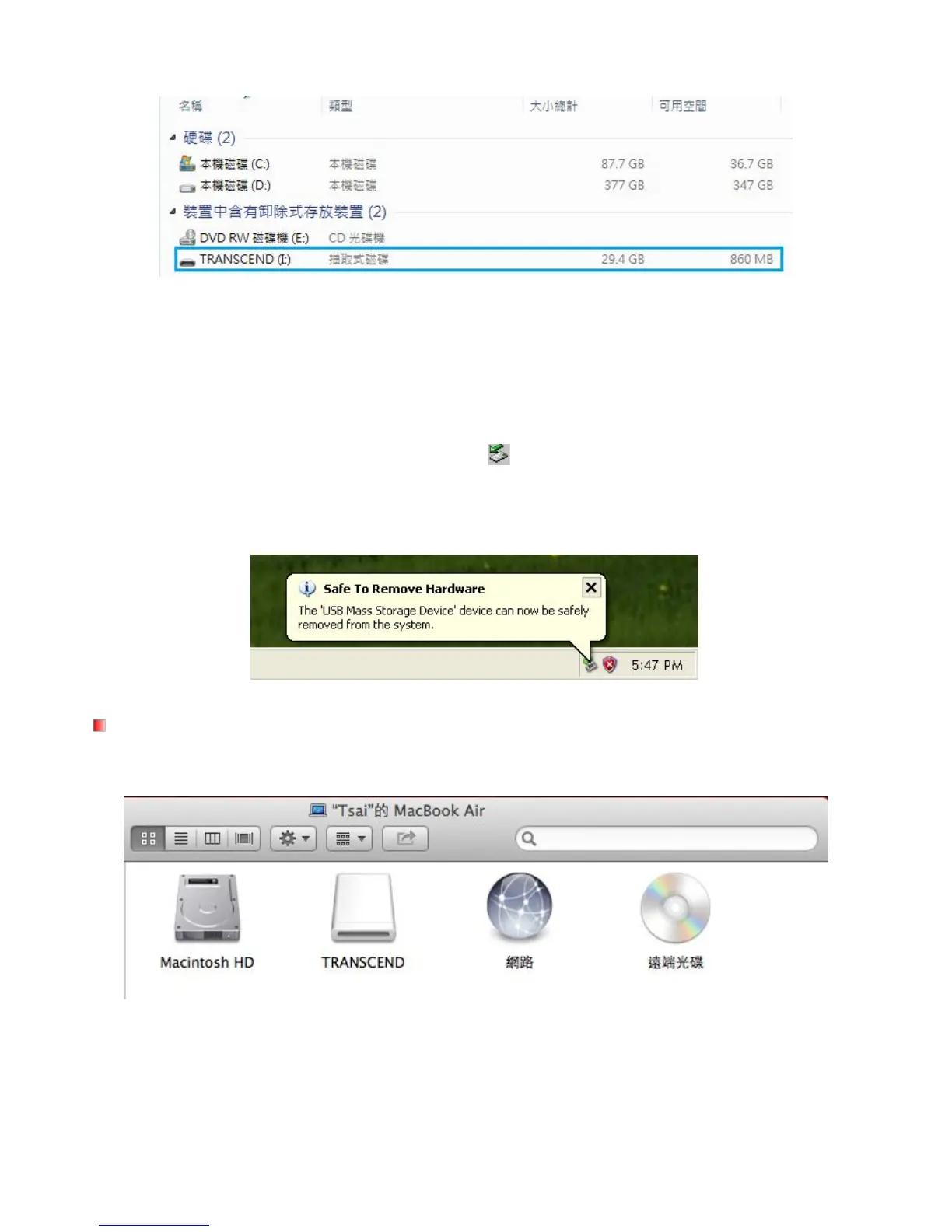
*Note: (I:) is an example drive letter – the letter in your “My Computer” window may differ.
Your DrivePro is now ready to transfer data just like an external hard drive. To transfer videos, simply
drag-and-drop files from the folder that represents the DrivePro.
Proper removal of your DrivePro (from Windows):
1. Click once on the Removable Hardware icon
2. The Safely Remove Hardware pop-up window will appear. Select it to continue.
3. A window will appear stating, “The ‘USB Mass Storage Device’ device can now be safely
removed from the system.” Unplug your DrivePro from the USB port after this message appears.
No drivers are required. Plug your DrivePro into an available USB port and your computer will automatically
Proper removal of your DrivePro (from Mac OS):
First drag-and-drop the Disk icon corresponding to your DrivePro into the trashcan then unplug your
DrivePro from the USB port.


 To Next Page