1. Press the Settings button on the DrivePro.
2. Use / to select Video Out and press .
3. Use / to select Disable and press .
4. Remove the video cable from your TV and the DrivePro.
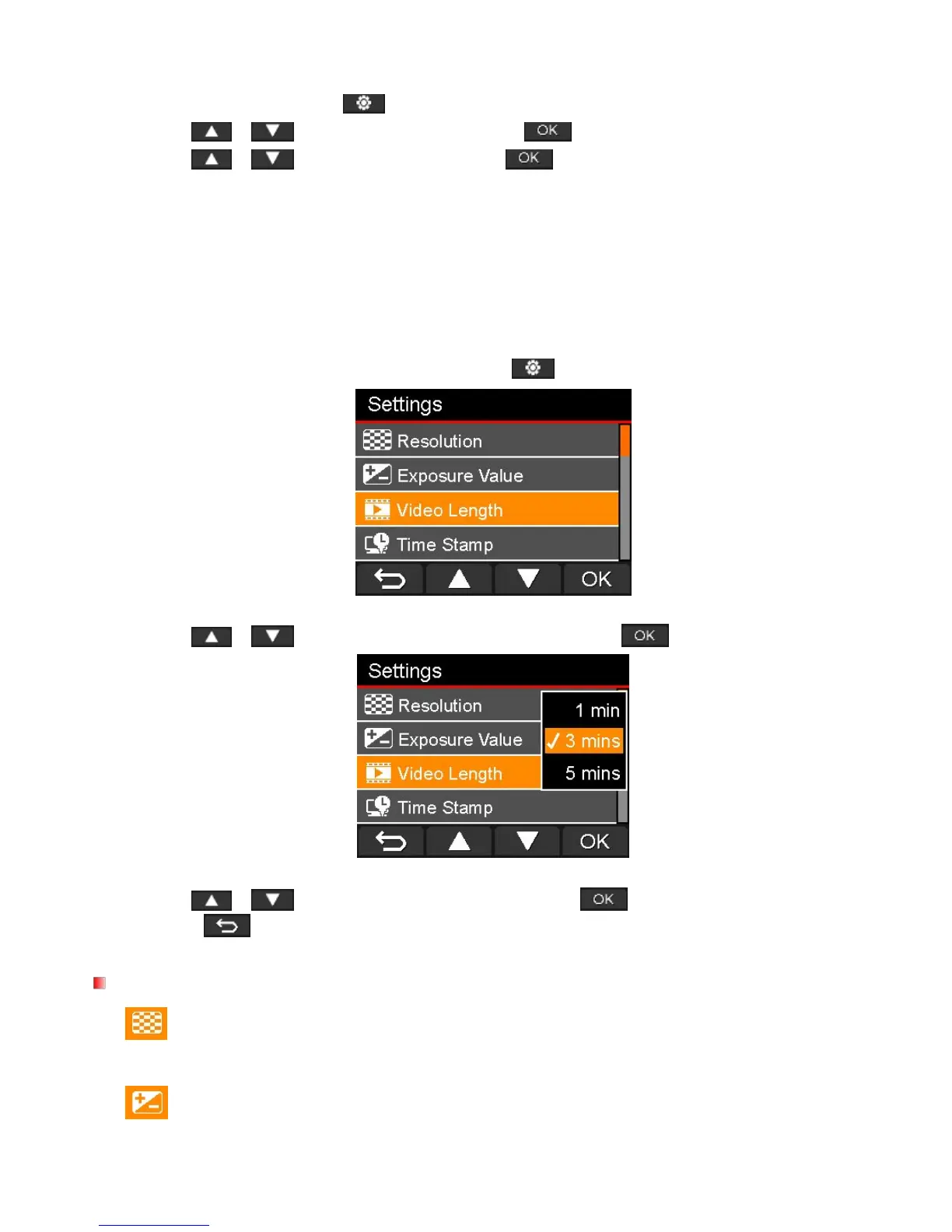
In the Settings menu, you can adjust settings such as video resolution, recording time, and G-Sensor
sensitivity. You can also set the date/time, change interface language, format memory card, and upgrade
1. During video recording, press the Settings button
.
2. Use / to select the desired menu option and press .
3. Use / to select the desired setting and press .
4. Press to return to the Settings menu.
Resolution: Set the resolution/quality for recording video.
Available options: 1080P (FHD) / 720P (HD)
Exposure Value: Adjust exposure composition value to lighten or darken the preview screen.
Available options: 2 / 1 / 0 / -1 / -2


 To Next Page