14
Setup Manual - Butler S2
Status LEDs
e:net Link OFF: no Ethernet link
ON: link established
e:net Activity OFF: no data transfer
ON: Ethernet data exchange in progress
System configuration
For a complete overview of other functions like clustering and assignments of Ac-
tions and programming of shows see the System Manual for the Lighting Applica-
tion Suite, available for download from www.traxontechnologies.com for free.
The Butler S2 can either be configured in standalone mode without the Lighting
Application Suite and only with a web browser and a PC, or it can be setup in online
mode with the Lighting Application Suite. Configuration in standalone mode is most
recommended when the Butler S2 has his factory settings.
Using the standalone web interface
You can set the network parameters of the Butler S2 without any other system us-
ing a standard web browser on any PC or PC-like system.
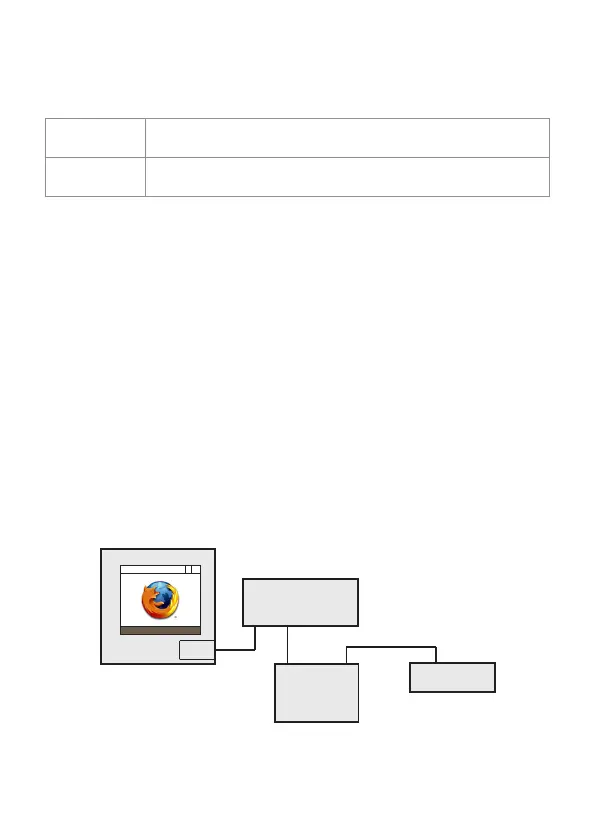
Connect the Butler S2 with power and via a standard LAN patch cable over an
Ethernet switch to the server (LCE or PC). If you want to connect the Butler S2
without Ethernet switch to the server use a so called cross cable, as not all Ethernet
interfaces support automatic RX/TX detection.
LAN
Ethernet switch
Power supply
Butler S2
RJ45
RJ45
12 ... 24 V DC
Start the web browser and enter the IP address of the Butler S2 in the address


 To Next Page