©Copyright2013TRENDnet.AllRightsReserved.
TRENDnetUser’sGuide
TEW‐733GR
36
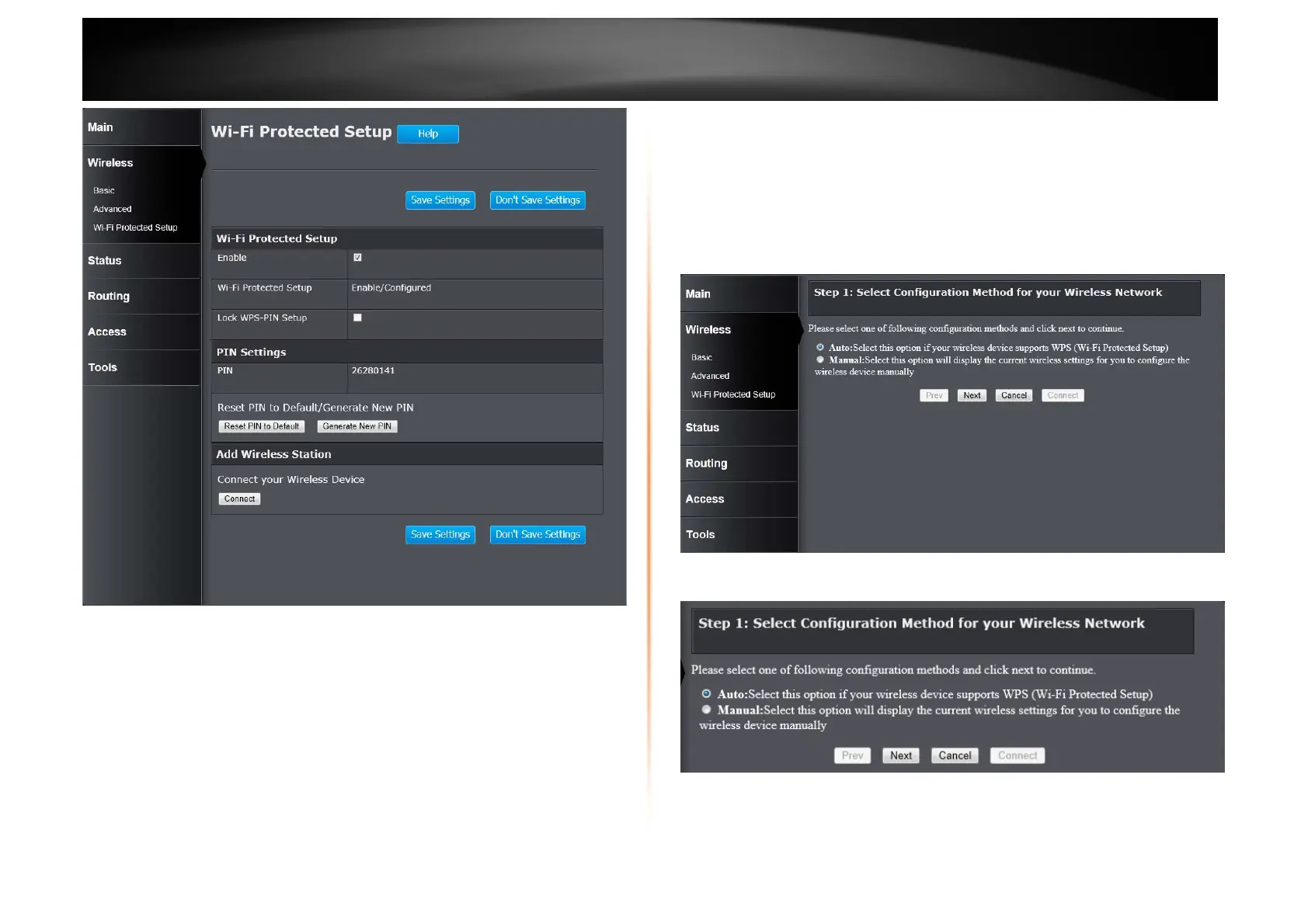
Wi-Fi Protected Setup
Enable: Tick the check box to enable the Wi-Fi Protected Setup (WPS) feature.
Wi-Fi Protected Setup: Displays the status of the WPS feature.
Lock WPS-PIN Setup: Tick the check box to lock the WPS-PIN setup.
PIN Settings
PIN: Displays the WPS PIN.
Reset PIN to Default/Generate New PIN: Click the Reset PIN to Default button
to to clear the PIN number used. Click the Generate New PIN button to generate
a new WPS PIN.
Add Wireless Station
Connect your Wireless Device: Click the Connect button to initiate the Wi-Fi
Protected Setup (WPS) setup wizard.
Click the Save Settings button to accept the changes made.
Click the Don’t Save Settings button to discard the changes made.
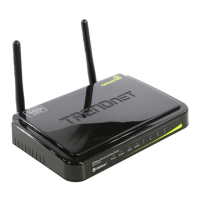
When clicking the Connect button in the Add Wireless Station section, the
following window appears.
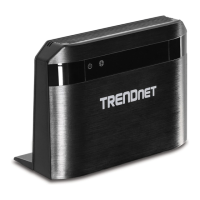
Step 1: Select Configuration Method for your Wireless Network
Auto: Select this option to automatically allow the router and the wireless client
to connect to each other by means of WPS.




 To Next Page