8
REMOTE CONTROL REFERENCE GUIDEREMOTE CONTROL REFERENCE GUIDE
REMOTE CONTROL REFERENCE GUIDEREMOTE CONTROL REFERENCE GUIDE
REMOTE CONTROL REFERENCE GUIDE
1)1)
1)1)
1)
ST ST
ST ST
ST
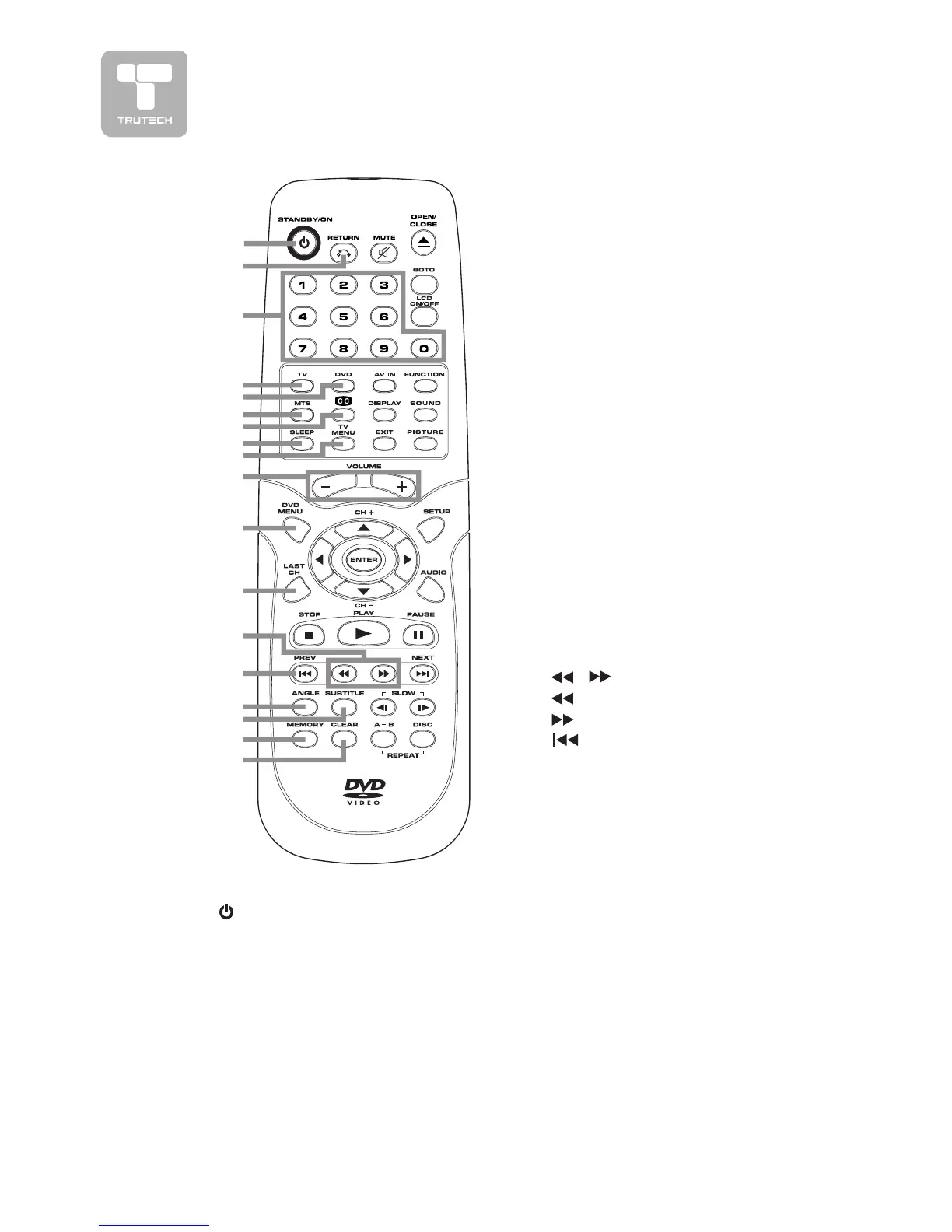
ANDBY/ON buttonANDBY/ON button
ANDBY/ON buttonANDBY/ON button
ANDBY/ON button
Press to turn ON the unit or put it
in STANDBY (OFF) mode.
2)2)
2)2)
2)
RETURN buttonRETURN button
RETURN buttonRETURN button
RETURN button
Return to normal operation after
using the SETUP menu of a DVD.
3)3)
3)3)
3)
Number (0 - 9) buttonsNumber (0 - 9) buttons
Number (0 - 9) buttonsNumber (0 - 9) buttons
Number (0 - 9) buttons
4)4)
4)4)
4)
TV buttonTV button
TV buttonTV button
TV button
Press to switch to TV mode.
5)5)
5)5)
5)
DVD buttonDVD button
DVD buttonDVD button
DVD button
Press to select DVD mode.
6)6)
6)6)
6)
MTS buttonMTS button
MTS buttonMTS button
MTS button
Press to select MONO sound,
STEREO sound and Secondary
Audio Program (SAP).
7)7)
7)7)
7)
CC buttonCC button
CC buttonCC button
CC button
Press to activate the Closed
Captioning feature. This function
only works on programs
broadcasted with captions.
8)8)
8)8)
8)
SLEEP buttonSLEEP button
SLEEP buttonSLEEP button
SLEEP button
Sets the SLEEP timer. The unit will
remain ON for the time that is set,
and will automatically shut off
afterwards.
9)9)
9)9)
9)
TV MENU buttonTV MENU button
TV MENU buttonTV MENU button
TV MENU button
Press to display the on-screen TV
menu.
10)10)
10)10)
10)
VOLUME (–/+) buttonsVOLUME (–/+) buttons
VOLUME (–/+) buttonsVOLUME (–/+) buttons
VOLUME (–/+) buttons
Press to adjust the volume level.
11) DVD MENU button11) DVD MENU button
11) DVD MENU button11) DVD MENU button
11) DVD MENU button
Press to enter the main menu of
the DVD you are watching.
12)12)
12)12)
12)
LAST CH buttonLAST CH button
LAST CH buttonLAST CH button
LAST CH button
Press to switch repeatedly between
the last two channels displayed.
13)13)
13)13)
13)
//
//
/
buttons buttons
buttons buttons
buttons
: Fast reverse playback.
: Fast forward playback.
14)14)
14)14)
14)
PREV button PREV button
PREV button PREV button
PREV button
Select previous chapters or tracks
on a disc.
15)15)
15)15)
15)
ANGLE buttonANGLE button
ANGLE buttonANGLE button
ANGLE button
Switch the camera angle of the video
presentation when scenes with
multiple camera angles are
recorded on a DVD.
16)16)
16)16)
16)
SUBTITLE buttonSUBTITLE button
SUBTITLE buttonSUBTITLE button
SUBTITLE button
Select one of the subtitle languages
programmed on a DVD.
17)17)
17)17)
17)
MEMORY buttonMEMORY button
MEMORY buttonMEMORY button
MEMORY button
In stopmode, enter the number of
a selected chapter or track.
18)18)
18)18)
18)
CLEAR buttonCLEAR button
CLEAR buttonCLEAR button
CLEAR button
Clear input selections and cancel
certain playback functions.
1
2
3
4
5
6
7
8
9
10
11
12
13
14
15
16
17
18


 To Next Page