13
CONNECTING TO A/V DEVICESCONNECTING TO A/V DEVICES
CONNECTING TO A/V DEVICESCONNECTING TO A/V DEVICES
CONNECTING TO A/V DEVICES
(VCR, Camcor(VCR, Camcor
(VCR, Camcor(VCR, Camcor
(VCR, Camcor
derder
derder
der
, Game System, etc.), Game System, etc.)
, Game System, etc.), Game System, etc.)
, Game System, etc.)
Connecting to Devices with an
S-Video Output
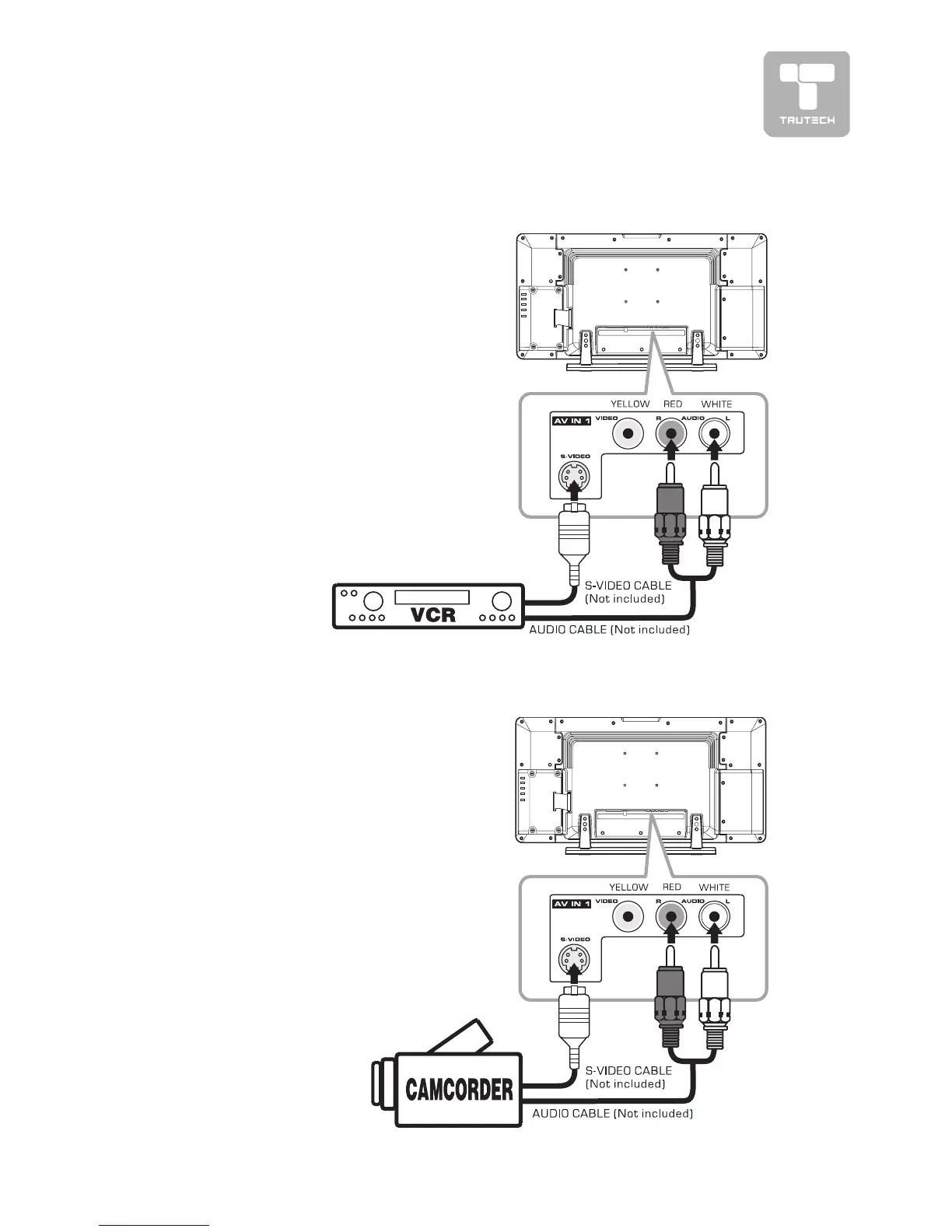
To connect to A/V devices such as a VCR
or camcorder:
- Connect to a VCR- Connect to a VCR
- Connect to a VCR- Connect to a VCR
- Connect to a VCR
Connect the right (red) and left (white)
audio output from the VCR to the right
(red) and left (white) input on this unit
(Audio cable not included).
Connect the S-VIDEO output from the VCR
to the S-VIDEO input on this unit (S-VIDEO
cable not included).
Make sure you connect both audio and
video from the same VCR to the same input
(AV1).
Note:Note:
Note:Note:
Note:
Please refer to the
user manual for the
VCR for more
information.
CONNECTIONSCONNECTIONS
CONNECTIONSCONNECTIONS
CONNECTIONS
- Connect to a camcorder- Connect to a camcorder
- Connect to a camcorder- Connect to a camcorder
- Connect to a camcorder
Connect the right (red) and left (white) audio
output from the camcorder to the right (red)
and left (white) input on this unit (Audio
cable not included).
Connect the S-VIDEO output from the
camcorder to the S-VIDEO input on this unit
(S-VIDEO cable not included).
Make sure you connect both audio and video
from the same camcorder to the same input
(AV1).
Note:Note:
Note:Note:
Note:
Please refer to the user manual for the
camcorder for more information.


 To Next Page