EasyManua.ls Logo

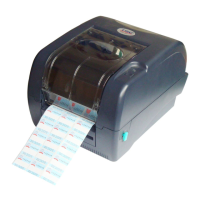
TSC TTP-343 Plus - User Manual

TSC TTP-343 Plus
50 pages
Print Icon
To Next Page IconTo Next Page
Loading...
USER’S
MANUAL
TTP-245 Plus / TTP-343 Plus
TTP-247 / TTP-345
THERMAL TRANSFER / DIRECT THERMAL
BAR CODE PRINTER

Other manuals for TSC TTP-343 Plus

Questions and Answers

  • E
    Edward SpearsAug 20, 2025
    What to do if my TSC Printer is not printing?
    • T
      Tim PerezAug 20, 2025
      If your TSC printer isn't printing, make sure the interface cable is securely connected. If you're using a serial port, ensure the cable is pin-to-pin connected, and the serial port settings are consistent between your computer and the printer. In the Windows driver, verify that the correct printer port is selected. Lastly, if you're using Ethernet, check that the IP address, subnet mask, and gateway are configured correctly. Reconnect the cable to the interface. Replace the cable with one that is pin-to-pin connected. Reset the serial port setting. Select the correct printer port in the driver. Configure the IP, subnet mask, and gateway.
  • S
    Steven WalkerAug 22, 2025
    How to fix poor print quality on a TSC TTP-343 Plus Printer?
    • T
      Tiffany SchmidtAug 22, 2025
      To resolve poor print quality on your TSC printer: * Ensure the top cover is completely closed and latched properly on both sides. * Verify that the power supply provides 24V DC output. * Reload the supply correctly. * Clean the print head to remove any dust or adhesive buildup.
  • B
    Brett DudleyAug 25, 2025
    How to improve poor print quality on a TSC Barcode Reader?
    • S
      Susan HoldenAug 25, 2025
      To improve the print quality of your TSC Barcode Reader, consider the following: * Ensure the top cover is completely closed and latched. * Reload the supply to make sure it is loaded correctly. * If the print is faded or inconsistent, adjust the print density and print speed. * If there are white lines or missing elements, clean the print head. * If these steps don't help, run a printer self-test to check the print head test pattern for damage.
  • T
    Tiffany ForbesAug 26, 2025
    What to do if my TSC Barcode Reader shows an error?
    • K
      Katie JamesAug 27, 2025
      If your TSC Barcode Reader displays an error, it might be due to a few reasons: * If the printer is out of labels, load a new roll and press the FEED button. * If the printer is out of ribbon, load a new roll and press the FEED button. * If the error persists, the printer settings may be incorrect. Initialize the printer using the "Power on Utility" or "Diagnostic Tool".
  • E
    Elizabeth BowersAug 28, 2025
    Why is my TSC Barcode Reader printing blank labels?
    • M
      Mark WarnerAug 28, 2025
      If your TSC Barcode Reader is printing blank labels, consider the following: * Check if the label or ribbon is loaded correctly by following the loading instructions. * Ensure that the ribbon has not run out, and load a new ribbon if necessary.
  • G
    Gregory TurnerAug 30, 2025
    What to do if my TSC Printer has a paper jam?
    • T
      Tracey GarnerAug 30, 2025
      If your TSC printer is experiencing paper jams: 1. Calibrate the gap/black mark sensor. This ensures the printer correctly detects the label spacing. 2. Set the label size accurately in your labeling software or program to match the installed paper. 3. Check the printer mechanism near the sensor area for any stuck labels and remove them.
  • J
    Jacqueline ThomasSep 1, 2025
    Why is my TSC TTP-343 Plus not responding?
    • M
      Melissa LinSep 1, 2025
      If your TSC printer is not responding, first, ensure the power switch is turned on. Check if the green LED is lit on the power supply; if not, the power supply may be broken. Also, verify that both power connections, from the power cord to the power supply and from the power supply to the printer, are securely connected.
  • B
    bradleykristenSep 3, 2025
    What to do if TSC Printer is continuously feeding labels?
    • P
      pauljimenezSep 3, 2025
      If your TSC printer is continuously feeding labels, the printer settings may be incorrect. Please initialize the printer and perform gap/black mark calibration.
  • J
    Jennifer EllisSep 5, 2025
    What to do if my TSC TTP-343 Plus is paused?
    • W
      Walter BarrySep 5, 2025
      If your TSC printer is paused, press the FEED button to resume printing.
  • K
    Kayla MartinSep 7, 2025
    How to check print head test pattern on TSC TTP-343 Plus?
    • Y
      Yolanda HardingSep 7, 2025
      Run a printer self-test and check the print head test pattern for any missing dots, which would indicate a damaged head element.

Summary

Introduction and Getting Started

Initial Setup Overview

Steps for unpacking, inspection, and basic setup of the printer.

Printer Setup Procedures

Printer Setup and Connection

Step-by-step guide for connecting and configuring the printer.

Loading Ribbon and Labels

Instructions for properly installing printer ribbon and label stock.

Optional Module Installation

Procedures for installing peel-off and cutter modules.

Memory Card Installation

Guide for installing an SD memory card into the printer.

Diagnostic and Network Setup

Using the Diagnostic Tool

Guide on launching and utilizing the printer's diagnostic utility software.

Ethernet Configuration

Steps for setting up network connectivity via USB, RS-232, or Ethernet.

Power-on Utilities

Sensor Calibration and Tests

Procedures for sensor calibration, self-tests, and dump mode entry.

Printer Initialization and Control

Steps for printer initialization, sensor mode configuration, and AUTO.BAS control.

Maintenance and Troubleshooting

Printer Cleaning and Maintenance

Methods and materials for cleaning and maintaining the printer.

Troubleshooting Printer Issues

Guide to resolving common printer problems using LED status and print quality checks.

LED and Button Operations

Explanations of printer status indicators and control buttons.

TSC TTP-343 Plus Specifications

General IconGeneral
Print MethodThermal Transfer / Direct Thermal
Processor32-bit RISC CPU
Power SupplyAC 100-240V, 50/60Hz
Max Print Width108 mm (4.25")
Max Print Speed102 mm (4ips)
Memory8 MB Flash, 8 MB SDRAM
InterfaceUSB 2.0, Serial
Media TypeContinuous
Media Width25.4 mm to 112 mm
Weight2.5 kg
Supported Barcode TypesCode 39, Code 128, QR Code
Supported OSWindows

Related product manuals