EasyManua.ls Logo

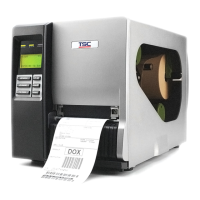
TSC TTP-384M - Service Manual

TSC TTP-384M
35 pages
Print Icon
To Next Page IconTo Next Page
Loading...
TTP-384M
SERVICE
MANUAL
THERMAL TRANSFER / DIRECT THERMAL
BAR CODE PRINTER

Other manuals for TSC TTP-384M

Questions and Answers

  • R
    Roy BrownSep 12, 2025
    Why is the LCD panel dark and the keys not working on my TSC Printer?
    • W
      William RobersonSep 12, 2025
      If the LCD panel is dark and the keys are not working on your TSC printer, the cable between the main PCB and the LCD panel may be loose. Check if the cable between the main PCB and LCD is secured.
  • M
    Marvin RobertsAug 25, 2025
    How to improve print quality on a TSC TTP-384M?
    • U
      uhenryAug 25, 2025
      To improve the print quality on your TSC printer: * Reload the ribbon and media if they are loaded incorrectly. * Clean the printhead if there is dust or adhesive accumulation. * Adjust the print density and print speed.
  • S
    Sandra GrayAug 25, 2025
    What to do if my TSC Printer says 'No Paper'?
    • S
      Sharon ParkerAug 26, 2025
      If your TSC printer indicates 'No Paper', it could be due to several reasons: * You might be running out of labels, so supply a new label roll. * The label might be installed incorrectly; please refer to the user’s manual for reinstallation steps. * The gap/black-mark sensor might not be calibrated, so calibrate it.
  • N
    Natalie WatsonSep 23, 2025
    Why is my TSC Printer's PS/2 port not working?
    • M
      Michael MillerSep 23, 2025
      If the PS/2 port on your TSC printer is not working, it could be because you didn't turn off the power before plugging in the PS/2 keyboard; turn off the printer power prior to plugging in the keyboard. The PS/2 keyboard might be damaged; make sure the keyboard is fine. The keyboard might not be plugged-in correctly; plug the PS/2 keyboard again. Finally, there might be no BAS file in the printer; make sure if there is any BAS file downloaded into the printer.
  • J
    jsuttonSep 12, 2025
    How to solve the wrinkle problem on my TSC printer?
    • P
      Paul PhamSep 12, 2025
      If you are experiencing a wrinkle problem with your TSC printer, the printhead pressure might be incorrect. Make sure the label guide touches the edge of the media guide.
  • L
    Lisa CaldwellSep 17, 2025
    Why is my TSC TTP-384M's ribbon end sensor not working?
    • L
      Lance JonesSep 17, 2025
      If the ribbon end sensor on your TSC printer is not working, it could be due to a loose connector; check the connector. Alternatively, the ribbon sensor hole might be covered with dust; clear the dust in the sensor hole with a blower.
  • S
    Steven BraunSep 5, 2025
    Why is my TSC TTP-384M Printer printing irregularly?
    • V
      vmooreSep 5, 2025
      If your TSC printer is printing irregularly, it might be in Hex Dump mode; turn off and on the printer to skip the dump mode. Alternatively, the RS-232 setting could be incorrect; re-set the Rs-232 setting.
  • B
    bryanhutchinsonSep 5, 2025
    How to fix a TSC TTP-384M Printer when the power indicator does not illuminate?
    • S
      shelleyfergusonSep 6, 2025
      If the power indicator on your TSC printer does not illuminate, the power cord may not be properly connected. Plug the power cord into both the printer and the outlet, and then switch the printer on.
  • U
    umartinezSep 18, 2025
    Why is my TSC TTP-384M Printer's cutter not working?
    • J
      joseph80Sep 18, 2025
      If the cutter on your TSC printer is not working, the connector might be loose. Plug in the connect cable correctly.
  • P
    Phillip ClarkAug 30, 2025
    What to do if my TSC TTP-384M has a paper jam?
    • J
      Jacob LambAug 30, 2025
      If your TSC printer is experiencing paper jams, it could be due to the gap/black-mark sensor not being set properly; try calibrating the sensor. Also, ensure that the label size is set correctly.

Summary

Fundamental of the System

Printer Overview - Front View

Front view of the printer with labeled components like LED indicators, LCD, buttons, and paper exit chute.

Printer Overview - Interior View

Interior view of the printer with labeled components like spindles, printhead, sensors, and platen roller.

Printer Overview - Rear View and Interfaces

Rear view of the printer with labeled interfaces and ports like USB, Ethernet, RS-232C, and power connectors.

Electronics and Connectors

Main Board Connectors Summary

Details connectors on the main board with their descriptions and remarks for identification.

Multi-interface Board Connectors

Identifies connectors on the multi-interface board, including main board, SD card, Ethernet, and PS/2.

GPIO and Multi-interface Board Connectors

Lists connectors for the optional GPIO with multi-interface board.

Pin Configuration Details

RS-232 C, USB, Centronics Pin Configuration

Details pin assignments for RS-232C, USB, and Centronics interfaces.

Ethernet and PS;2 Pin Configuration

Details pin assignments for Ethernet and PS/2 interfaces.

GPIO Pin Configuration

Details pin assignments for the GPIO connector.

Mechanism and Component Replacement

Removing Printer Covers

Provides step-by-step instructions and images for removing printer covers.

Replacing LCD Panel Module

Step-by-step guide to replace the LCD panel module and its PCB assembly.

Replacing Power Supply Unit

Instructions for replacing the power supply unit with visual aids.

Replacing Multi-interface Board

Steps to remove and replace the multi-interface board from the printer.

Replacing Main Board

Guide to remove and replace the main board of the printer.

Replacing Platen Roller Assembly

Instructions for removing and replacing the platen roller assembly.

Replacing Stepping Motor

Steps to disconnect and replace the stepping motor assembly.

Replacing Printhead Assembly

Detailed steps for removing and replacing the printhead assembly.

Replacing Gap and Black-mark Sensor Module

Guide to remove and replace the gap and black-mark sensor module.

Replacing DC Motor

Instructions for removing and replacing the DC motor.

Troubleshooting Common Problems

Problem Diagnosis and Recovery Procedures

Lists common printer problems, their possible causes, and recommended recovery procedures.

Printer Maintenance Procedures

Manual Update History

TSC TTP-384M Specifications

General IconGeneral
Print TechnologyThermal Transfer
Resolution300 dpi
Print Speed4 ips (101.6 mm/sec)
Print Width8.5" (216 mm)
Maximum Print Width8.64 inches
Memory8 MB Flash
InterfaceUSB 2.0, RS-232
Media TypeContinuous, die-cut, black mark
Media Width4.5 to 9.5 inches
Label Width4.5 to 9.5 inches
Label Thickness0.06 - 0.25 mm (0.002 - 0.01 inches)
Power SupplyAC 100-240V, 50/60Hz
Operating Temperature5°C - 40°C (41°F - 104°F)
Storage Temperature-40°C to 60°C
Operating Humidity25% to 85% non-condensing
CertificationsFCC Class A, CE Class A

Related product manuals