EasyManua.ls Logo

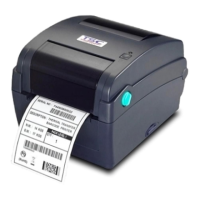
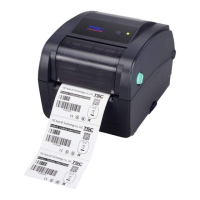
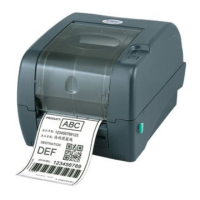
TSC TTP-247 - User Manual

TSC TTP-247
50 pages
Print Icon
To Next Page IconTo Next Page
Loading...
USER’S
MANUAL
TTP-245 Plus / TTP-343 Plus
TTP-247 / TTP-345
THERMAL TRANSFER / DIRECT THERMAL
BAR CODE PRINTER

Other manuals for TSC TTP-247

Questions and Answers

  • C
    Cynthia ThomasAug 20, 2025
    What to do if my TSC Printer is not printing?
    • S
      Sarah KingAug 20, 2025
      If your TSC printer isn't printing, make sure the interface cable is securely connected. If you're using a serial port, ensure the cable is pin-to-pin connected, and the serial port settings are consistent between your computer and the printer. In the Windows driver, verify that the correct printer port is selected. Lastly, if you're using Ethernet, check that the IP address, subnet mask, and gateway are configured correctly. Reconnect the cable to the interface. Replace the cable with one that is pin-to-pin connected. Reset the serial port setting. Select the correct printer port in the driver. Configure the IP, subnet mask, and gateway.
  • D
    David DavisAug 22, 2025
    How to fix poor print quality on a TSC TTP-247 Printer?
    • B
      Brittney AguirreAug 22, 2025
      To resolve poor print quality on your TSC printer: * Ensure the top cover is completely closed and latched properly on both sides. * Verify that the power supply provides 24V DC output. * Reload the supply correctly. * Clean the print head to remove any dust or adhesive buildup.
  • J
    Jeffrey MackAug 25, 2025
    How to improve poor print quality on a TSC Barcode Reader?
    • D
      david10Aug 25, 2025
      To improve the print quality of your TSC Barcode Reader, consider the following: * Ensure the top cover is completely closed and latched. * Reload the supply to make sure it is loaded correctly. * If the print is faded or inconsistent, adjust the print density and print speed. * If there are white lines or missing elements, clean the print head. * If these steps don't help, run a printer self-test to check the print head test pattern for damage.
  • K
    kevinwardAug 26, 2025
    What to do if my TSC Barcode Reader shows an error?
    • M
      Mark RiosAug 26, 2025
      If your TSC Barcode Reader displays an error, it might be due to a few reasons: * If the printer is out of labels, load a new roll and press the FEED button. * If the printer is out of ribbon, load a new roll and press the FEED button. * If the error persists, the printer settings may be incorrect. Initialize the printer using the "Power on Utility" or "Diagnostic Tool".
  • M
    Michele ChoiAug 27, 2025
    Why is my TSC Barcode Reader printing blank labels?
    • D
      Donna SmithAug 28, 2025
      If your TSC Barcode Reader is printing blank labels, consider the following: * Check if the label or ribbon is loaded correctly by following the loading instructions. * Ensure that the ribbon has not run out, and load a new ribbon if necessary.
  • R
    regina80Aug 30, 2025
    What to do if my TSC TTP-247 Printer has a paper jam?
    • C
      Casey JosephAug 30, 2025
      If your TSC printer is experiencing paper jams: 1. Calibrate the gap/black mark sensor. This ensures the printer correctly detects the label spacing. 2. Set the label size accurately in your labeling software or program to match the installed paper. 3. Check the printer mechanism near the sensor area for any stuck labels and remove them.
  • D
    Daniel FischerSep 1, 2025
    Why is my TSC TTP-247 not responding?
    • A
      Alexandria ThomasSep 1, 2025
      If your TSC printer is not responding, first, ensure the power switch is turned on. Check if the green LED is lit on the power supply; if not, the power supply may be broken. Also, verify that both power connections, from the power cord to the power supply and from the power supply to the printer, are securely connected.
  • A
    Ashley ChenSep 3, 2025
    What to do if TSC TTP-247 is continuously feeding labels?
    • H
      hannahhernandezSep 3, 2025
      If your TSC printer is continuously feeding labels, the printer settings may be incorrect. Please initialize the printer and perform gap/black mark calibration.
  • S
    Shawn MaldonadoSep 4, 2025
    What to do if my TSC TTP-247 is paused?
    • A
      Allison ClarkSep 4, 2025
      If your TSC printer is paused, press the FEED button to resume printing.
  • I
    ihendersonSep 7, 2025
    How to check print head test pattern on TSC TTP-247?
    • M
      Megan BakerSep 7, 2025
      Run a printer self-test and check the print head test pattern for any missing dots, which would indicate a damaged head element.

Summary

Copyright and Compliances

Copyright Declaration

Provides information on copyright and usage restrictions for the manual.

Compliances

Lists the various regulatory standards and certifications the printer complies with.

Safety Warnings

General Cautionary Notes

Highlights critical safety warnings regarding moving parts, battery replacement, and disposal.

Introduction and Initial Setup

Product Introduction

Introduces the TSC TTP-245/343 Plus series printers and their performance.

Getting Started Guide

Provides initial steps for setting up and using the printer.

Unpacking and Inspection

Details the process of inspecting the printer and its packaging after delivery.

Equipment Checklist

Lists all the components included with the printer package.

Printer Hardware Overview

Printer Parts Identification

Identifies the external and internal components of the bar code printer.

Printer Setup and Ribbon Installation

Setting Up the Printer

Guides users through the initial physical setup and connection of the printer.

Loading the Ribbon

Provides step-by-step instructions for installing the thermal transfer ribbon.

Label Stock Loading

Loading Label Stock

Explains the procedure for loading label rolls onto the printer's spindle.

External Label Roll Mount Installation

External Label Roll Mount Installation

Details the installation process for an optional external paper roll mount.

Peel-off Module Installation

Peel-off Module Installation Steps

Guides users through the physical installation of the optional peel-off module.

Peel-off Mode Paper Loading

Loading Paper in Peel-off Mode

Describes how to load paper correctly when using the peel-off module.

Cutter Module Installation

Cutter Module Installation Steps

Provides instructions for installing the optional cutter module.

Cutter Mode Label Loading

Loading Label in Cutter Mode

Explains how to load labels when the cutter module is installed.

Printer Cover Operation

Instructions for Top Cover Use

Details the correct procedure for opening and closing the printer's top cover.

Diagnostic Tool Usage

Diagnostic Tool Overview

Introduces the utility for exploring printer settings, status, and troubleshooting.

Starting the Diagnostic Tool

Guides users on how to launch and initiate the diagnostic utility software.

Printer Function Descriptions

Printer Function Group Details

Explains the various functions available within the printer's diagnostic utility.

Ethernet Setup via USB

Setting Ethernet Using USB Interface

Details how to configure the printer's Ethernet settings via a USB connection.

Ethernet Setup via RS-232

Setting Ethernet Using RS-232 Interface

Explains how to configure Ethernet settings using an RS-232 serial connection.

Ethernet Setup via LAN

Setting Ethernet Using LAN Interface

Guides users on configuring Ethernet settings through a network (LAN) connection.

Memory Card Installation

Installing a Memory Card

Provides instructions and specifications for installing a memory card.

Power-on Utilities Overview

List of Power-on Utilities

Enumerates the six power-on utilities for printer setup and testing.

Ribbon and Sensor Calibration

Describes the procedure for calibrating ribbon and gap/black mark sensors.

Calibration, Self-test, and Dump Mode

Gap;Black Mark Calibration, Self-test, Dump Mode

Details calibration, self-test, and dump mode operations for sensors.

Self-Test Printout Analysis

Understanding Self-test Output

Explains how to interpret the self-test printout for printer diagnostics.

Dump Mode Data Interpretation

Dump Mode Output Analysis

Provides guidance on analyzing data presented in the printer's dump mode.

Printer Initialization

Printer Initialization Procedure

Details the steps to reset printer settings to factory defaults.

Sensor Configuration and Auto-run Skip

Set Black Mark Sensor as Media Sensor

Explains how to configure the black mark sensor as the primary media sensor.

Set Gap Sensor as Media Sensor

Explains how to configure the gap sensor as the primary media sensor.

Skipping AUTO.BAS Execution

Guides users on how to bypass the AUTO.BAS program during power-on.

Printer Maintenance and Cleaning

Cleaning Tools and Methods

Lists necessary materials and outlines procedures for cleaning printer parts.

Troubleshooting and Status Indicators

Troubleshooting Common Problems

Lists common issues encountered during printer operation and their solutions.

LED Status and Interpretation

Explains the meaning of different LED colors and blinking patterns.

Print Quality Troubleshooting

Print Quality Issues and Solutions

Addresses common problems affecting print quality and provides fixes.

LED and Button Operations

LED Color Descriptions

Details the meaning of each LED color and its status indication.

Button Operation Guide

Explains the function of each button on the printer.

Revision History

Document Revision Log

Lists changes and updates made to the manual over time.

TSC TTP-247 Specifications

General IconGeneral
Print MethodThermal Transfer / Direct Thermal
Resolution203 dpi
Max Print Width4.09" (104 mm)
Processor32-bit RISC CPU
Weight2.5 kg
Max Print Speed7 ips
Memory8 MB SDRAM, 4 MB Flash
InterfaceUSB 2.0, Serial
Ribbon Capacity300 meters
Label Width1" (25.4 mm) ~ 4.33" (110 mm)
Label Thickness0.06 mm ~ 0.19 mm
Power SupplyExternal Universal Switching Power Supply
Operating Temperature5°C to 40°C (41°F to 104°F)
Storage Temperature-4°F to 140°F (-20°C to 60°C)
Operating Humidity25% to 85%, non-condensing
CertificationsCE, FCC, UL, CCC

Related product manuals