EasyManua.ls Logo

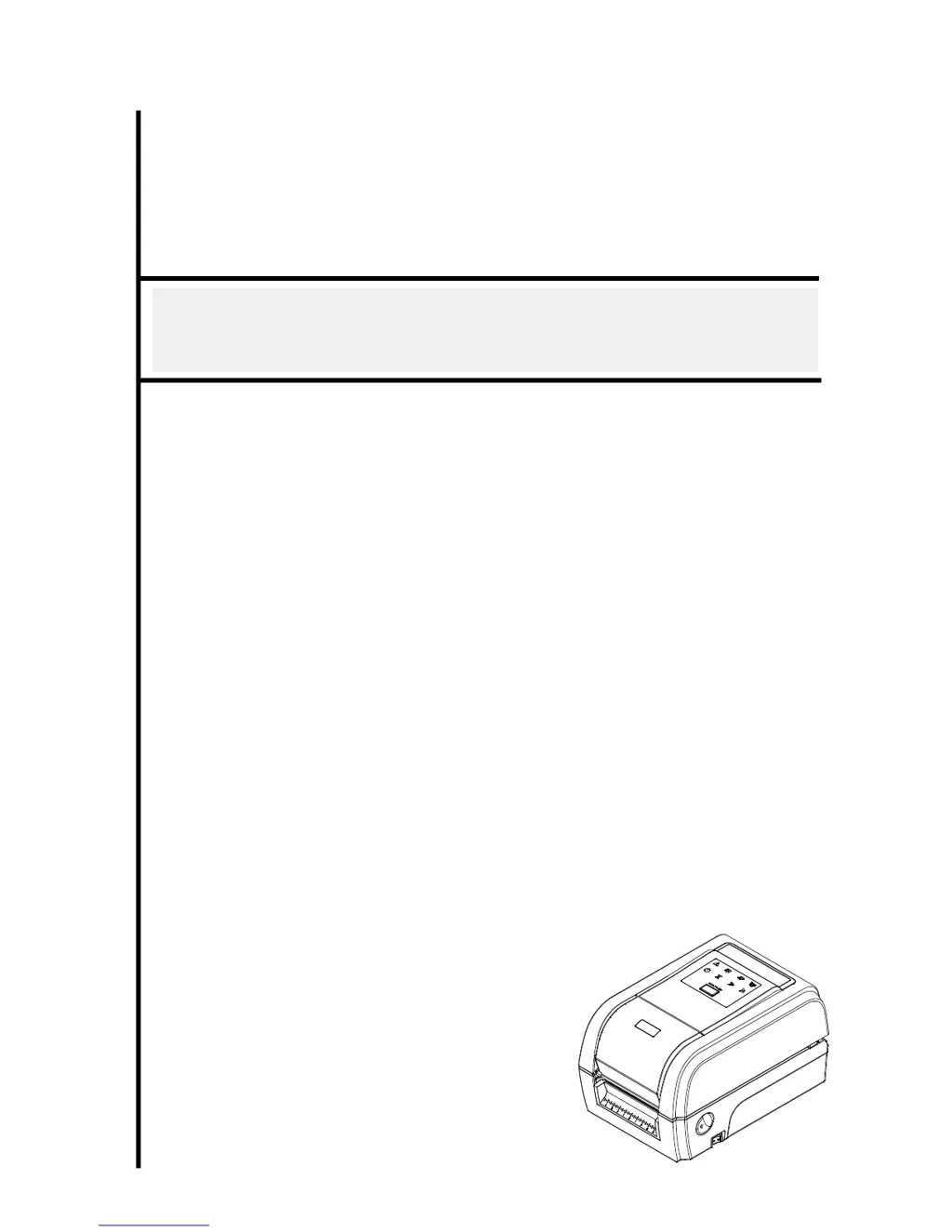
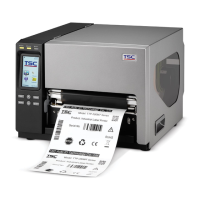
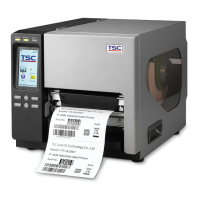
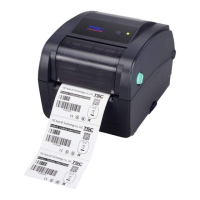
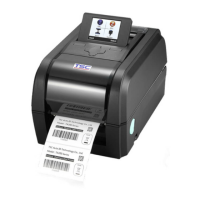
TSC TX200 Series - User Manual

TSC TX200 Series
73 pages
Print Icon
To Next Page IconTo Next Page
Loading...
USERS
MANUAL
TX200/ TX300/ TX600 Series
THERMAL TRANSFER / DIRECT THERMAL
BAR CODE PRINTER

Other manuals for TSC TX200 Series

Questions and Answers

  • J
    Jeremy BonillaSep 12, 2025
    Why the printing position of small label is incorrect on TSC TX200 Printer?
    • Z
      Zachary PetersonSep 12, 2025
      If the printing position of small labels is incorrect on your TSC printer, the media sensor sensitivity may not be set properly. Calibrate the sensor sensitivity again.
  • J
    James JamesAug 25, 2025
    How to fix poor print quality on my TSC printer?
    • M
      Michael CabreraAug 25, 2025
      To improve the print quality of your TSC printer, try the following: * Reload the ribbon and media. * Clean the print head to remove any dust or adhesive. * Adjust the print density and print speed. * Run a self-test to check for damage to the print head element. * Ensure you are using compatible ribbon and label media.
  • A
    Alicia TrevinoAug 25, 2025
    How to resolve 'No Paper' error on my TSC printer?
    • A
      Amanda BatesAug 26, 2025
      If your TSC printer shows a 'No Paper' error, first ensure that you have a new label roll. If the roll is new, make sure the label roll is correctly installed. You might also need to calibrate the gap/black mark sensor.
  • S
    Scott PriceSep 23, 2025
    What to do if my TSC Barcode Reader displays 'Memory full ( FLASH / DRAM )'?
    • H
      Heather MaySep 23, 2025
      If your TSC Barcode Reader displays 'Memory full (FLASH / DRAM)': * Delete unused files in the FLASH/DRAM. * Note that the maximum number of files in DRAM is 256, with a maximum user addressable memory space of 256KB. * The maximum number of files in FLASH is 256, with a maximum user addressable memory space of 2560KB.
  • A
    Aaron Duncan IIISep 12, 2025
    What to do if TSC printer takes label?
    • E
      Eric JacobsonSep 12, 2025
      If your TSC printer is set to 'Take Label', and the peeler module is installed, remove the label.
  • T
    Tricia BurnsSep 18, 2025
    What does it mean when my TSC Barcode Reader displays 'Head Open' or 'Carriage Open'?
    • J
      Jordan StrongSep 18, 2025
      If your TSC Barcode Reader shows 'Head Open' in DiagTool or 'Carriage Open' on the LCD: * Please close the print carriage.
  • J
    Jennifer SinghSep 5, 2025
    Why does the TSC TX200 Printer power indicator not illuminate?
    • K
      kimmcdonaldSep 5, 2025
      If the power indicator on your TSC printer is not lit, ensure the power cord is correctly plugged into both the printer and the outlet. Also, make sure the printer is switched on.
  • K
    Kathryn HarperSep 6, 2025
    What to do if my TSC printer shows 'Carriage Open'?
    • J
      John BushSep 6, 2025
      If the LED indicates that the carriage is open on your TSC printer, ensure that the print carriages are completely closed.
  • J
    Jody AtkinsSep 18, 2025
    What causes irregular printing on my TSC Barcode Reader?
    • T
      Taylor MartinezSep 18, 2025
      Irregular printing on your TSC Barcode Reader can be caused by: * The printer being in Hex Dump mode. Turn the printer off and on to exit the dump mode. * Incorrect RS-232 settings. Reset the Rs-232 settings.
  • D
    daniel59Aug 30, 2025
    What to do if my TSC Barcode Reader is continuously feeding labels?
    • K
      katrinamayerAug 30, 2025
      If your TSC Barcode Reader is continuously feeding labels, it could be due to: * An incorrect printer setting. Initialize the printer and perform gap/black mark calibration. * Improper gap/black mark sensor sensitivity. Calibrate the gap/black mark sensor. * Incorrect label size setting. Ensure the label size is set correctly in the labeling software or program. * Labels stuck inside the printer mechanism near the sensor area. Remove any stuck labels.

Summary

1.2 Product Features

1.2.1 Printer Standard Features

Details the standard hardware and software features of the printer.

1.3 General Specifications

1.4 Print Specifications

2.3 Operator Control

2.3.1 LED Indication and Key

Explains LED indicators, feed/pause button functions, and status meanings.

3. Setup

3.1 Setting up the printer

Step-by-step guide for placing, connecting, and powering on the printer.

3.2 Loading the Ribbon

3.3 Loading the Media

4. Diagnostic Tool

4.2 Printer Function Settings

Details the various functions available within the diagnostic tool for printer setup.

4.3 Setting Ethernet via Diagnostic Tool

Instructions for configuring Ethernet using USB, RS-232, or direct Ethernet interfaces.

5. Power-on Utilities

5.1 Ribbon and Sensor Calibration

Procedures for calibrating ribbon and gap/black mark sensors.

5.2 Gap;Black Mark Calibration, Self-test, and Dump Mode

Details sensor calibration, self-test printing, and dump mode functions.

5.3 Printer Initialization

Restores printer settings to factory defaults, clearing memory.

6. LCD Menu Functions

6.8 Diagnostics

Access to diagnostic functions like Print Config, Dump Mode, and Print Head checks.

7. Troubleshooting

8. Maintenance

TSC TX200 Series Specifications

General IconGeneral
Operating Temperature41°F to 104°F (5°C to 40°C)
Print MethodThermal Transfer / Direct Thermal
Resolution203 dpi
Memory8 MB Flash
Processor32-bit RISC
Communication InterfaceUSB 2.0
Core Diameter1" (25.4 mm)
Power Supply100-240 VAC, 50/60 Hz
Storage Temperature-4°F to 122°F (-20°C to 50°C)
CertificationsCE, FCC, RoHS, UL, TUV, CB, CCC
Operating Humidity25-85% non-condensing

Related product manuals