EasyManua.ls Logo

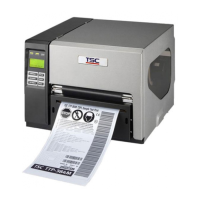
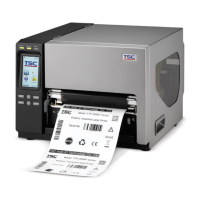
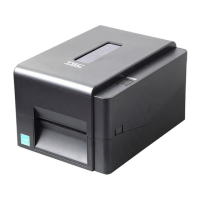
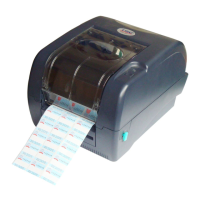
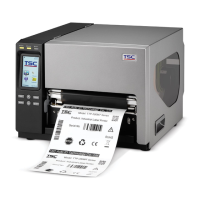
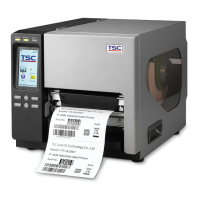
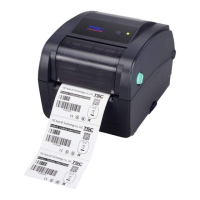
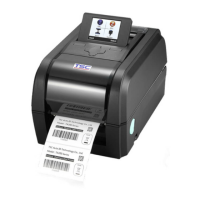
TSC TX200 Series - User Manual

TSC TX200 Series
73 pages
Print Icon
To Next Page IconTo Next Page
Loading...
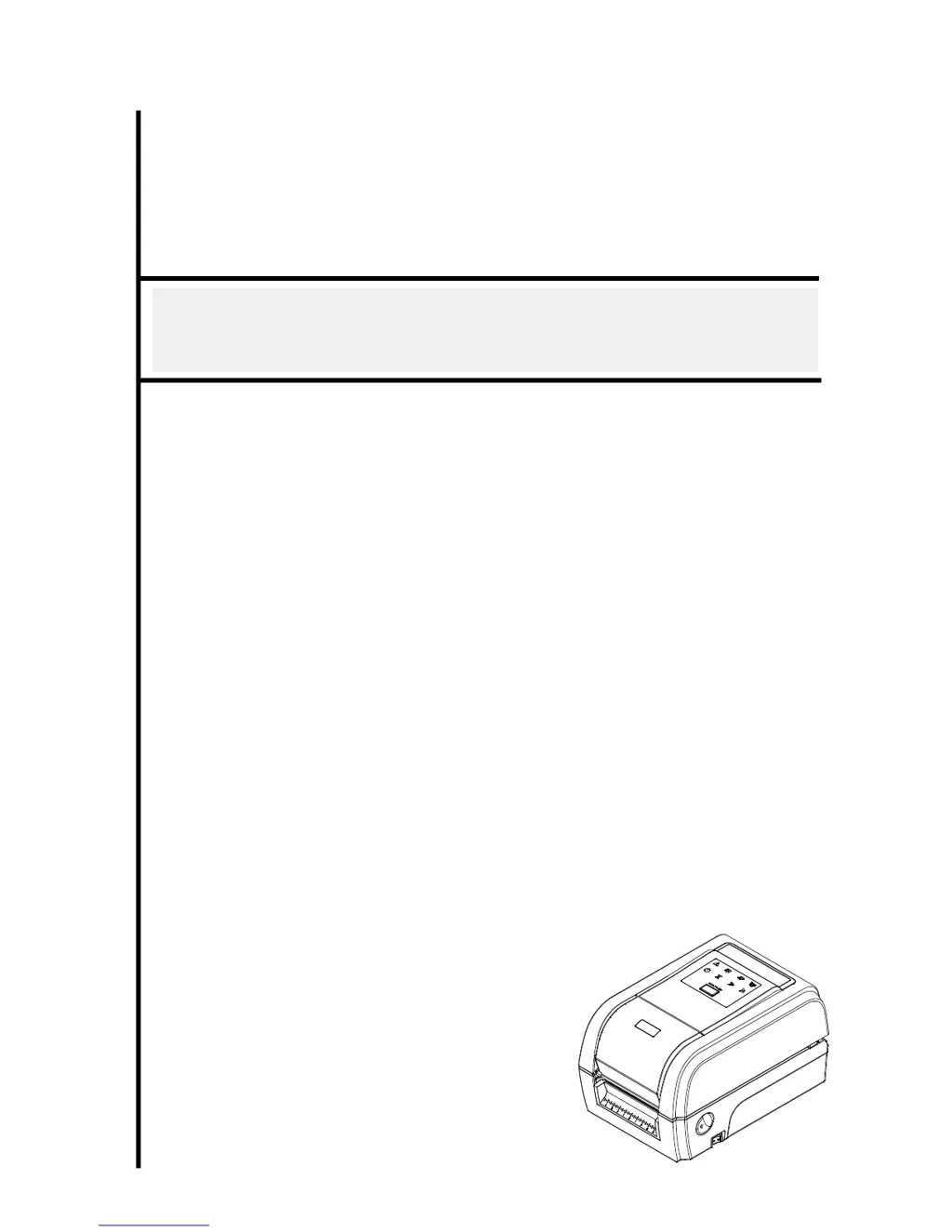
USER’S
MANUAL
TX200/ TX300/ TX600 Series
THERMAL TRANSFER / DIRECT THERMAL
BAR CODE PRINTER

Other manuals for TSC TX200 Series

Questions and Answers

  • K
    kristinbrownAug 31, 2025
    How to resolve gray line on blank label with my TSC Barcode Reader?
    • J
      Jerry HarrisAug 31, 2025
      Gray lines appearing on blank labels from your TSC Barcode Reader can be due to: * A dirty print head. Clean the print head. * A dirty platen roller. Clean the platen roller.
  • J
    Jeremy BonillaSep 12, 2025
    Why the printing position of small label is incorrect on TSC TX200 Printer?
    • Z
      Zachary PetersonSep 12, 2025
      If the printing position of small labels is incorrect on your TSC printer, the media sensor sensitivity may not be set properly. Calibrate the sensor sensitivity again.
  • D
    daniel59Aug 30, 2025
    What to do if my TSC Barcode Reader is continuously feeding labels?
    • K
      katrinamayerAug 30, 2025
      If your TSC Barcode Reader is continuously feeding labels, it could be due to: * An incorrect printer setting. Initialize the printer and perform gap/black mark calibration. * Improper gap/black mark sensor sensitivity. Calibrate the gap/black mark sensor. * Incorrect label size setting. Ensure the label size is set correctly in the labeling software or program. * Labels stuck inside the printer mechanism near the sensor area. Remove any stuck labels.
  • P
    Patricia BarnesSep 14, 2025
    Why is my TSC Barcode Reader not responding?
    • V
      Vanessa GarzaSep 14, 2025
      If your TSC Barcode Reader is not responding, it may be due to: * No power. Turn on the power switch. * A broken power supply. Check if the green LED is lit on the power supply. If not, the power supply is likely broken. * Loose power connections. Ensure both power connections from the power cord to the power supply and from the power supply to the printer power jack are securely connected.
  • M
    Marvin RiosSep 12, 2025
    Why is the RTC time incorrect when I reboot my TSC TX200 Printer?
    • S
      Samantha WalkerSep 12, 2025
      If the RTC time is incorrect after rebooting your TSC printer, the battery may have run down. Check if there is a battery on the main board.
  • T
    Tricia BurnsSep 18, 2025
    What does it mean when my TSC Barcode Reader displays 'Head Open' or 'Carriage Open'?
    • J
      Jordan StrongSep 18, 2025
      If your TSC Barcode Reader shows 'Head Open' in DiagTool or 'Carriage Open' on the LCD: * Please close the print carriage.
  • S
    Scott PriceSep 23, 2025
    What to do if my TSC Barcode Reader displays 'Memory full ( FLASH / DRAM )'?
    • H
      Heather MaySep 23, 2025
      If your TSC Barcode Reader displays 'Memory full (FLASH / DRAM)': * Delete unused files in the FLASH/DRAM. * Note that the maximum number of files in DRAM is 256, with a maximum user addressable memory space of 256KB. * The maximum number of files in FLASH is 256, with a maximum user addressable memory space of 2560KB.
  • R
    Rebecca TravisAug 27, 2025
    How to fix irregular printing on TSC printer?
    • C
      Courtney SweeneyAug 27, 2025
      If your TSC printer is printing irregularly, it may be in Hex Dump mode. Turn the printer off and on to exit this mode. Also, check and reset the RS-232 setting.
  • D
    Daniel Powell IIIAug 26, 2025
    Why is there no print on the label from my TSC printer?
    • M
      Mary GoldenAug 26, 2025
      If your TSC printer is producing blank labels, ensure that the label and ribbon are loaded correctly according to the instructions. Verify that the ribbon and media are compatible, paying attention to the ribbon-inked side. Also, consider cleaning the print head.
  • A
    Alicia TrevinoAug 25, 2025
    How to resolve 'No Paper' error on my TSC printer?
    • A
      Amanda BatesAug 26, 2025
      If your TSC printer shows a 'No Paper' error, first ensure that you have a new label roll. If the roll is new, make sure the label roll is correctly installed. You might also need to calibrate the gap/black mark sensor.

Summary

1.2 Product Features

1.2.1 Printer Standard Features

Details the standard hardware and software features of the printer.

1.3 General Specifications

1.4 Print Specifications

2.3 Operator Control

2.3.1 LED Indication and Key

Explains LED indicators, feed/pause button functions, and status meanings.

3. Setup

3.1 Setting up the printer

Step-by-step guide for placing, connecting, and powering on the printer.

3.2 Loading the Ribbon

3.3 Loading the Media

4. Diagnostic Tool

4.2 Printer Function Settings

Details the various functions available within the diagnostic tool for printer setup.

4.3 Setting Ethernet via Diagnostic Tool

Instructions for configuring Ethernet using USB, RS-232, or direct Ethernet interfaces.

5. Power-on Utilities

5.1 Ribbon and Sensor Calibration

Procedures for calibrating ribbon and gap/black mark sensors.

5.2 Gap;Black Mark Calibration, Self-test, and Dump Mode

Details sensor calibration, self-test printing, and dump mode functions.

5.3 Printer Initialization

Restores printer settings to factory defaults, clearing memory.

6. LCD Menu Functions

6.8 Diagnostics

Access to diagnostic functions like Print Config, Dump Mode, and Print Head checks.

7. Troubleshooting

8. Maintenance

TSC TX200 Series Specifications

General IconGeneral
Operating Temperature41°F to 104°F (5°C to 40°C)
Print MethodThermal Transfer / Direct Thermal
Resolution203 dpi
Memory8 MB Flash
Processor32-bit RISC
Communication InterfaceUSB 2.0
Core Diameter1" (25.4 mm)
Power Supply100-240 VAC, 50/60 Hz
Storage Temperature-4°F to 122°F (-20°C to 50°C)
CertificationsCE, FCC, RoHS, UL, TUV, CB, CCC
Operating Humidity25-85% non-condensing

Related product manuals