C099-F9P - User guide
UBX-18063024 - R16 Wireless communication Page 24 of 43
C1-Public
1. Configure C099-F9P to Wi-Fi AP mode by using the CLI command in terminal:
/mem_store/run wifi_ap
2. Set the C099-F9P Wi-Fi and I2C interfaces to support base operation
:
/mem_store/run base
3. Restart C099-F9P to apply the Wi-Fi AP settings.
ODIN-W2 waits until a Wi-Fi STA (rover) connects to it before streaming any data over the
wireless link. See section 6.3.2.1 Rover operation in Wi-Fi STA mode for rover configurations.
4. Apply ZED-F9P base settings through u-center by connecting to the ZED-F9P UART 1 port.
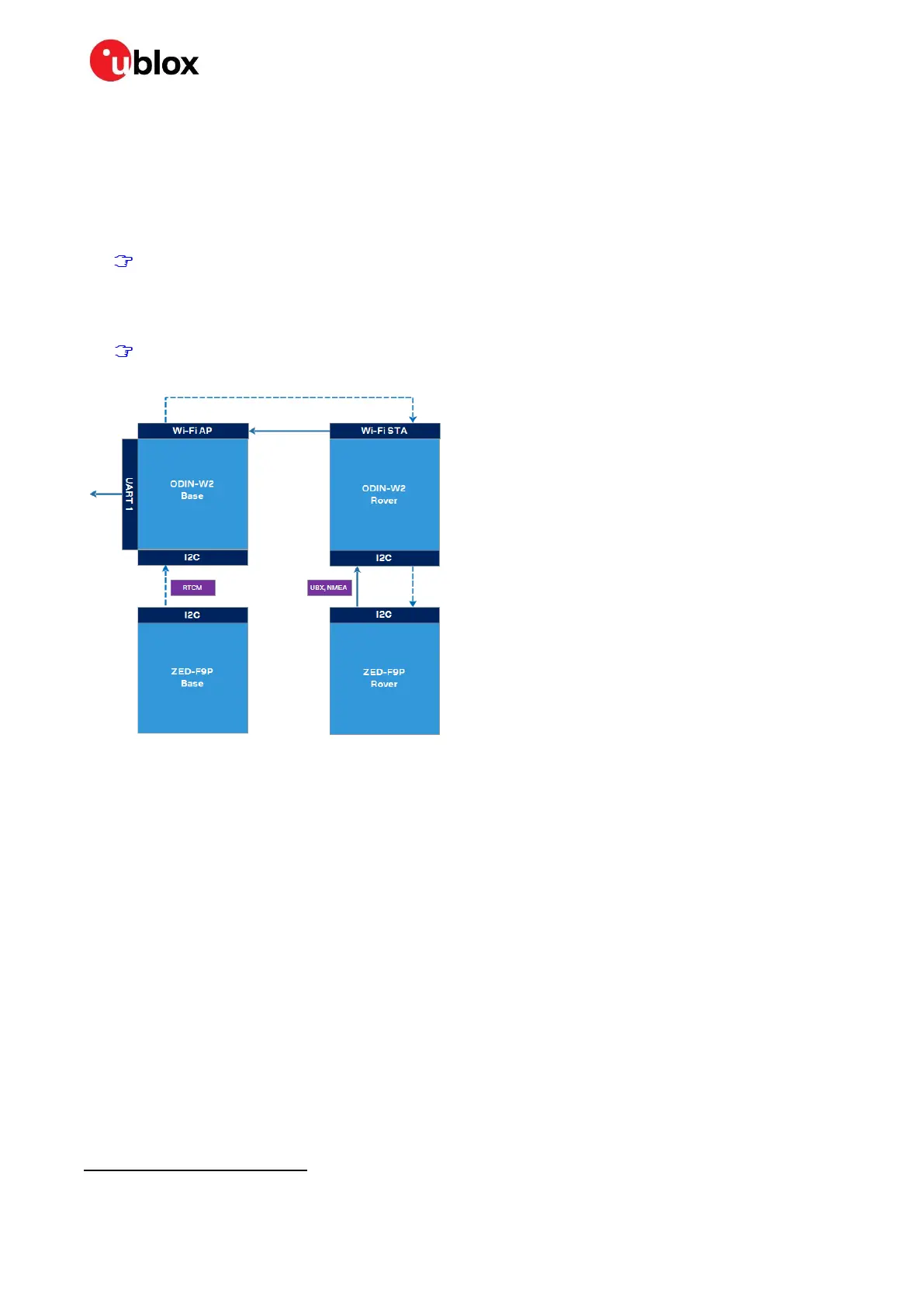
Any RTCM messages sent over the Wi-Fi link shall be configured for the ZED-F9P I2C interface
as depicted in Figure 23.
Figure 23: Wi-Fi base and rover setup
6.3.1.2 Rover operation in Wi-Fi AP mode
To connect to a C099-F9P rover via a Wi-Fi link, follow the configuration steps below:
1. Configure C099-F9P to Wi-Fi AP mode by using the CLI command in terminal:
/mem_store/run wifi_ap
2. Set C099-F9P to operate as a rover:
/mem_store/run rover
3. Restart C099-F9P to apply the Wi-Fi AP settings.
4. Connect the host PC’s Wi-Fi to the Wi-Fi AP of C099-F9P:
“C099-F9P” is the default SSID
“123456789” is the default WPA2 passphrase



 To Next Page
 Loading...