EN UltiMaker S7 Installation and user manual 25
6. Insert the end of the material into the feeder and gently push it until the feeder grips it and the material is
visibleintheBowdentubejustabovethefeeder.Conrmtocontinue.
7. Wait for the UltiMaker S7 to heat up the print core and to load the material into the print head.
8. Conrmwhenthenewmaterialextrudesconsistently.
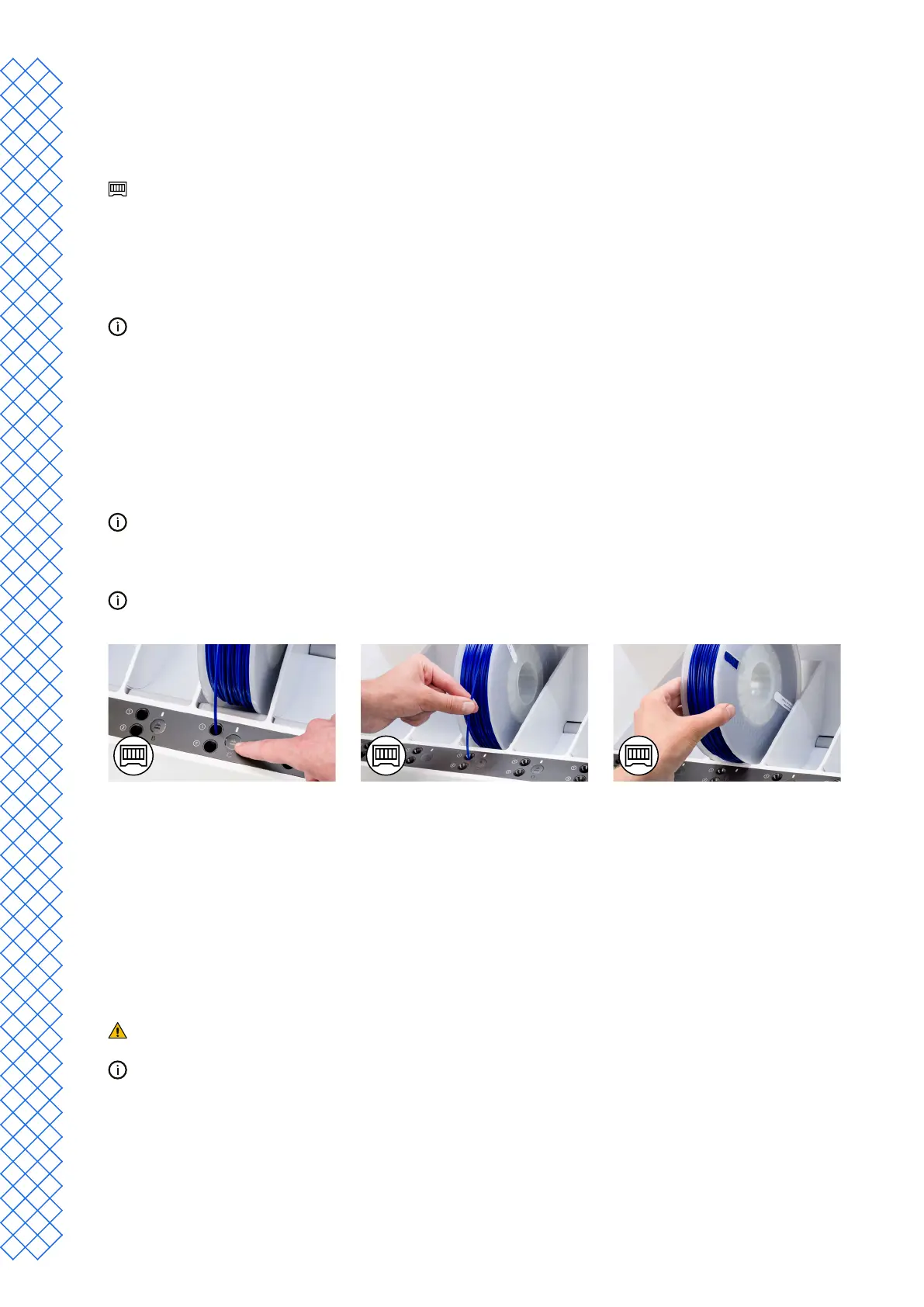
Material Station
Changing materials in the Material Station is easy and intuitive. This is possible for pre-loaded materials during
printing as well as in an idle state.
1. Gently open the glass door of the Material Station.
2. Presstheejectbuttonofthecorrespondingmaterialbaytoejectthepre-loadedlament.
The materials in use during a print or parked above the print head are blocked from unloading. Active
materials are indicated by a blue light.
3. Remove the material spool from the material bay.
4. Takeanewspoolandusethewirecutterstoensurethatthelamenthasashort,sharptipbefore
loadingthelament.
5. PlacethespooloflamentintothematerialbayoftheMaterialStationwiththeNFCtagontheleftside.
6. Insertthetipofthematerialintolamententryport1or2untiltheprefeedergrabsthematerial.
7. Wait for the Material Station to detect the material and select Conrm to continue.
When using a third-party material, you can select the material type manually.
8. Close the glass door of the Material Station.
The materials will remain pre-loaded in the Material Station and will be automatically forwarded to the print
head when a print is started.
Change print core
Print cores can be easily changed on the UltiMaker S7 by using the procedure from the menu. You can also choose
to only load or unload a print core:
1. In the Conguration menu, select the print core you want to change and select Change.
2. Wait for the print core to heat up, unload the material, and cool down again.
3. Open the glass door of the UltiMaker S7 and the print head fan bracket and select Conrm when completed.
4. Squeeze the print core lever upward and slide the print core out of the print head.
Donottouchthecontactpointsonthebacksideoftheprintcorewithyourngers.
Keeptheprintcorecompletelyverticalwhileremovingorinstallingitsoitwillsmoothlyslideintoand
out of the print head.
5. Insertadierentprintcorebysqueezingtheleverupwardandslidingitintotheprintheadslot
until you hear a click.
6. Carefully close the print head fan bracket and select Conrm when completed.
7. Wait for the UltiMaker S7 to load the material into the print core.


 To Next Page