EN UltiMaker S7 Installation and user manual 33
6.1 UltiMaker support
IfyouareexperiencingdicultieswithanUltiMakerproduct,pleasevisitourknowledgebaseat
support.ultimaker.com.Here,youndalotofinformationaboutUltiMaker’shardware,software,materials,and
more. Navigate to your product to learn more. Alternatively, type a question or subject in the search bar to directly
ndrelevantarticles.
If you can’t resolve the problem with our support articles, get in contact with our support team.
Submit a support ticket and describe the situation. A support agent will help to quickly resolve the issue.
Include as much relevant information about your product and issues as possible, such as:
• Serial number. This starts with BPP- and is found on the printer’s back panel.
• Logles. Go to Preferences → Maintenance → Diagnostics → Save log les to USB.
• Errormessage(s). If applicable, include the ER code or the message on the display.
6.2 Error messages
When the UltiMaker S7 detects that something is wrong, or when it reads values outside of the allowed
range, an error will occur. The display will give a short description of the detected issue along with its unique
error code. For example:
• This print job is not suitable for this printer. Go to ultimaker.com/ER42
ScantheQRcodeornavigatetothespeciedpagetolearnmoreandfortroubleshootingtips.
6.3 Print core troubleshooting
Clogged print core
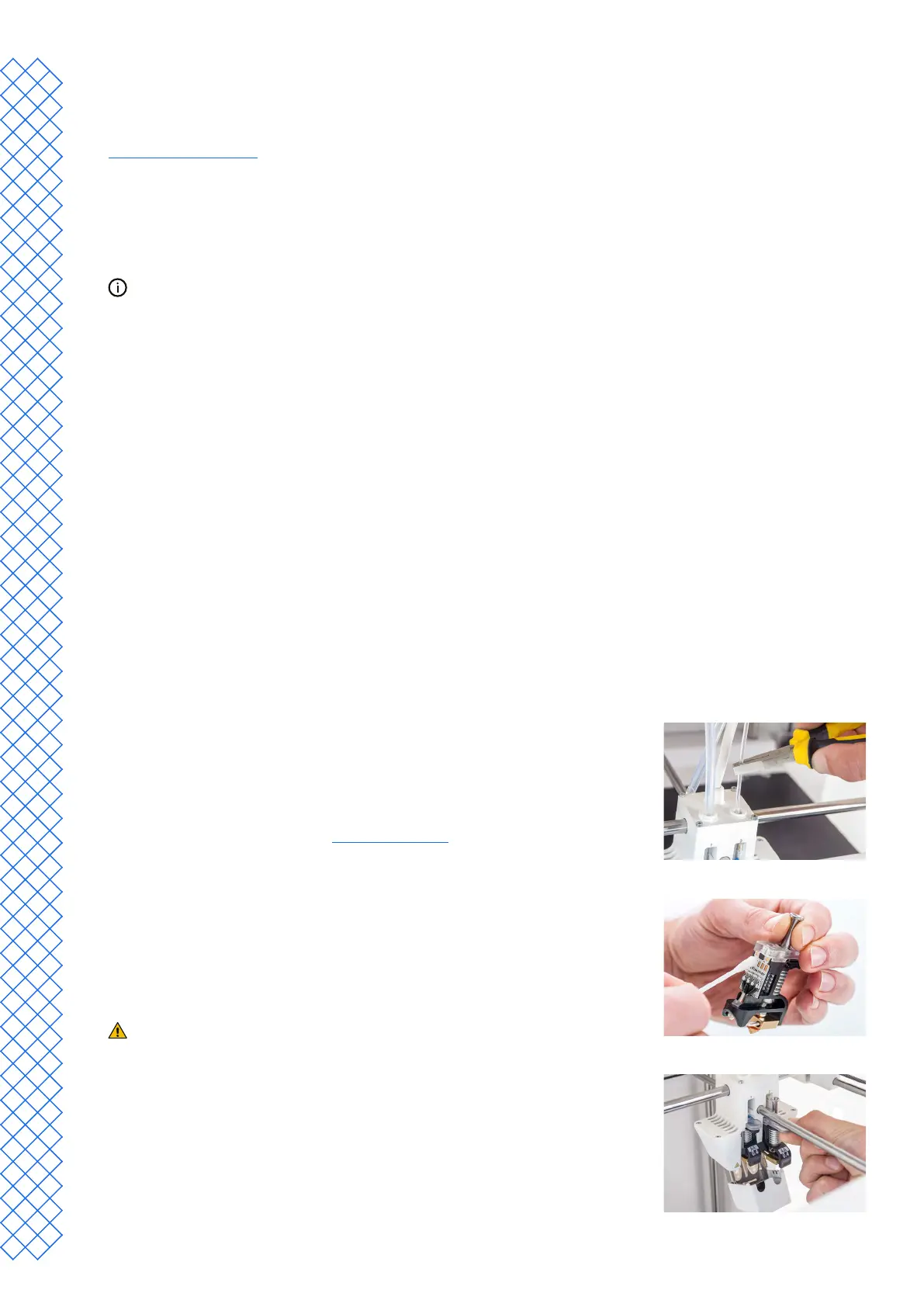
Ifmaterialdoesnotowconsistently,theprintcorecouldbecloggedwith
degraded material. In this case, the print core should be cleaned by performing
the hot and cold pull method. Start the assisted procedure in the Preferences
menu, under Maintenance → Print head → Print core cleaning and follow the
instructions on the display or visit this support page for additional information.
Print core not recognized
If a print core is not recognized by the UltiMaker S7, the printer will inform
you about this. The most common reason for this is dirty contact points on the
PCB at the back of the print core. Clean the contact points with a cotton swab
and some alcohol (IPA).
Donottouchthecontactpointsonthebackoftheprintcorewithyourngers.
Print core not compatible
If the printer gives you an incompatibility warning, the print core cannot be
used with the loaded material. Change the print core and/or the material to a
supportedconguration.


 To Next Page