AC-5000 / 5100 User Guide 29
UNIONCOMMUNITY Co., Ltd. / 12F, Daemyung Valeon, 127, Beobwon-ro,
Songpa-gu, Seoul, 05836, Republic of Korea
TEL: +82-2-6488-3000 / FAX: +82-2-6488-3100 E-Mail :sales@unioncomm.co.kr
http://www.unioncomm.co.kr
3.3. 1. Add
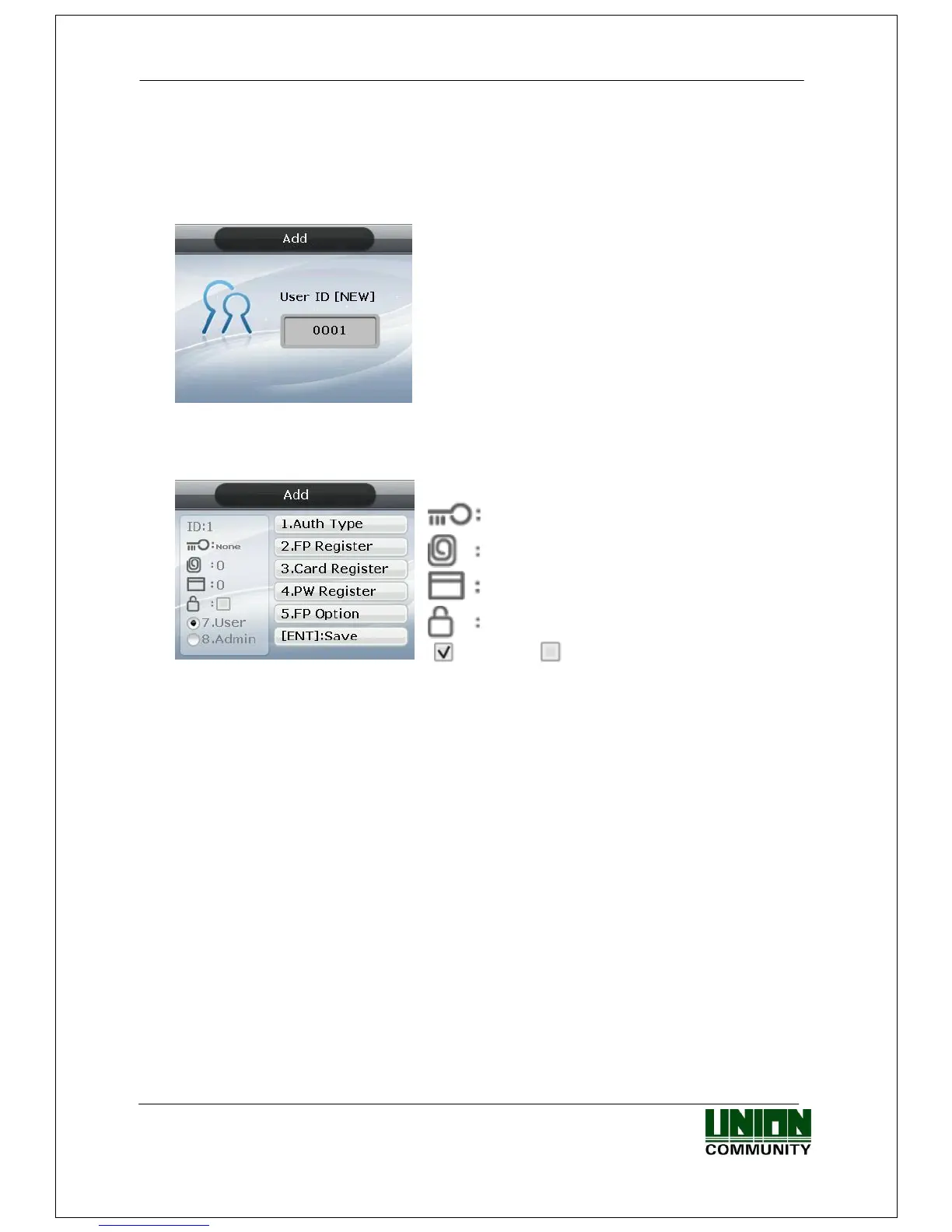
◆ Select [ENT~] [1. User] [1. Add] ◆ in the basic screen, and the following
screen appears:
Input the user ID to be registered and press the
[ENT] key.
Automatically shows the ID to be registered on the
screen, so the user can easily perform registration.
To modify the ID, press the [F4 (←)] key and
delete the existing value and input the new value.
If the user inputs an already registered ID, a failure message appears. The following
screen appears if the ID is not yet registered.
The icon on the left mean, as shown below:
Authentication type.
Number of Fingerprints Registered (0~10).
Number of Cards Registered (0~10).
Whether or not Password is Registered.
( :Registered/ :Not Registered)
As shown on the screen, the user registers by pressing [2] for fingerprint, [3] for card,
and [4] for password. Basically, it is registered in the name of the user. Using the keys
[7] and [8], the user can modify as user or admin. Once the registration is complete, the
user can press [ENT] to save it. The user must press the [F4 (←)] key to cancel the
registration and exit from the menu.
※ Only a user registered as Admin can modify the operating environment of the terminal,
and Add/Modify/Delete the information about all users saved in the terminal. Therefore,
special care is required when registering Admin.
3.3.1.1. Authentication method


 To Next Page