AC-5000 / 5100 User Guide 36
UNIONCOMMUNITY Co., Ltd. / 12F, Daemyung Valeon, 127, Beobwon-ro,
Songpa-gu, Seoul, 05836, Republic of Korea
TEL: +82-2-6488-3000 / FAX: +82-2-6488-3100 E-Mail :sales@unioncomm.co.kr
http://www.unioncomm.co.kr
Press the applicable key that represents the item to
be changed.
3.4.1. IP
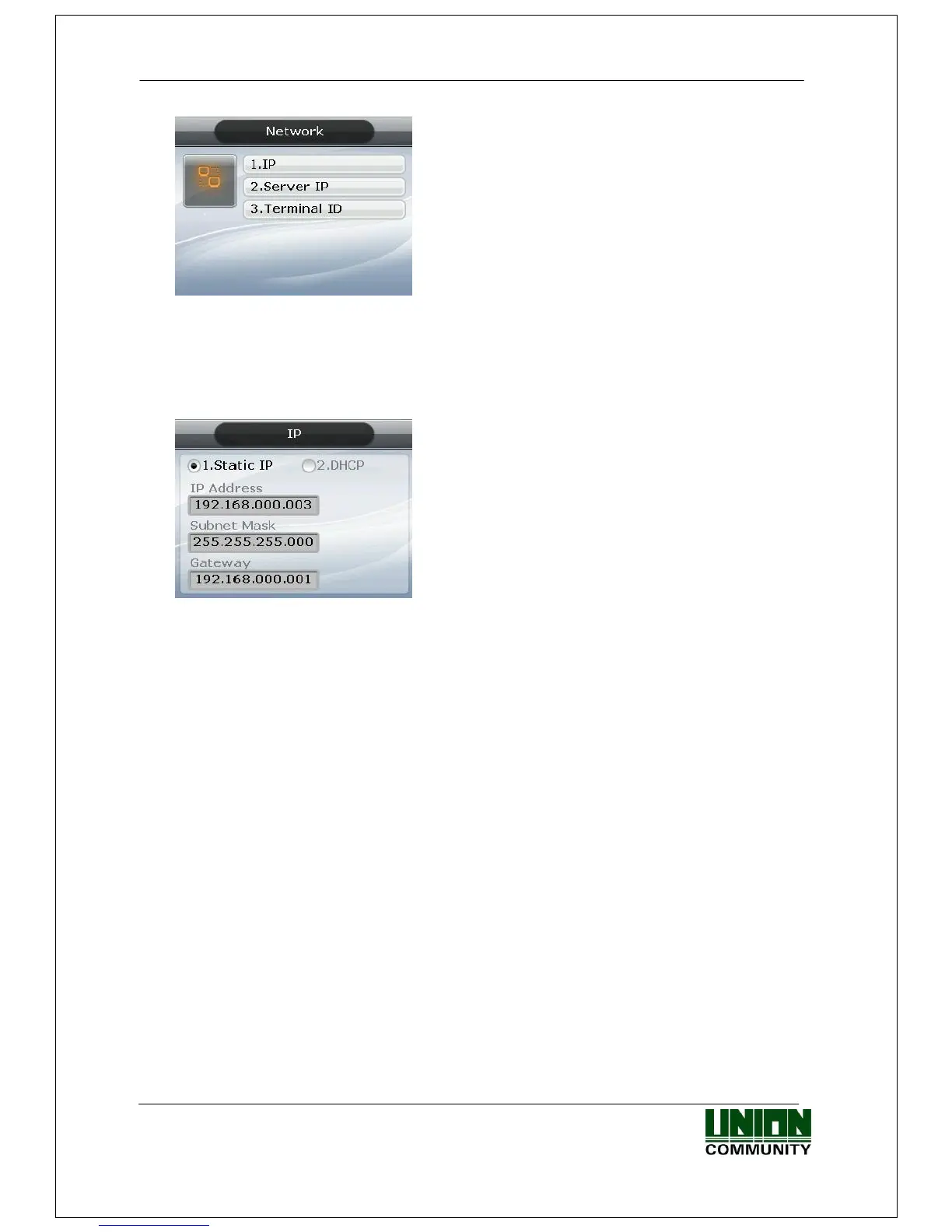
Select ◆ [ENT~] [2. Network] [1. IP] in the initial screen ◆, and the following
screen appears:
When changing IP, delete the existing values using
[F4 (←)] and then input the new values. The ‘.’ in
between the number sequence is created
automatically. Example: input 192 168 010 50
sequentially to input ‘192.168.10.50’.
Select [1] when a fixed IP address is assigned to the connected network and select [2] in
cases where there is a DHCP server in the connected network which is assigning the
address. Set IP, Subnet Mask, and Gateway if it is a fixed IP. There’s no need to set the
address if the user selected a flexible IP address.
The user can exit to the parent menu using the [ENT~] key to apply the changed values,
after finishing the settings, or use the [F4 (←)] key to cancel input during setting. In this
case, the user can only exit by pressing the key for 2 seconds or longer if they are
inputting value in the input box.
3.4.2. Server IP
Select ◆ [ENT~] [2. Network] [2. Server IP] in the initial screen ◆, and the
following screen appears:


 To Next Page