UP3D TECH CO.,LTD
27
Turn it on if you need to scan the texture or pencil line of the model;The default status is off.
(6) Output settings
When scanning completely and export the model data, transform the coordinate system of the
model by configuration. Currently supported output settings include:3Shape, exocad, EGS, UPCAD,
general CAD and Digilea.
(7)Scan the occlusion relationship firstly
Occlusion scan (defaulted) is placed into the first step of the scan. If not chosen, the occlusion scan
is placed into the final step when scanning.
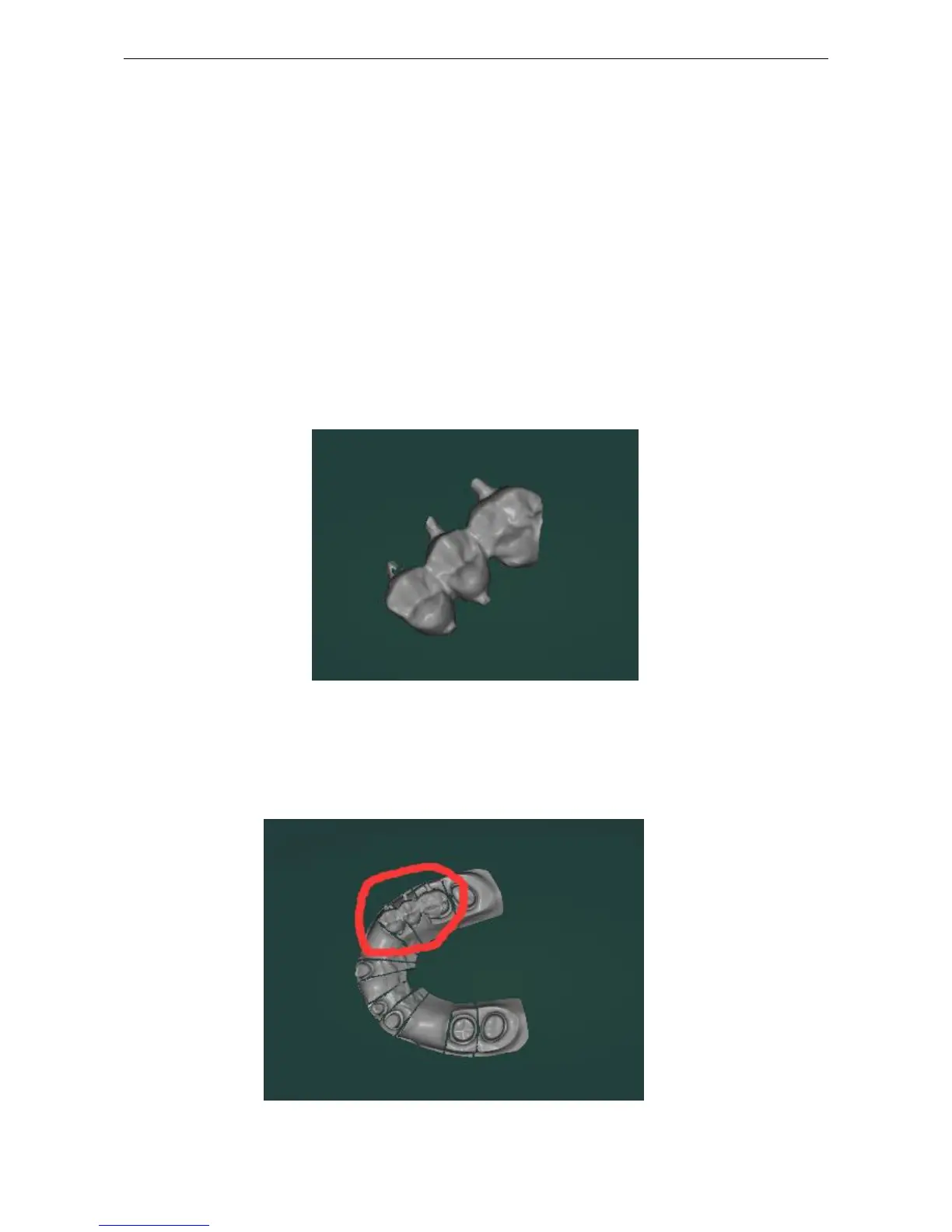
(8)Auto split (Gingiva/Scan body/Wax-up)
When the Gingiva/Scan body/Wax-up is aligned, the software automatically calculates the data of
Gingiva/Scan body/Wax-up and automatically deletes the other spare scan data ;The default status
is on.
Figure 2-13
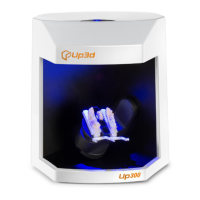
If you don’t choose it, it will manually separate the Gingiva/Scan body/Wax-up. (Note: In the
output step, manually delete the scan data except the Gingiva/Scan body/Wax-up by the
editing tool.)
Figure 2-14



 To Next Page