UP3D TECH CO.,LTD
41
A4.Hold down the Ctrl key to click or frame the marked connected region for deduction.
【Visible】
Select visible is only used for mesh models, not for point cloud models, and only rectangle,
polygonal, lasso selection tools can support the features;
The covered area will not be marked (non-through selection) when activated, the covered area
will be marked for selection (through selection) when closed.
the above selection tool.
A1.Hot key【Ctrl + C】,Clearing all selected areas;
A2.Hot key【Ctrl + R】,Inverse the selected areas
A3.Click【Delete Selected Data】or press the【Delete】key to delete the area marked red
(
3
)
Model editing tools-Hole filling tool
【Hole filling】
Operation:
A1.Click【Hole filling】to enable or disable Hole detection function. The software will
automatically detect the hole with a blue line when activated.
A2.Move the mouse to the blue border, the blue border turns red, click to perform the fill hole.
【
One-key filling
】
Operation:
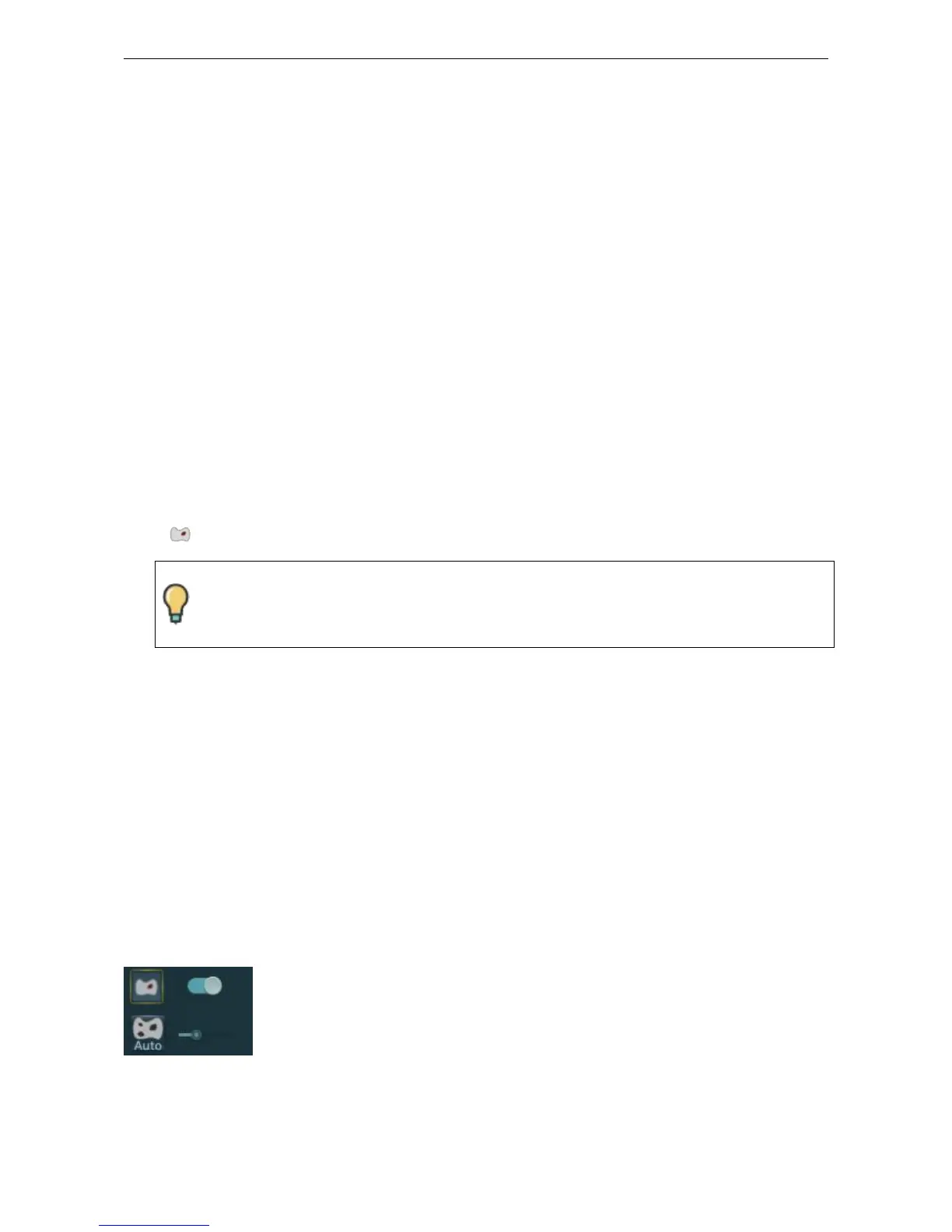
A1.It will display the
【
One-key filling
】
icon after clicking
【
Filling
】
,you can turn it on or off. It
will automatically display 【hole threshold】if you turn it on, the holes within the threshold range



 To Next Page