UP3D TECH CO.,LTD
44
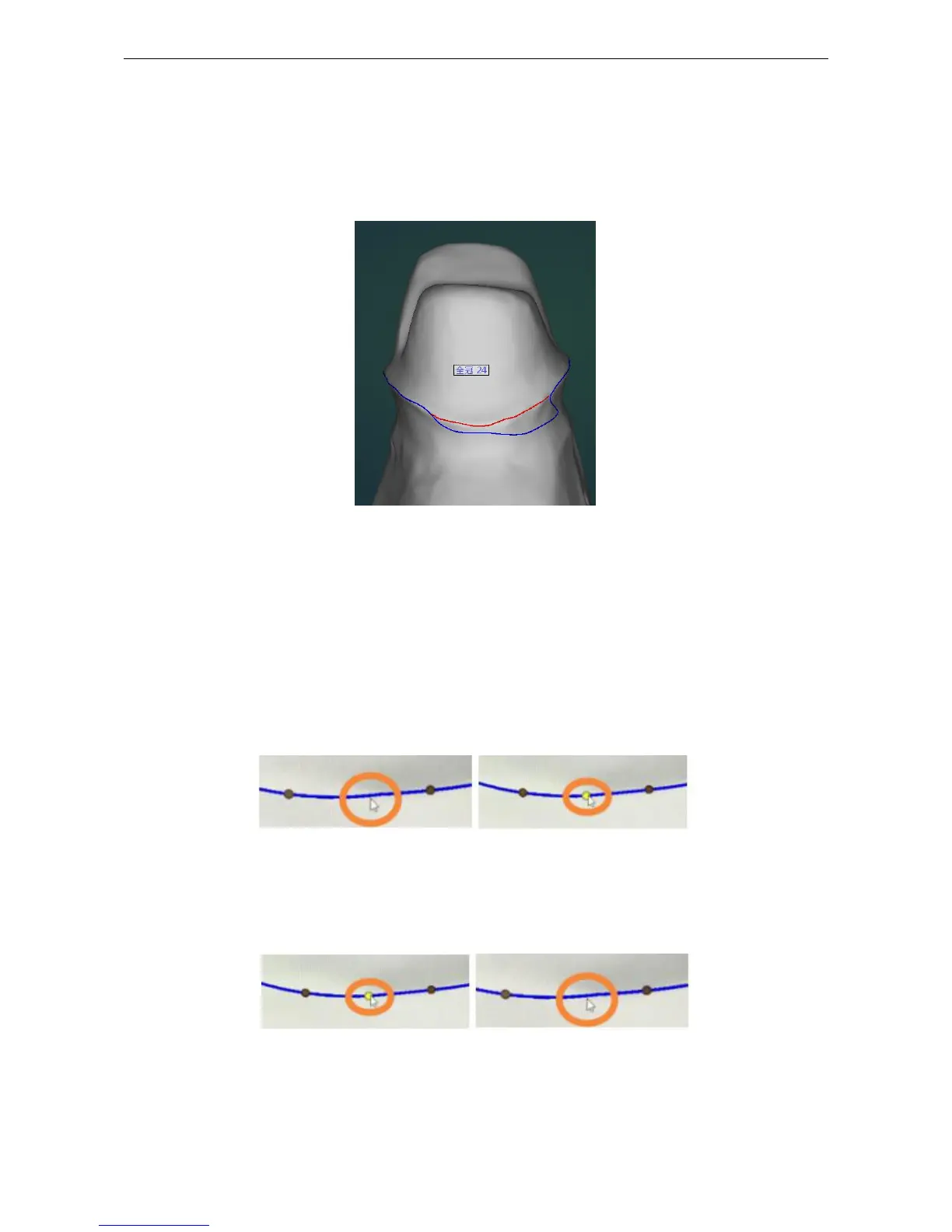
Hand drawing editing: click and drag the left button on the margin to hand draw, which the margin
line is in red. After release the left button, the margin line will be constructed according to the trail
of the red line.
Single click editing: Click at the position near the margin line, and it will be adjusted automatically.
Figure4-2
Control points editing: Display control points, you can edit the margin line on both sides of the
current control point by dragging the control points. The control points can be dragged across the
different teeth to edit the margin line of the corresponding tooth position when the margin line
control points of multiple teeth are displayed.
Add control points: double click the left button to add a control point on the margin line (Figure 4-
3).
Figure4-3
Delete control points: click right button on the control points to delete the control point and also you
can click and select the control point, press
【
Delete
】
to delete the control point.
Figure4-4
Control point spacing: Press Ctrl+mouse wheel to adjust the control point spacing
Margin line overall translation:



 To Next Page