- 31 -
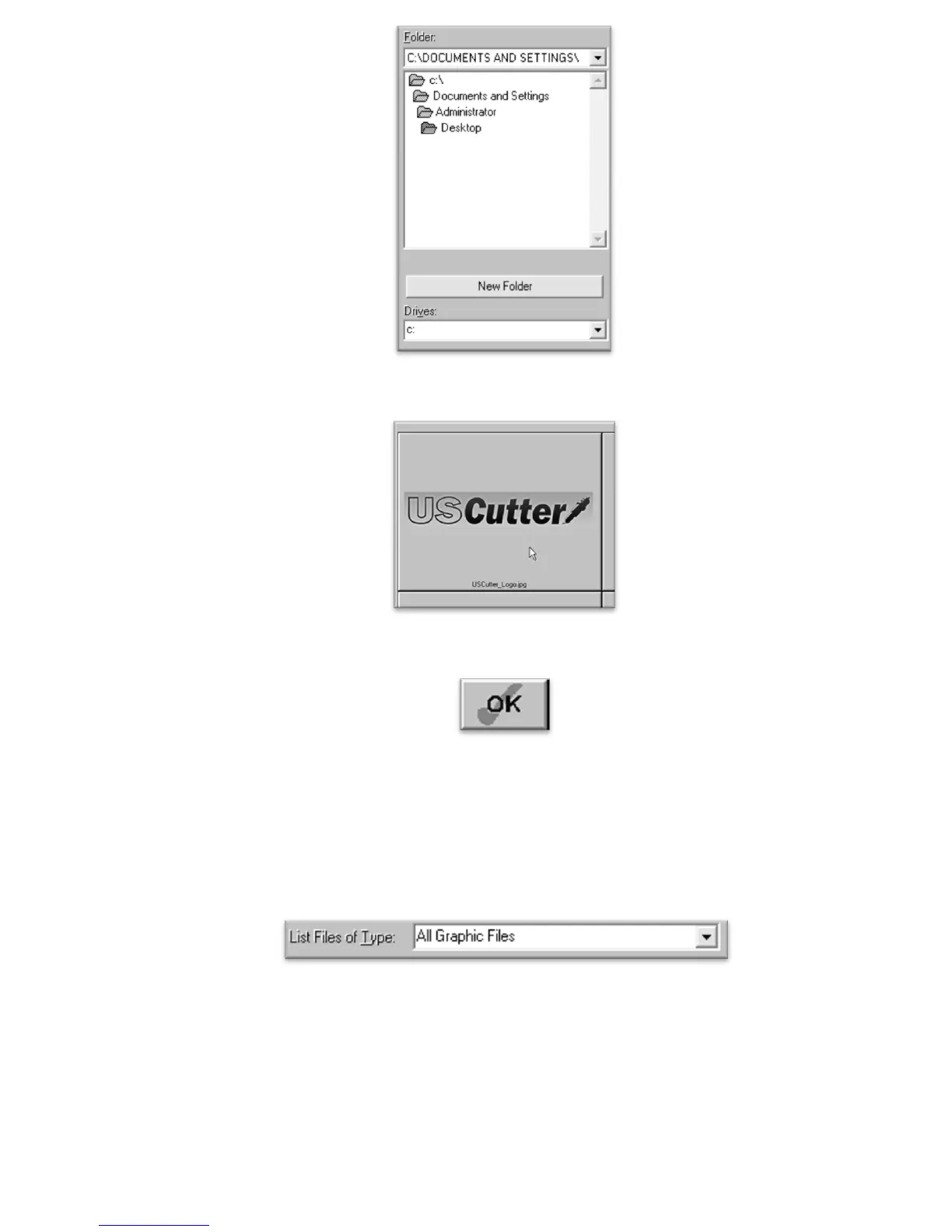
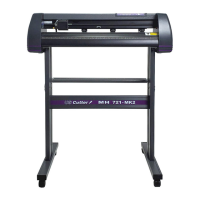
Then Select the image to import,
And select the OK button.
If you are having trouble locating your file, make sure that the file type is selected from the “List Files of Type”
menu, or that “All Graphic Files” is selected.
If the file imported is already a vector image then it is now ready to cut or be further edited within
SignBlazer. If you are ready to cut, you can follow the steps in the previous section “Making a Simple Cut
in SignBlazer”(starting on page 27).
If the image imported is a raster image then follow the steps in the next section “Converting a Raster
Image to Vector in SignBlazer” to further prepare the image for cutting.


 To Next Page