- 34 -
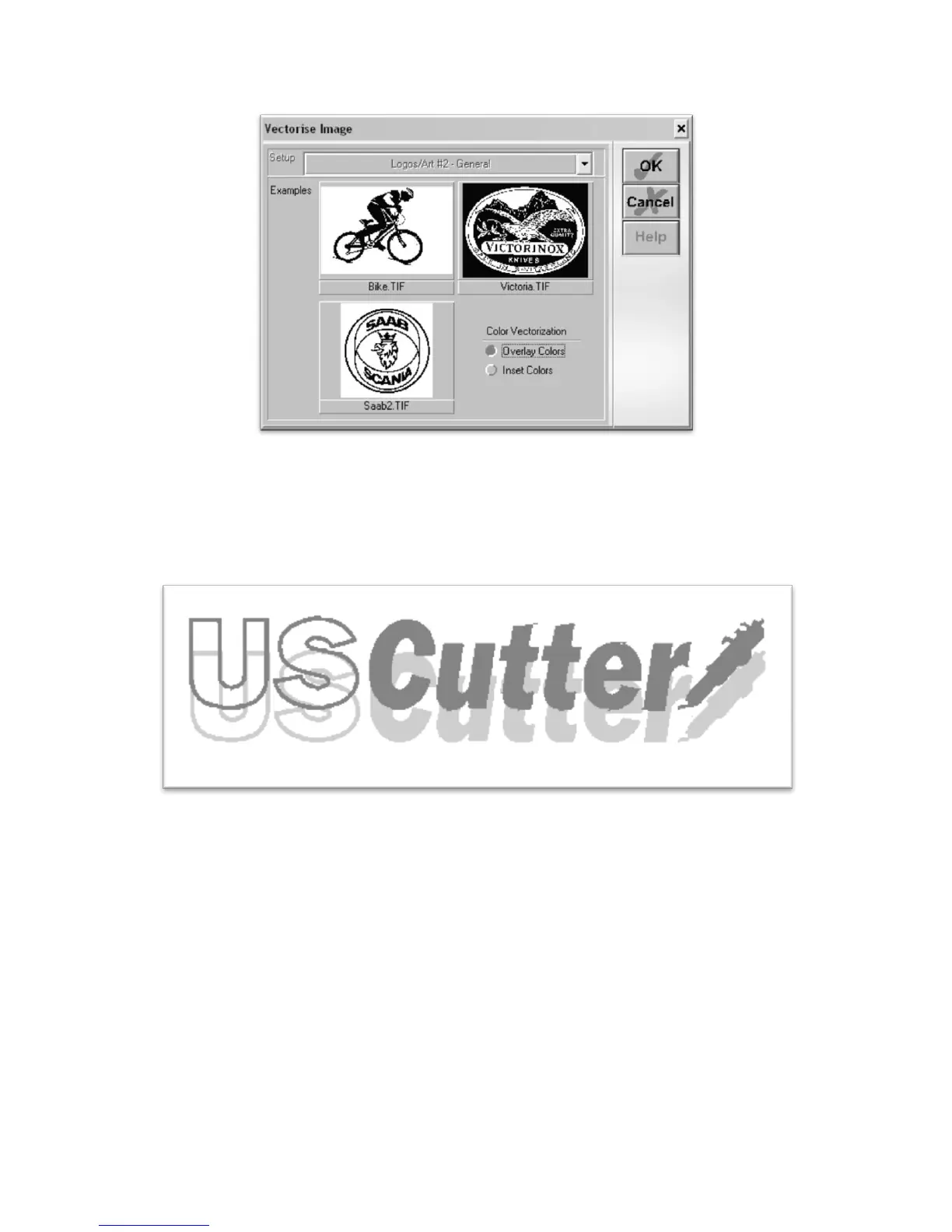
And press the OK button on the Vectorise Image window.
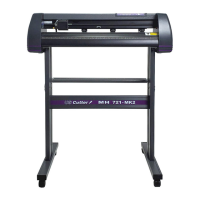
You are now left with 1 monochrome image and 1 vectorized image. This may be difficult to see as they
are probably layered directly on top of one another. If you grab one image and drag it you will see the
other image left behind. You can now delete the monochrome image that has been left behind as it is no
longer needed.
The cutting process for a vectorized image is the same as it is for cutting a simple image. You can now
follow the steps from the “Making a Simple cut in SignBlazer” section of this manual (starting on page 27) to
make your cut.


 To Next Page