- 38 -
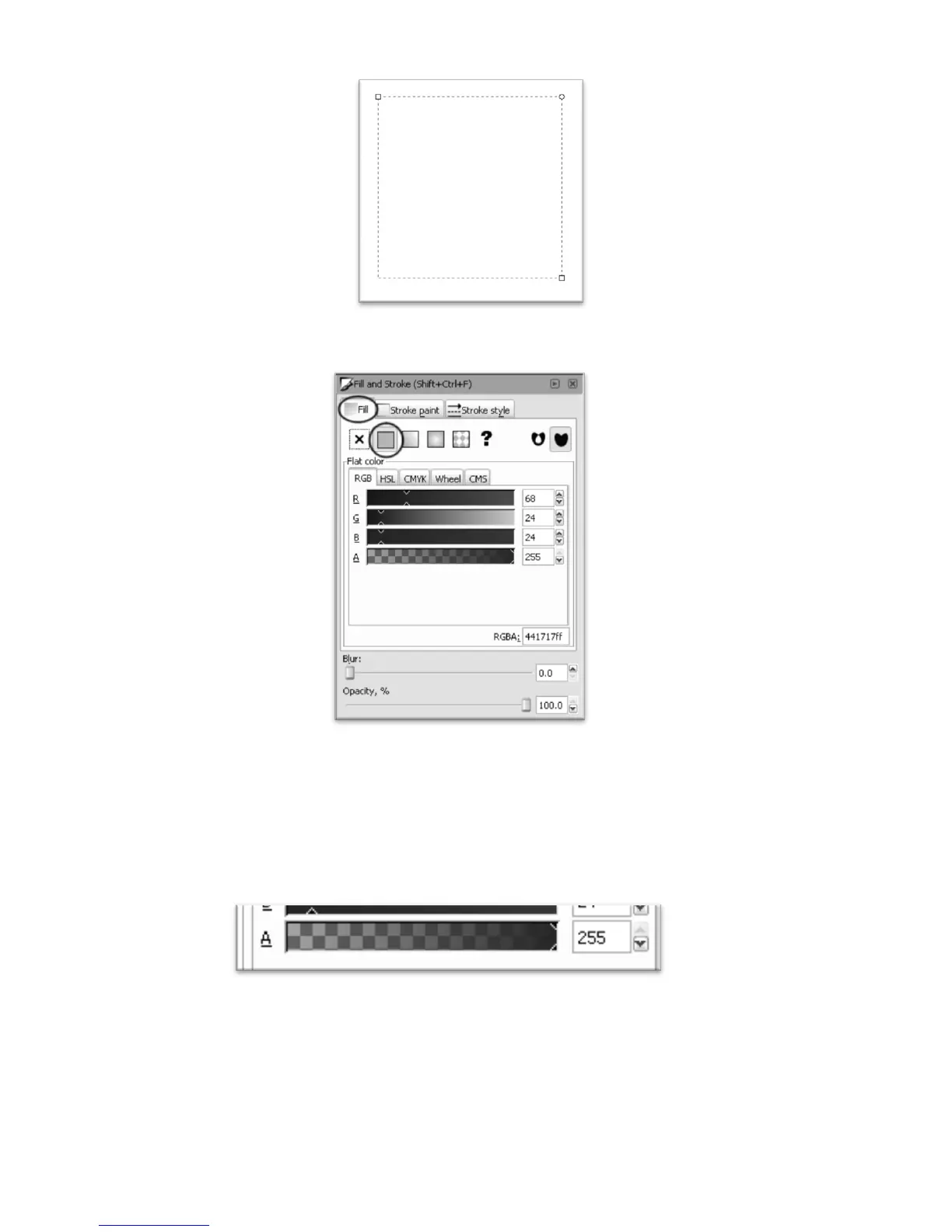
surrounding the shape with a square symbol in two of the corners and a circle in another like the image below. If the
shape is not selected, make sure you are still using the square tool and click on the shape to select it.
Select the Fill tab from the Fill and Stroke panel. Then select “Flat color” from the options at the top of
the panel.
Use the R, G, and B sliders from under the RGB tab to select a color for the object. This is the color the
object will appear in SignCut. Here we have chosen a dark red with values of R(68), G(24), and B(24).
Make sure the alpha slider (A) is set to 255.



 To Next Page