9-9
User Authentication and Accounting (User Login, Job Accounting) > Setting User Login Administration
Changing User Properties
User properties can be changed. Types of user properties that could be changed may be different depending on user
access privilege.
For a user with administrator rights who logs in
User properties can be changed and users can be deleted. The items, which can be added, are all able to be changed.
1
Display the screen.
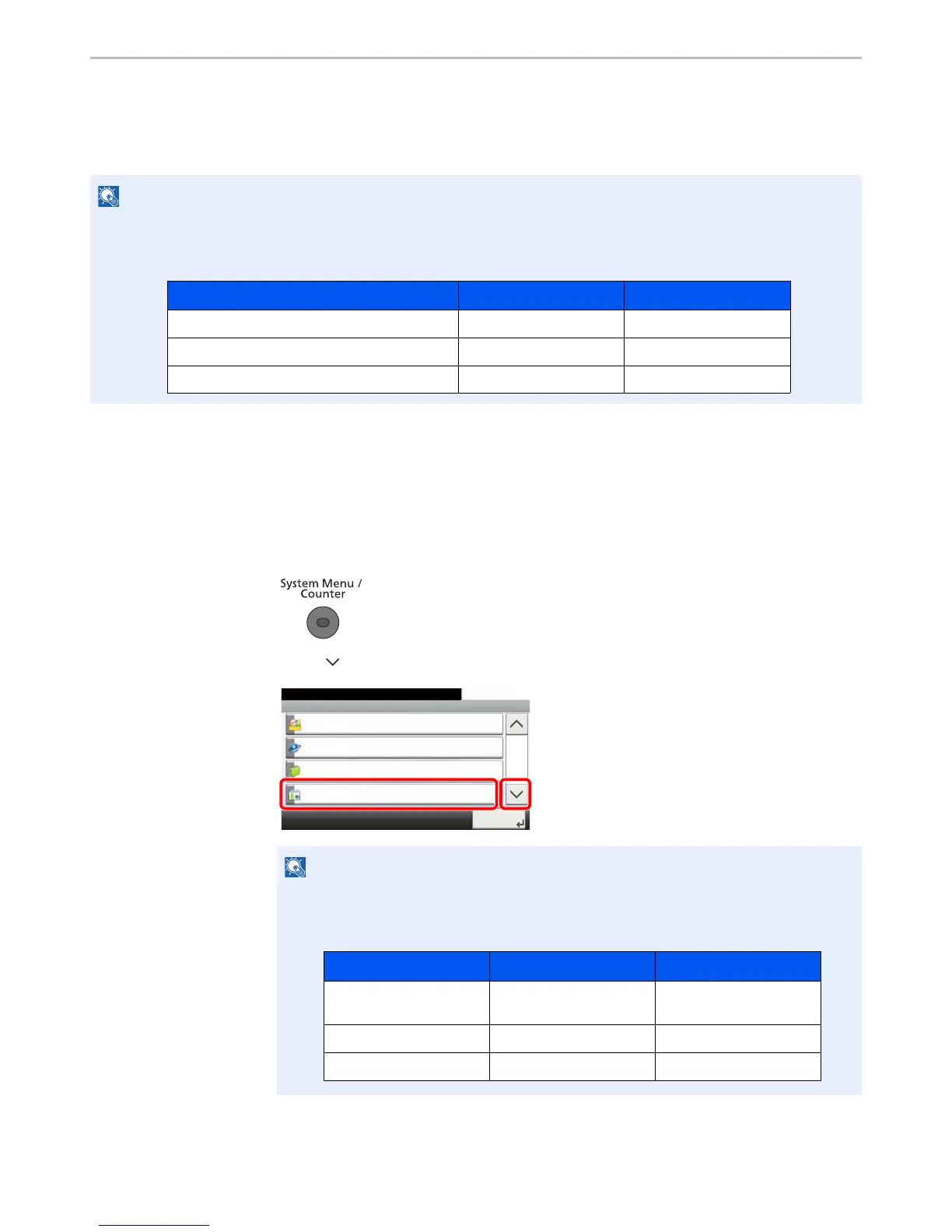
1 Press the [System Menu/Counter] key.
2 Press [ ] and then [User Login/Job Accounting].
3 Press [User Login Setting] and then [Local User List].
To change the user information of the machine administrator, you must log in with machine administrator authority.
You can only view user information if you log in as a regular user.
The factory default login user name and login password are set as shown below.
If the login user name entry screen appears during operations, enter a login user name
and password, and press [Login].
The factory default login user name and login password are set as shown below.
Model Name Login User Name Login Password
P-4030i MFP/P-4035i MFP 4000 4000
P-5035i MFP 5000 5000
P-6035i MFP 6000 6000
System Menu/Counter.
System Menu
Favorites/Application
10:10
Internet
Address Book/One Touch
User Login/Job Accounting
4/5
Close
Model Name Login User Name Login Password
P-4030i MFP/P-4035i
MFP
4000 4000
P-5035i MFP 5000 5000
P-6035i MFP 6000 6000


 To Next Page
 Loading...