UTT Technologies Application
http://www.uttglobal.com Page 42
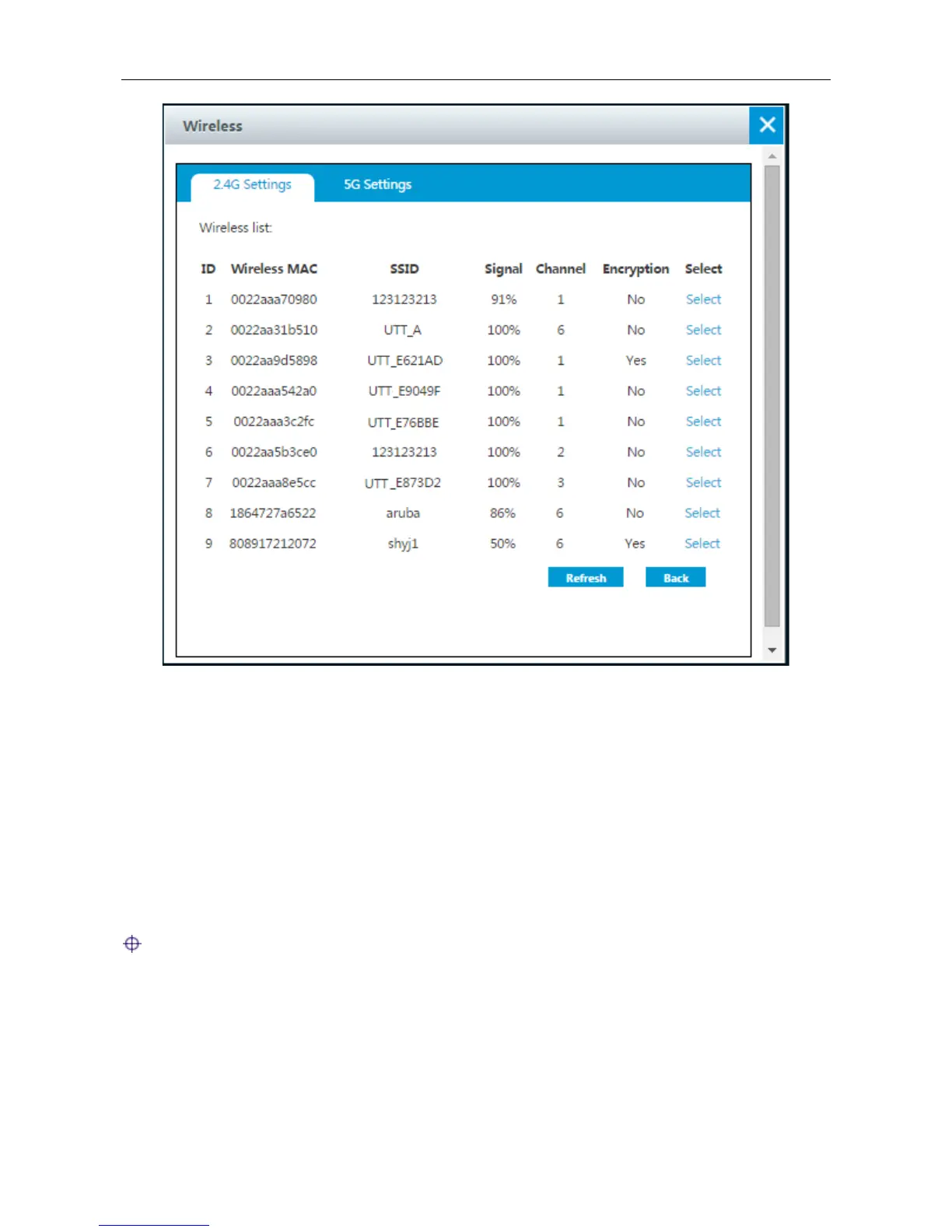
Figure 4-20 Wireless list
Step 5: A few second later, Device B will be connected to Device A successfully.
Step 6: Login to Device A, Do the same procedure from step 3 to step 5 to let Device A connected
to Device B successfully.
Step 7: Verify connectivity between Device A and Device B.
To test connectivity, you can login to a computer that is connected to Device B, and use the ping
command to ping the LAN IP address of the Device A. If ping is successful, a wireless connection
between the two devices has been established.
After Device B is connected to Device A wirelessly, the client devices connected to Device B are
able to access the Internet.
Note:
1) The LAN IP addresses of Device A and Device B must be on the same subnet.
2) The Wireless Mode, Wireless Channel, Channel Width and Security Mode configured on
Device A and Device B must be the same.
3) Before WDS is enabled, please disable DHCP Server on one device to avoid DHCP conflict.



 To Next Page