UTT Technologies Application
http://www.uttglobal.com Page 58
Click the Upgrade button. In the pop-up window appears, click OK to start the upgrade.
Note:
1) As new versions of the Device’s firmware become available, you can upgrade the firmware on
your Device to take advantage of new features and improved performance.
2) Please download the firmware that matches the model and hardware version of your Device.
3) It is recommended that you go to Application > Configuration page to backup the Device’s
current configuration before upgrade. Normally, the upgrade does not affect the current
configuration of the Device. However, this situation might happen if the right steps are not
followed properly.
4) It is strongly recommended that you upgrade the firmware when the Device is under light load.
5) During the firmware upgrade, DO NOT power off the Device, press the Reset button, shut down
the PC, or interrupt the process in any way until the operation is complete. Doing so may cause
unexpected error or even irreparable hardware damage.
6) After the upgrade is complete, the Device will automatically restart for the new firmware to take
effect, without human intervention.
4.22 Configuration
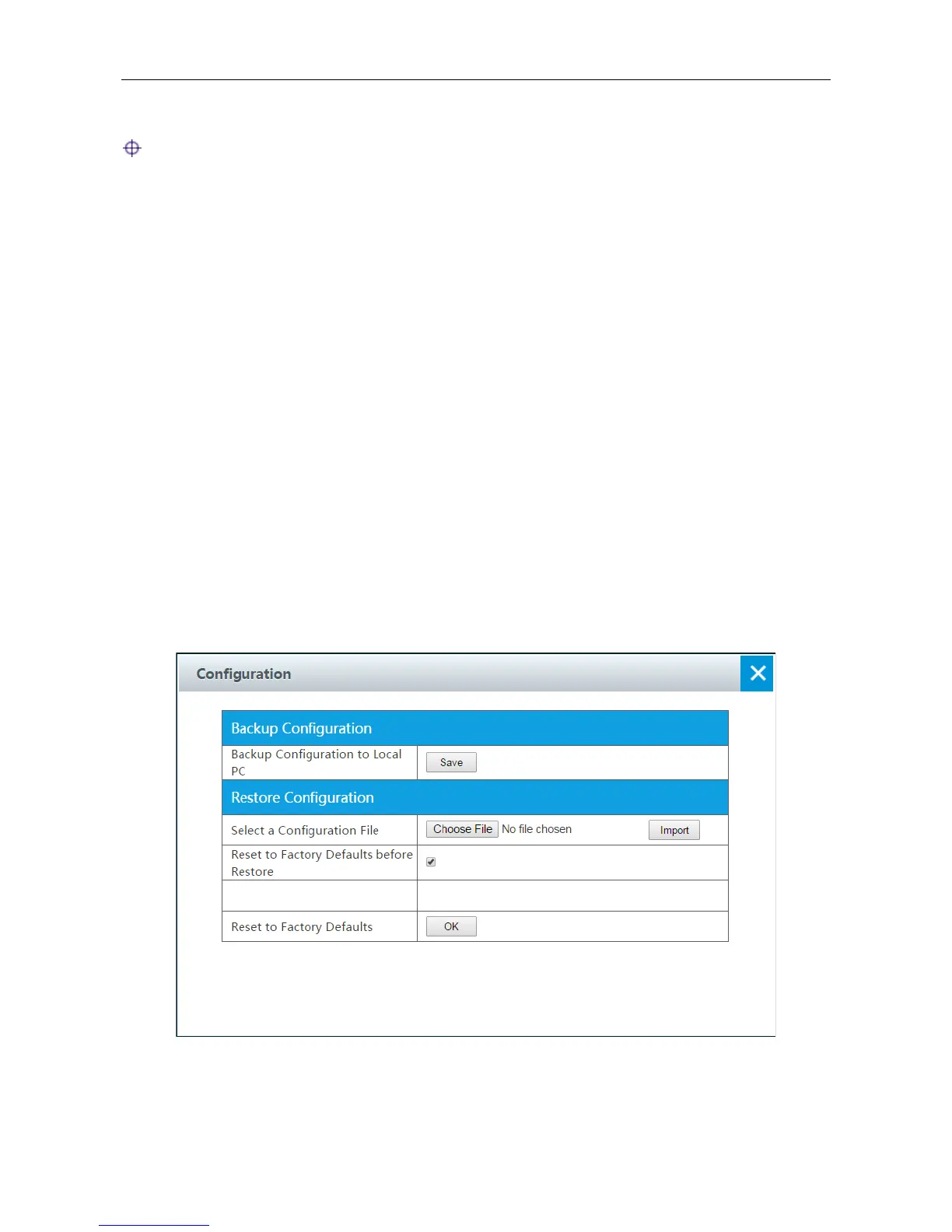
On the Application > Configuration page, you can back up the current configuration file to your
local PC, import the configuration file to the Device, and reset the Device to factory default settings.
Figure 4-36 Configuration
1) Backup Configuration File



 To Next Page