UTT Technologies Hardware Installation
http://www.uttglobal.com Page 4
Chapter 1. Hardware Installation
This chapter describes the physical characteristics of the Device, and explains how to install them.
1.1 Panel Description
1) Front Panel
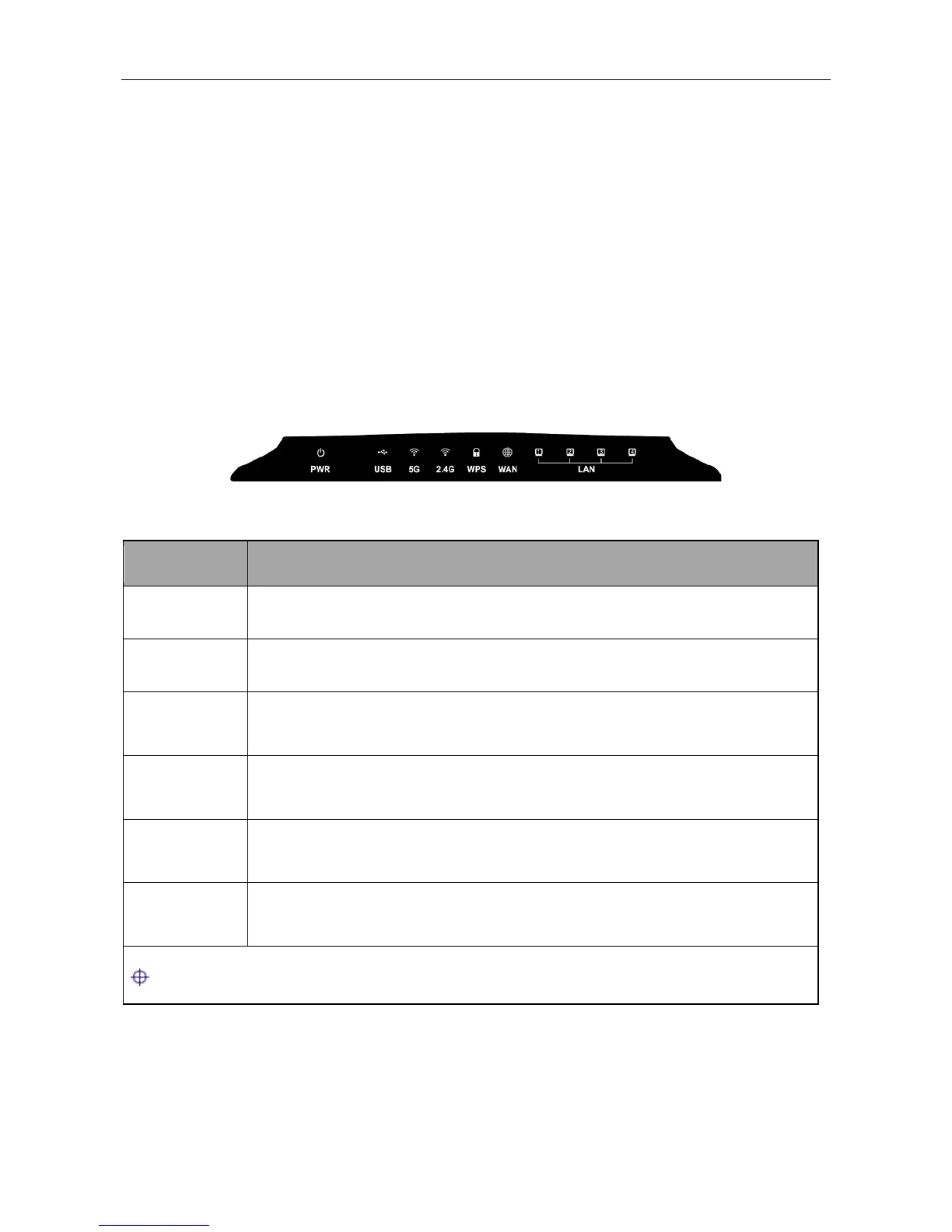
The LEDs are located on the front panel of the Device. Here we use UTT AC650W as an example
(see Figure 2-1). As for other models, please see the product.
Figure 1-1 Front Panel-UTT AC650W
PWR The Power LED indicator is on when the Device is powered on.
USB The LED indicator is on when the USB interface is connected properly.
5G
The 5G LED indicator is on when 5GHZ Wireless is enabled, and it blinks
when transmitting/receiving 5G wireless data.
2.4G
The 2.4G LED indicator is on when 2.4GHZ Wireless is enabled, and it blinks
when transmitting/receiving 5G wireless data.
WAN
The WAN LED indicator is on when Ethernet cable connection is normal, and
it blinks when the WAN port is sending or receiving data.
1,2,3,4
The LAN LED indicator is on when Ethernet cable connection is normal, and it
blinks when the LAN port is sending or receiving data.
Note: The number of port status LEDs depends on the Device model.
Table 1-1 LEDs Description
2) Back Panel
The interface and the button are located on the back panel of the Device, here we use UTT
AC650W as an example (see Figure 2-2). As for other models, please see the product.



 To Next Page