24
Firmware Upgrade
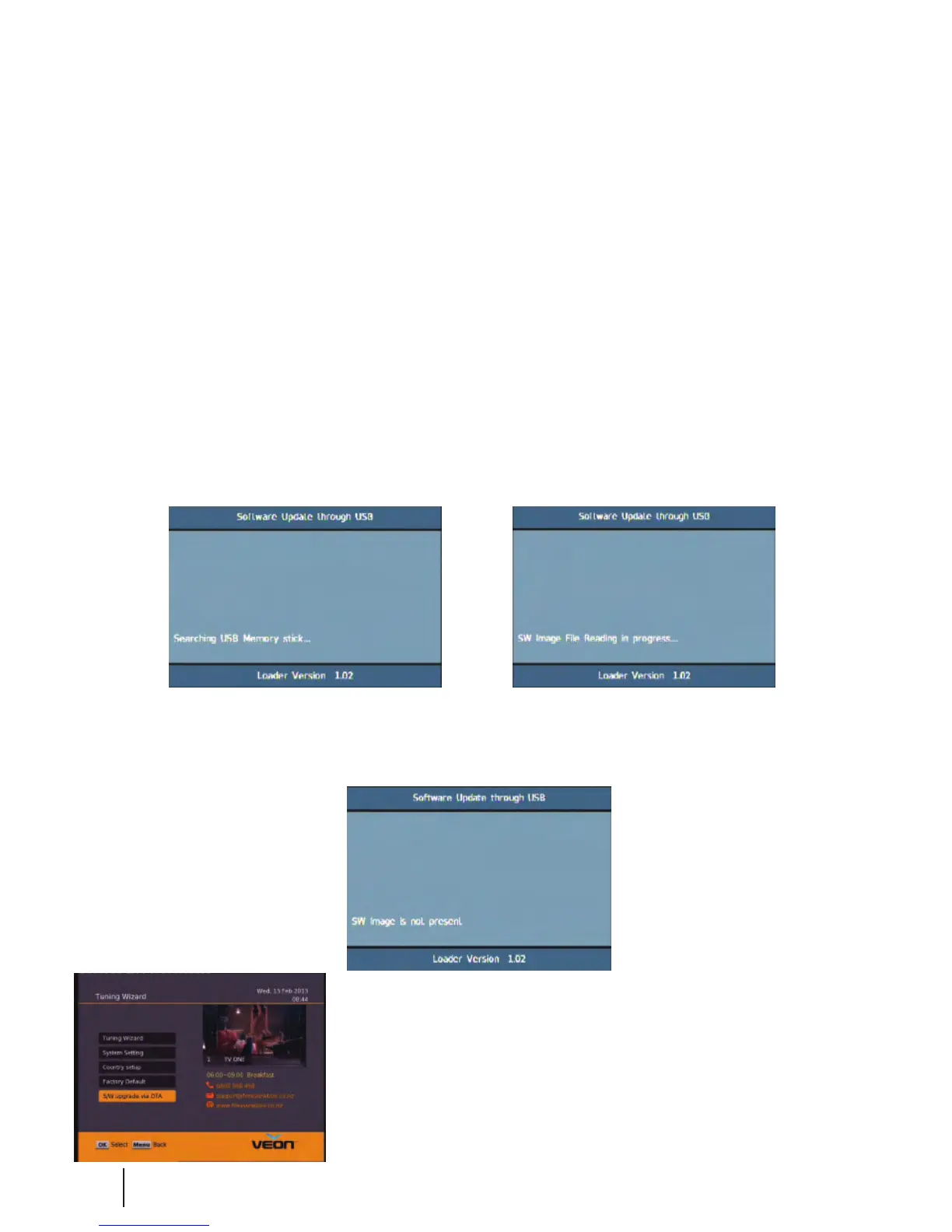
If the rmware upgrade was incorrectly placed on the USB it will also come up with the “Searching USB Memory Stick...”
message, the dierence is the next message will say “SW Image is not present” it will then quickly display the Flash
Verication screen which will last only a few seconds.
S/W Upgrade OTA:
This is a Software Upgrade over the air. This will only work if the upgrade is being
broadcast. It can be selected from the Installation option in the Main Menu.
If you leave this set to on your unit will automaticly update to new software
when its broadcast.
Via USB:
One way to perform a rmware upgrade on your receiver is via USB using the USB connection in the back of your unit.
To do this just follow the instructions below... Note: The USB drive must be formatted to FAT32
1. Download updated rmware from www.freeviewbox.co.nz, follow the instructions provided on the website.
2. Turn the power o to your Veon SAT101, insert the ashdrive.
3. Press and hold the Menu button on the front of your Veon SAT101 while powering on the unit, Keep the menu button
held down until the unit says USB on the front panel.
The receiver will rst display Load and if done correctly the display on the front will show USB after about 3 seconds.
Once USB is displayed on the front panel you can release the menu button and leave the unit to do the rest.
On screen at the same time it will present a window headed Software Update through USB
If the upgrade has been loaded correctly onto the USB ashdrive it will come up with SW Image File Reading in
progress... straight after it displays Searching USB Memory stick...
Then to a couple of loading screens which will take about 4-5 minutes to complete.


 To Next Page