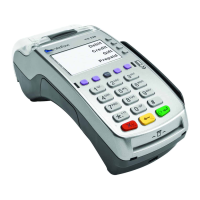
Step 3
Switching on your terminal for the rst time
• Your terminal will automatically turn on when you switch the power on at the wall
• When your terminal is turned on for the rst time it will automatically congure itself
and run through a ‘start up test’ - this takes approximately 1 minute
Step 4
Logging on to your terminal for the rst time
• Select ‘Menu’
• Scroll up or down until Logon is displayed
• Select ‘Logon’
• The terminal will print a receipt that will indicate whether the logon has been
successful or not
• If the terminal prints an APPROVED receipt your new terminal is ready to use. If an
error has occurred and you do not receive the APPROVED message on the display
and receipt, check all cables are plugged in correctly then switch the terminal off and
then back on and repeat step 4
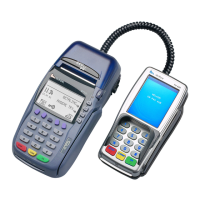
If an error occurs and you are unable to log onto your VX 820 DUET please
contact our Technical Support Team on 0800 EFTPOS (0800 338 767), option 2.
Step 5
Changing your Merchant Password
Merchant Password is required to process Refunds.
Please change your password once you have setup your terminal:
• Scroll up or down until ‘Setup’ is displayed
• Select ‘Setup’
• Select ‘Merch Password’
• Select ‘Change Password’
• Type in default password and press green ENTER key
• Type in new password and press green ENTER key
• Type in new password again to conrm
• Press ENTER key or wait until terminal automatically returns to idle screen
Note: Your password is stored on the terminal so our helpdesk staff are unable to retrieve
it for you. If you have forgotten your password please call the helpdesk on 0800 EFTPOS,
Option 2 and they will help you to reset it.
6


 To Next Page
 Loading...