Multiple Call Handling 3-44
Using Wave Phone Features
Wave Phone User Guide
DIGITAL PHONES
To Retrieve Voicemail
Press the fixed MESSAGE button or a programmed Message Waiting button.
OR
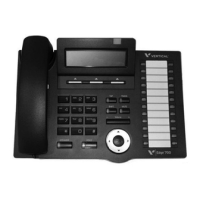
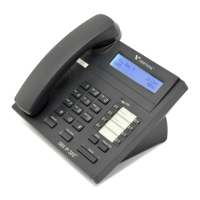
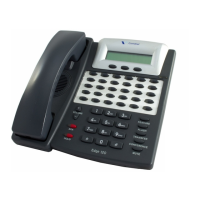
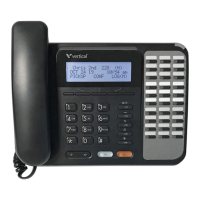
If your phone has softkeys under the LCD display:
Press the VMAIL softkey.
If there are new voicemail messages in your mailbox, the number of new messages will
appear on the display (for example “
2 Msgs”).
Multiple Call Handling
Using Call Appearance Keys [S] / [D]
To handle multiple calls on the same line, your System Administrator can program Call
Appearance keys to work in conjunction with the Line button.
• Using call appearance keys with line keys will increase the number of calls allowed to
ring into the line since calls will be allowed to ring if they can be shown on either the
Line button or a Call Appearance button.
• If you have one or more calls connected or on hold, you can place another call by
pressing an available Line or Call Appearance button. You can select one of the multiple
calls by pressing the corresponding button, other calls will be placed on hold. If there is
not an available Line or Call Appearance button, then calls will immediately forward or
will return a busy signal if the call cannot be forwarded.
• It is recommended that Call Waiting be disabled if Call Appearance buttons are used. A
Call Waiting button can be used to see an incoming call. However, once it is answered it
cannot display the status of the call like a Call Appearance button can. Therefore, that call
will not be represented by a button neither while it is active nor on hold.



 To Next Page