User Programmable Button (On the Phone or Console) 3-62
Using Wave Phone Features
Wave Phone User Guide
User Programmable Button (On the Phone or Console)
The following features can be set on the user programmable buttons:
In addition to choosing which feature is associated with an assigned button, you can also specify
select values for the keys.
Note: Some phones may have a programmed button (usually named “Program”) available for
performing these programming tasks. Contact your Wave System Administrator for more
information about whether or not a “Program” button exists on your phone.
Using Programmable Keys [D]
DIGITAL PHONES
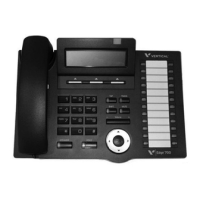
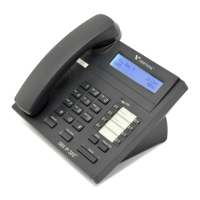
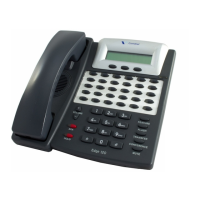
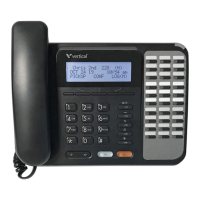
Programming a Feature Button
Note: Not all feature keys are user programmable, thus you cannot edit a button that is not in
the above list. Display the feature information as described above to determine which keys are
available for programming.
In addition, some digital phones have a programmed “Program” button which takes you to the
same location on the display as steps 2 and 3. See “Program Button” on page 6-25
From an idle phone:
1. Decide which button you want to program.
2. Press the
MENU softkey on the display.
3. Press
NEXT until PROG appears, then press the corresponding button.
4. Press
Next until the desired feature is displayed, then press the corresponding
button.
5. Press the button you wish to program.
If additional options are available (such as an extension for User Forward or Blind
Transfer for DSS/BLF) you will be prompted at this point to enter the information.
6. Press SPEAKER to clear the display.
To Clear a Feature Button
Follow the above steps, and program the button as “Unassigned”.
• Autodial • Extension Pickup • Save/Repeat
• Call Return • Group Pickup • System Speed
• Camp-on • Headset • Unassigned
• Do Not Disturb • Privacy • User Forward
• DSS/BLF • Restrict • Voicecall



 To Next Page