Chapter 3 Web Interface of RDU501
RDU501 Intelligent Monitoring Unit User Manual
Refresh expiration date
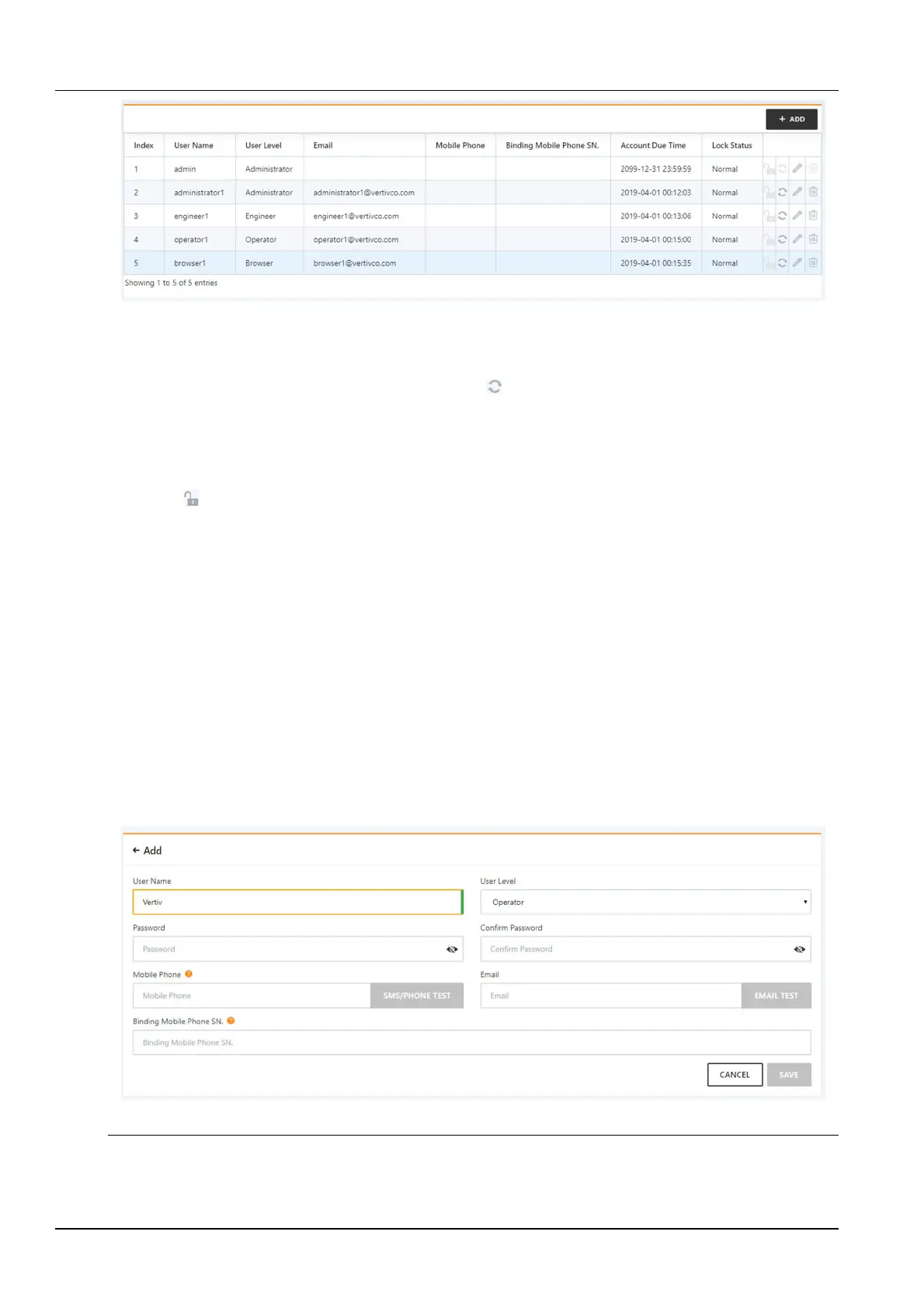
Figure 3-143 User Management
If the web access security strategy is enabled, the account expiration time for the selected user is displayed on the
interface. The administrator clicks the refresh expiration icon to refresh the new password expiration date for the
selected user. For the new expiration date, see the Password expiration strategy in the Web Access Security
Strategy section of the Network Settings section.
Unlock
If the web access security strategy is enabled, for locked accounts, the administrator can unlock it by clicking the
unlock icon . See the Account Lockout Strategy in the Network Settings Security Strategy section of the
Network Settings section.
Add users
Click the Add button at the top right of the user list to open the Add User page, as shown in Figure 3-144.
1.
Enter the username in the text box of the username;
2.
Select the user's authorities
3.
Configure the user password. The password cannot be empty and should have at least 6 digits.
4.
Repeat the password in the Confirm Password text box;
5.
(Optional) Enter the user's phone number. The phone number can use the following numbers and characters:
0123456789, +;
6.
(Optional) Enter the email address;
7.
(Optional) Enter the serial number of the mobile terminal that allows access to the RDU 501 through the mobile
terminal APP;
8.
Click the Save button to complete the addition of the new user.
Figure 3-144 Add user
Note
1.
User names can only use English letters, numbers, and - and _, and the first character must be a letter.
2.
Allow up to two bind phone serial numbers, separated by commas.



 To Next Page