Chapter 3 Web Interface of RDU501
RDU501 Intelligent Monitoring Unit User Manual
Note
After modifying the hotspot information, you need to click the Save button to save, otherwise the hotspot configuration
information will be lost.
3.
Background setting
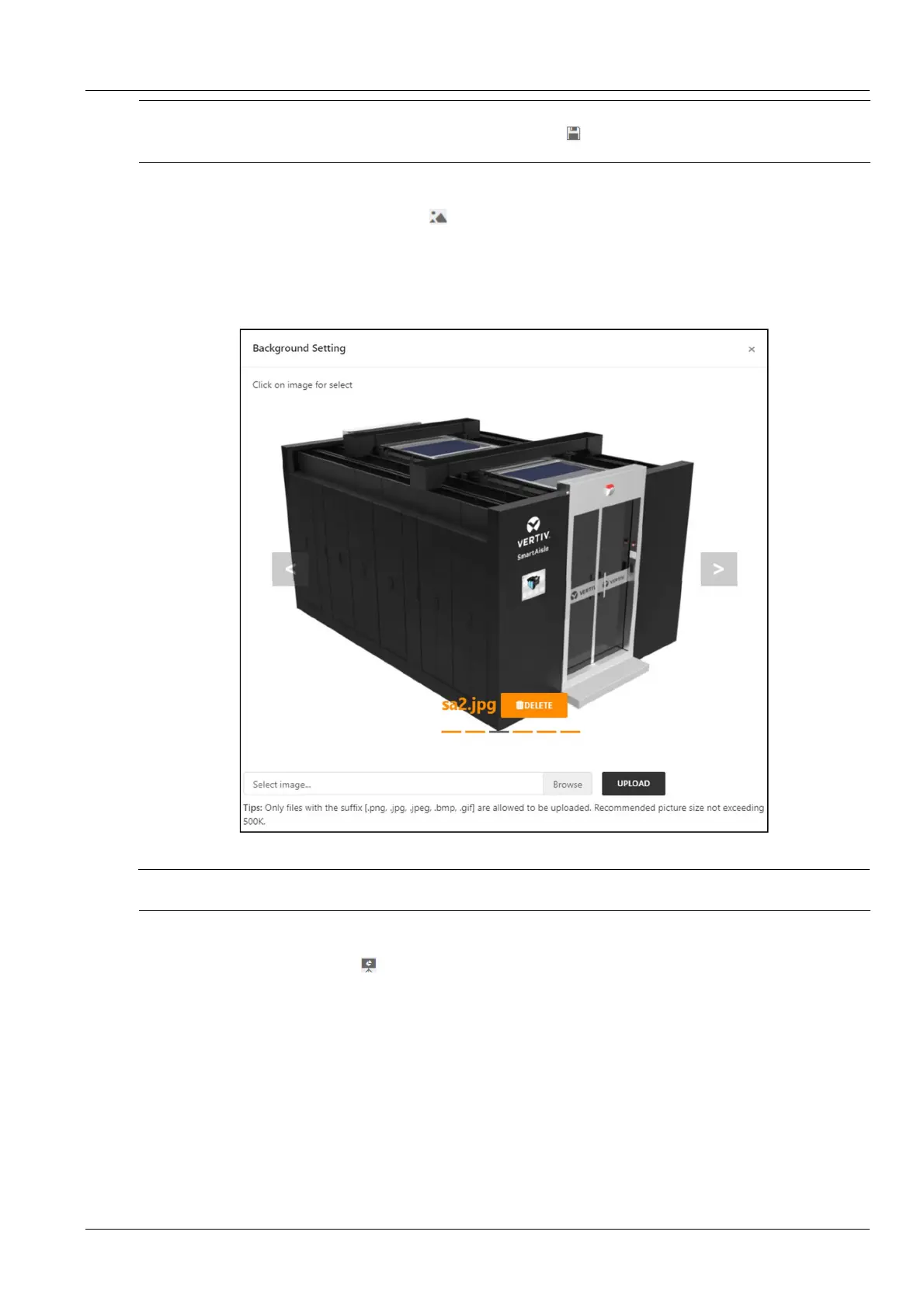
Click the Change Background Image button , the page shown in Figure 3-7 is displayed.
Click on the image, a pop-up prompt box prompts "Are you sure to replace the current background image", click the OK
button, the home page will display the background image.
Click the Browse button to select the background image. After selecting the image file, click the Upload button and the image
will be added to the background image list.
Figure 3-7 Change background image
Note
Only images of .png, .jpg, .jpeg, .bmp and .gif are allowed to be uploaded, the size is up to 10MB.
4.
Signal display mode
Click Signal Display Mode button , and the page shown in Figure 3-8 pops up.
Select the signal display mode: mouse floating, always display or automatic inspection. If you select automatic
inspection, you need to fill in the automatic inspection display time.



 To Next Page