Chapter 3 Web Interface of RDU501
RDU501 Intelligent Monitoring Unit User Manual
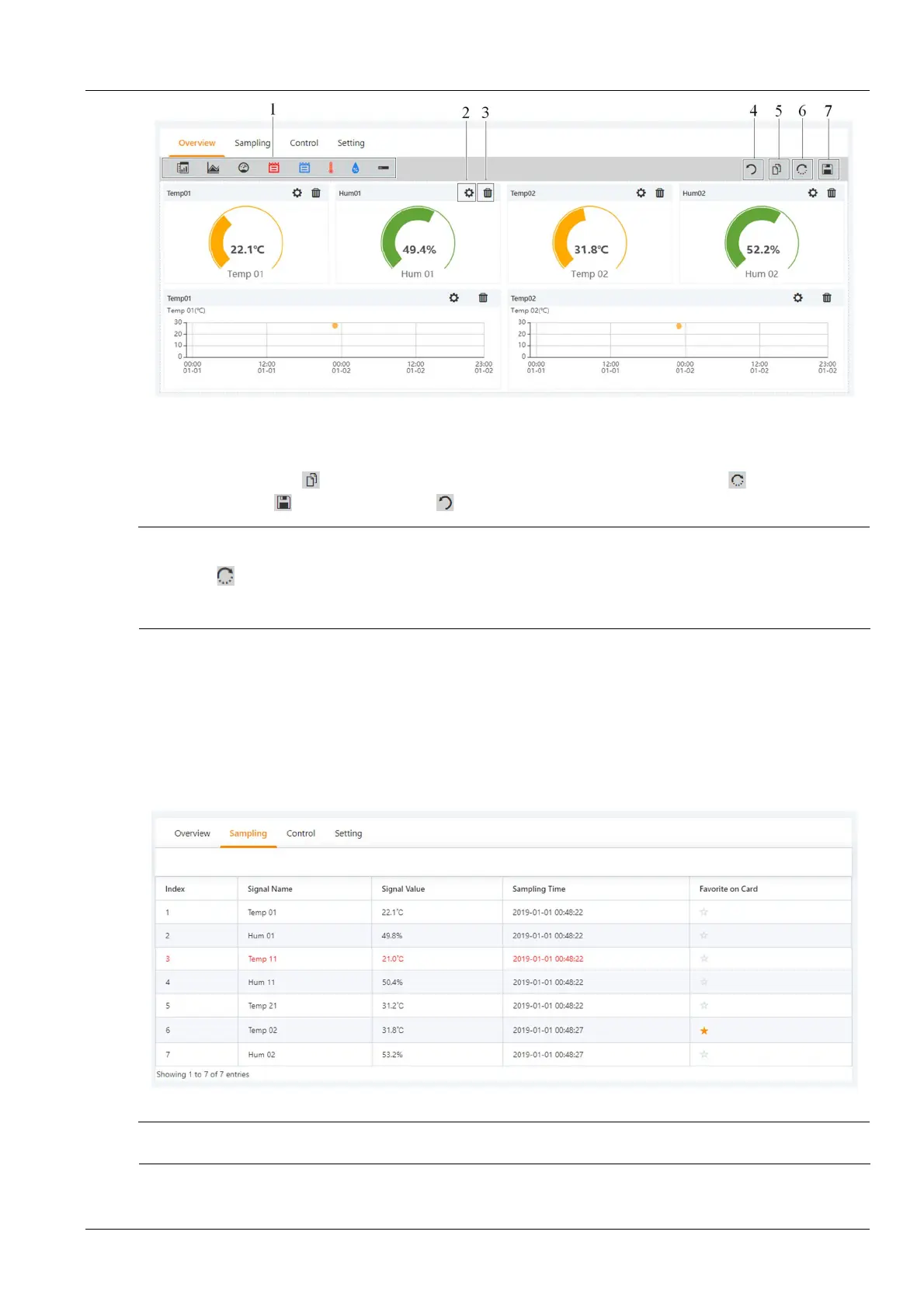
1. List of available controls
5. The same type of device is valid
7. Save the configuration
Figure 3-13 Device Overview -Edit
In the edit state, click the icon to batch configure other devices of the same type; click the icon to restore the
default; click the icon to save; click the icon to convert the page back to the browse state.
Note
1.
The device overview page has different default control display modes according to different device types. Click the restore
default icon to return to the default state.
2.
Some types of devices have specific state diagrams that are not removable and not configurable. They can only update state
map location information, such as air conditioners, UPS, and so on.
Acquire signal
Click the Acquire Signal tab to enter the acquisition signal page to display the acquisition signal of the selected
device, as shown in Figure 3-14.
The yellow asterisk in the last column indicates that the current signal is the attention signal and the attention signal
will appear in the device card list. When you click on the asterisk in the column, the “Confirm the change of attention
signal? This will be applied to all devices of the same type.” prompt information will be displayed, click the OK button,
the current signal will be set as the attention signal, and the asterisk will turn yellow.
Figure 3-14 Acquire Signal
Note
If a signal is in an alarm state, the line of the signal is displayed in red.



 To Next Page